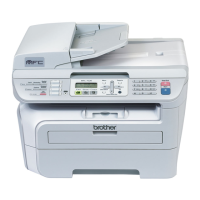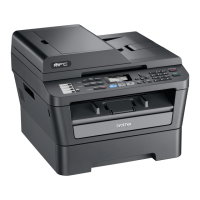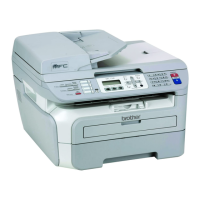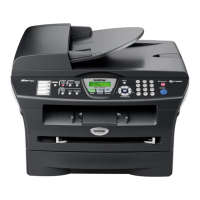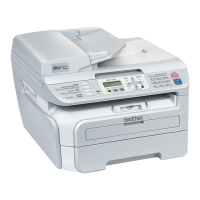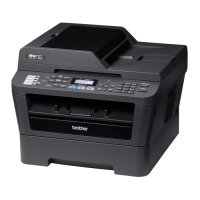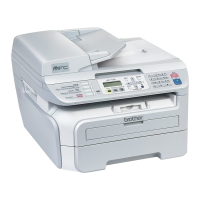
Why do received faxes appear as split or blank pages on my Brother MFC MFC-7320 All in One Printer?
- CConnie MitchellSep 8, 2025
Your paper size setting may not be correct for the paper you are using. Turn on auto reduction.

Why do received faxes appear as split or blank pages on my Brother MFC MFC-7320 All in One Printer?
Your paper size setting may not be correct for the paper you are using. Turn on auto reduction.
Why does my Brother All in One Printer print vertical black lines when sending faxes?
Black vertical lines on faxes you send are typically caused by dirt or correction fluid on the glass strip. Clean the scanner glass to resolve this issue.
How to troubleshoot dialling issues on my Brother All in One Printer?
Check for a dial tone. Change the Tone/Pulse setting. Check all line cord connections. Check that the machine is plugged in and switched on. If an external phone is connected to the machine, send a manual fax by lifting the handset of the external telephone and dialling the number. Wait to hear fax receiving tones before pressing Start.
Why does my Brother MFC MFC-7320 print condensed text or have missing lines?
This is usually caused by a poor telephone connection. Ask the other party to send the fax again.
What to do if the Brother MFC MFC-7320 All in One Printer machine does not answer when called?
Make sure the machine is in the correct receive mode for your setup. Check for a dial tone. If possible, call your machine to hear it answer. Check the telephone line cord connection. If you do not hear ringing when you call your machine, ask your telephone company to check the line.
Why does my Brother All in One Printer Transmission Verification Report say ‘RESULT:ERROR’?
This error likely occurs due to temporary noise or static on the telephone line. Try sending the fax again. It could also mean that your machine is running out of memory. To free up extra memory, you can turn off fax storage, print fax messages in memory or cancel a delayed fax or polling job. Another reason is interference on the telephone line; in this case, try changing the Compatibility setting to Basic(for VoIP) (For MFC-7840W, Normal or Basic(for VoIP)).
What to do if I cannot install software or print with my Brother MFC MFC-7320?
Run the Repair MFL-Pro Suite program on the CD-ROM. This program will repair and reinstall the software.
What causes copy quality difficulties such as vertical black lines on Brother All in One Printer?
Black vertical lines on copies are typically caused by dirt or correction fluid on the glass strip, or the corona wire for printing is dirty.
What to do if my Brother MFC MFC-7320 is printing pages that are smeared?
The Paper Type setting may be incorrect for the type of print media you are using, or the print media may be too thick or have a rough surface.
How to fix vertical black lines when receiving faxes on my Brother MFC MFC-7320 All in One Printer?
The corona wire for printing may be dirty, so clean the corona wire. The sender’s scanner may also be dirty, so ask the sender to make a copy to see if the problem is with their sending machine. Try receiving from another fax machine. If the problem continues, call your Brother dealer for service.
| Print Technology | Laser |
|---|---|
| Print Resolution | Up to 2400 x 600 dpi |
| Copy Resolution | Up to 600 x 300 dpi |
| Optical Resolution | 600 x 2400 dpi |
| Paper Input Capacity | 250 sheets |
| Output Tray Capacity | 100 sheets |
| Connectivity | USB 2.0 |
| Functions | Copier, Fax, Printer, Scanner |
| Fax Resolution | 300 x 300 dpi |
| Scan Type | Flatbed |
| Media Type | Plain paper, envelopes, labels |
| Media Size | A4, A5, B5, Legal, Letter, Executive |
| Display | LCD (2-line) |
| Print Speed | Up to 20 ppm |
| Copy Speed | Up to 20 cpm |
Overview of the manual, documentation access, and conventions used.
Instructions for loading paper and handling various print media.
Configuration of basic settings like mode timer, paper, volume, and ecology.
Details on setting up security locks and user access restrictions.
Detailed steps for sending faxes using ADF, scanner glass, and broadcast options.
Configuring receive modes, ring delay, and fax detection.
How to dial, store numbers, and set up speed dial and groups.
Managing telephone line services, Caller ID, and external devices.
Features for managing faxes remotely, including forwarding and storage.
Setting up polling to send or receive faxes, including secure and delayed options.
Options for printing transmission verification and fax journal reports.
Comprehensive guide on how to make single, multiple, sorted, and N-in-1 copies.
Details on using software features for network connectivity and PC faxing.
Crucial safety information, warnings, and legal compliance details.
Guidance for resolving common issues and performing regular maintenance.
Explanation of the machine's menu structure and available features.
Technical details of the machine, including print media and network interfaces.
Definitions of key terms and features used in the manual.
Alphabetical index for quickly finding specific topics within the manual.