To Next Page
A
Adam PayneSep 1, 2025
What to do if there is not enough internal memory available when you try to save a label file on my Brother P-touch E300?
- WwilliamsjamieSep 1, 2025
Delete any unnecessary files to free up memory for the new label file.

What to do if there is not enough internal memory available when you try to save a label file on my Brother P-touch E300?
Delete any unnecessary files to free up memory for the new label file.
What to do if the installed tape is incompatible with my Brother Label Maker?
Use compatible tape.
What to do if the tape length set is shorter than the margins on my Brother P-touch E300 Label Maker?
Select a different cutting option.
What to do if the number of digits entered in the ?? data does not match the number of digits set in the ?? parameters on my Brother P-touch E300 Label Maker?
Enter the correct number of digits.
What to do if the ?? data entered does not have the required start/stop code on my Brother P-touch E300 Label Maker?
Enter the ?? data correctly.
What to do if there is no conversion candidate on my Brother Label Maker?
Please confirm the text inputted and transform again.
What to do if Brother P-touch E300 says 'Text Full!'?
If the Brother Label Maker displays 'Text Full!', it means you've reached the maximum number of characters allowed. To resolve this, edit the text to use fewer characters.
Guidelines to prevent injury, electric shock, and damage to the device or property.
Important notes for proper operation, handling, and maintenance of the labelling system.
Explains the meaning of various symbols used throughout the manual for clarity.
Check the package contents to ensure all items are present before initial use.
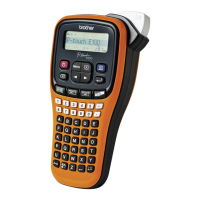
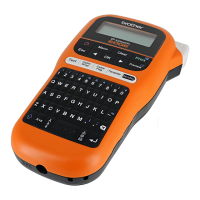
Identifies the main parts and features of the P-touch labelling system.
Details the functions and layout of the LCD display and the physical keyboard.
Explains the purpose and operation of each key on the P-touch device.
Information on using the AC adapter and rechargeable Li-ion battery for powering the device.
Instructions for installing and using AA/Ni-MH batteries.
Step-by-step guide for correctly inserting tape cassettes into the labelling system.
How to turn the device on/off and information on the auto power-off feature.
Adjusting screen contrast and backlight for optimal visibility and user experience.
Select from six predefined application types for specific label formatting needs.
Guide to creating barcode labels for asset control, serial numbers, and inventory systems.
Create labels with sequential or incrementing numbers for series printing.
Comprehensive guide to typing, editing text, inserting symbols, and managing lines/blocks.
How to access and insert special symbols and characters into labels.
Adjusting font attributes like size, width, style, and adding label frames.
Specifies how the tape is fed and cut, including margin options and saving tape.
View a visual representation of the label before printing to check layout and content.
Instructions for printing single labels, ranges, or multiple copies of the same label.
Guidance on how to properly apply printed labels to surfaces for best adhesion.
Save frequently used label designs and text into the device's memory for quick access.
Retrieve saved label files from memory and print them.
Remove unwanted label files from the device's memory to free up space.
Procedures to reset the device's internal memory to factory default settings.
Instructions for cleaning the unit, print head, and tape cutter for optimal performance.
Addresses frequently encountered issues and provides step-by-step solutions.
Lists all possible error messages and their corresponding causes and solutions.
Detailed technical data and specifications for the P-touch labelling system.
A categorized list of all available symbols for use in label creation.
Adjusting font attributes like size, width, style, and adding label frames.
Provides tables for barcode settings and lists special characters for specific protocols.
 General
| Model | Brother P-touch E300 |
|---|---|
| Category | Label Maker |
| Print Technology | Thermal Transfer |
| Maximum Print Resolution | 180 dpi |
| Maximum Print Speed | 20 mm/sec |
| Display | LCD |
| Keyboard | QWERTY |
| Tape Sizes | 3.5mm, 6mm, 9mm, 12mm, 18mm |
| Power Supply | AC Adapter or 6 AA batteries |
| Memory | 50 Labels |
| Power Source | Batteries or AC adapter |
| Compatible Tapes | TZe |