108
RAISE AND LOWER BUTTONS
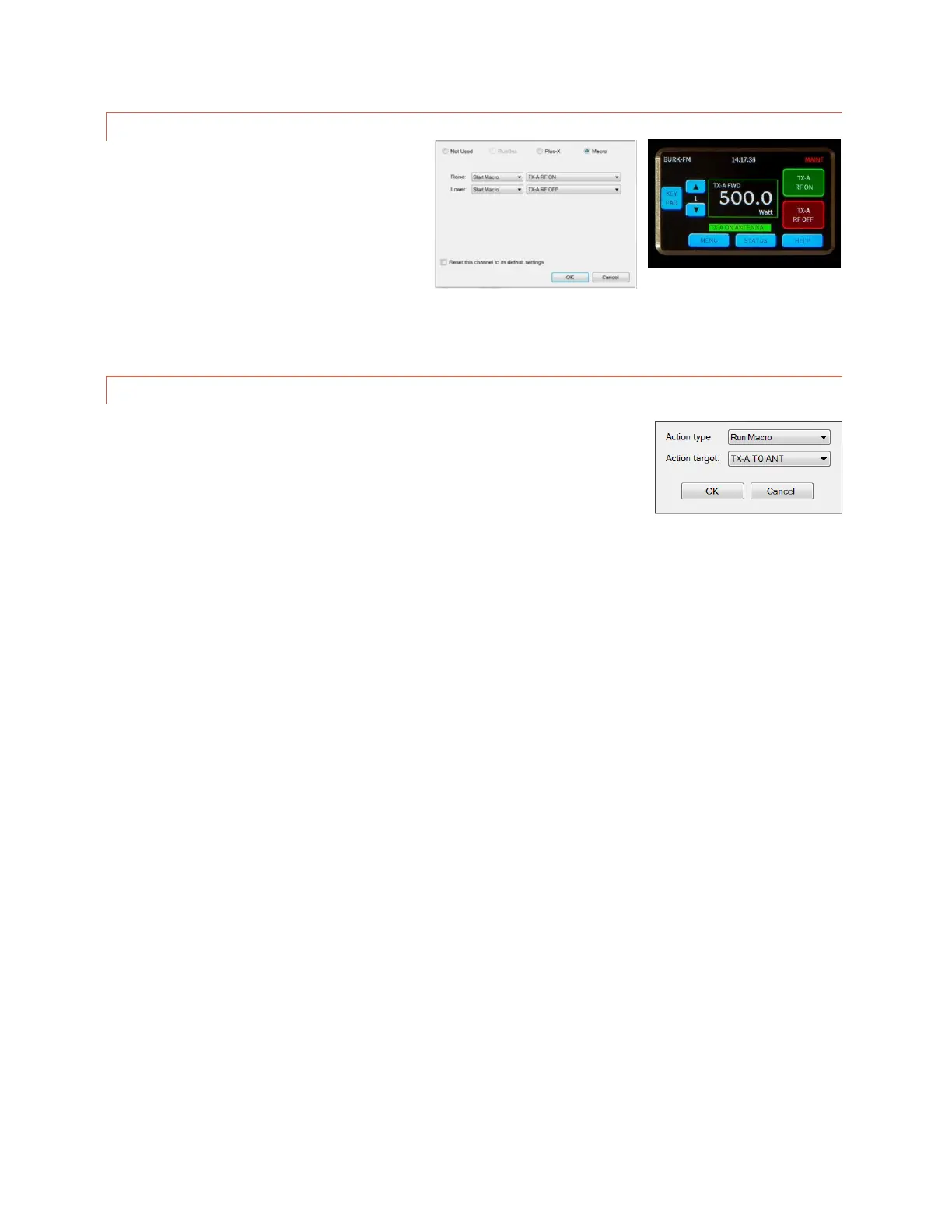
Using AutoLoad, raise and/or lower buttons on
any channel can be assigned to a macro start or
stop command. On the AutoPilot commands
tab, hover over the source cell for the desired
channel and click on the […] button to bring up
the source dialog. For either button, select Start
Macro or Stop Macro from the dropdown then
select the macro you wish to start or stop. Often, you will use a start
macro for both raise and lower as shown here.
STATUS ACTIONS
A change in any status channel can be used to start or stop a macro. From the
AutoLoad Plus Status Actions tab, hover over On Action or Off Action of the
appropriate channel and press the […] button to open the Action dialog. Select
Run Macro or Stop Macro and select the desired macro in the Action target field.
Click or turn to


 To Next Page