39
CONFIGURATION
USING AUTOLOAD PLUS SOFTWARE
To get started with configuration, you will need to download and install AutoLoad Plus software if you have not
done so already. The latest version of AutoLoad Plus is available at www.burk.com. The program provides access
to every system parameter such as metering, status, and command channel settings, calibration, user security,
front-panel display options, time and date settings, alarm notifications, RSI settings, macros, and more.
Note: Only System level users can access AutoLoad Plus.
CONNECTING TO THE ARC PLUS TOUCH
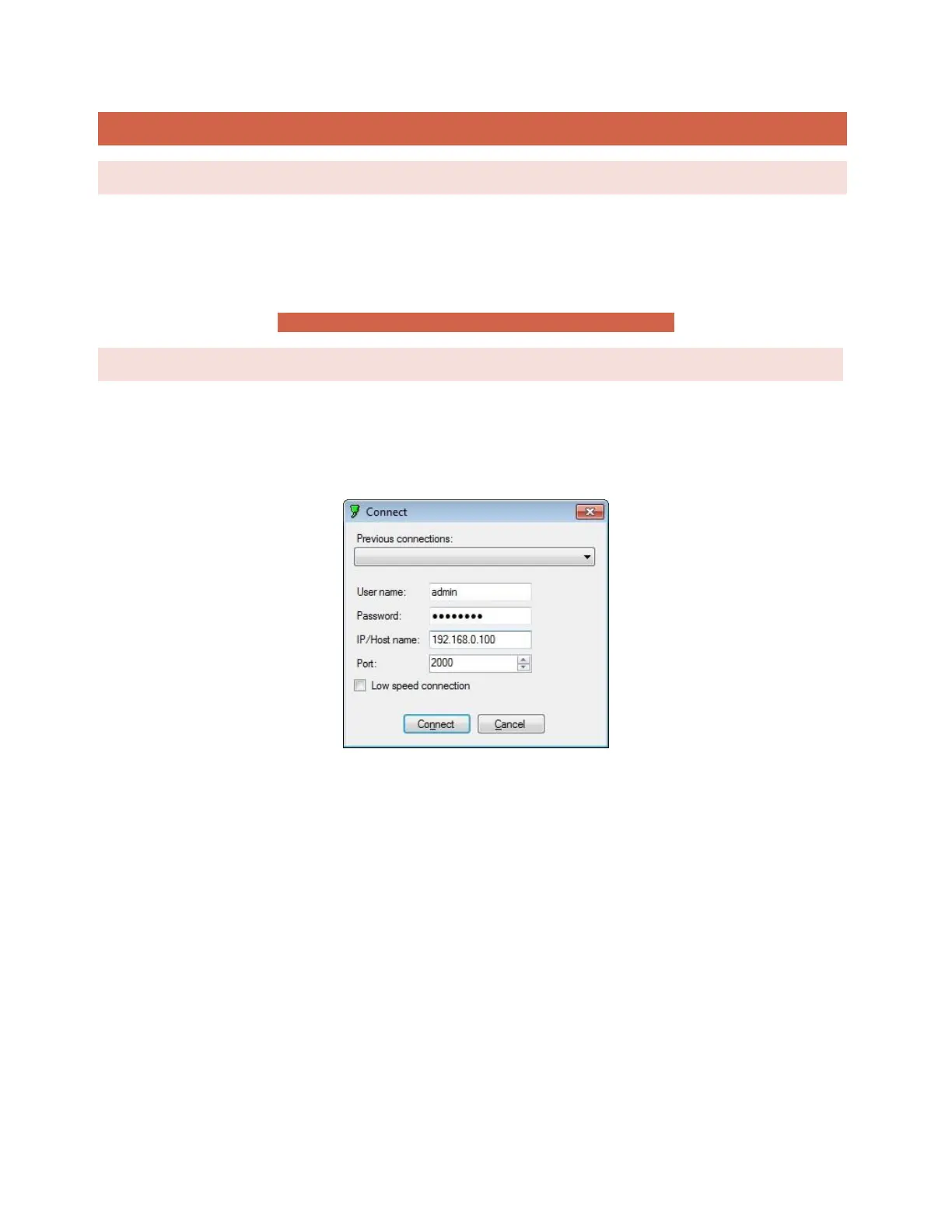
To modify ARC Plus Touch settings using AutoLoad Plus, start by launching AutoLoad Plus. AutoLoad Plus will
prompt for connection settings. Enter the IP address and your user name and password for the ARC Plus Touch site
you are connecting to. Then click Connect. (The default user name is admin, and the default password is
password.)
The Connect dialog automatically appears on startup.
Note: Select the Low speed connection option to optimize the AutoLoad Plus connection if you are not connecting
over broadband.
Once connected, AutoLoad shows the site you connected to on the left hand side of the window, along with any
other sites in the ARC Plus’ network. Click on a site to access its settings.


 To Next Page