Viewing Images on a TV Set
352
If the TV set connected to the camera with an HDMI cable is compatible
with HDMI CEC*, you can use the TV set’s remote control for playback
operations.
* An HDMI-standard function enabling HDMI devices to control each other so that
you can control them with one remote control unit.
1
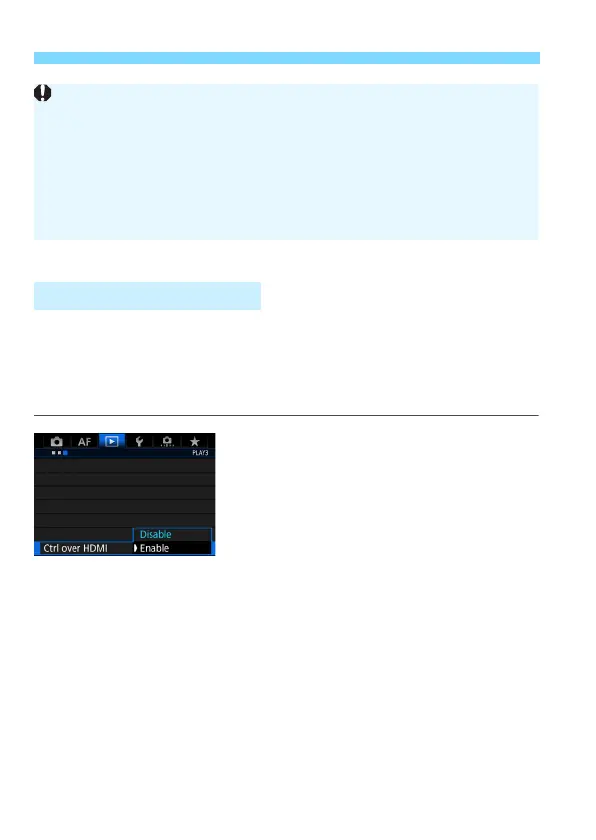
Set [Ctrl over HDMI] to [Enable].
Under the [33] tab, select [Ctrl over
HDMI], then press <0>.
Select [Enable], then press <0>.
2
Connect the camera to a TV set.
Use an HDMI cable to connect the
camera to the TV set.
X The TV set’s input will switch
automatically to the HDMI port
connected to the camera. If it does
not switch automatically, use the TV
set’s remote control to select the
HDMI IN port the cable is connected
to.
Using HDMI CEC TV Sets
Adjust movie sound volume with the TV set. The sound volume cannot
be adjusted with the camera.
Before connecting or disconnecting the cable between the camera and
TV set, turn off the camera and TV set.
Depending on the TV set, part of the image displayed may be cut off.
Do not connect any other device’s output to the camera’s <D>
terminal. Doing so may cause a malfunction.
Certain TV sets may not be able to display the captured movies.







 To Next Page