92
In the <2>, <3>, <4>, and <5> Basic Zone modes, you can shoot
while the settings match the lighting or scene type. Normally, [
Default setting] is adequate, but if the settings match the lighting
condition or scene, the picture will look more accurate to your eye.
1
Select a Basic Zone mode: <2>
<3> <4> <5>.
2
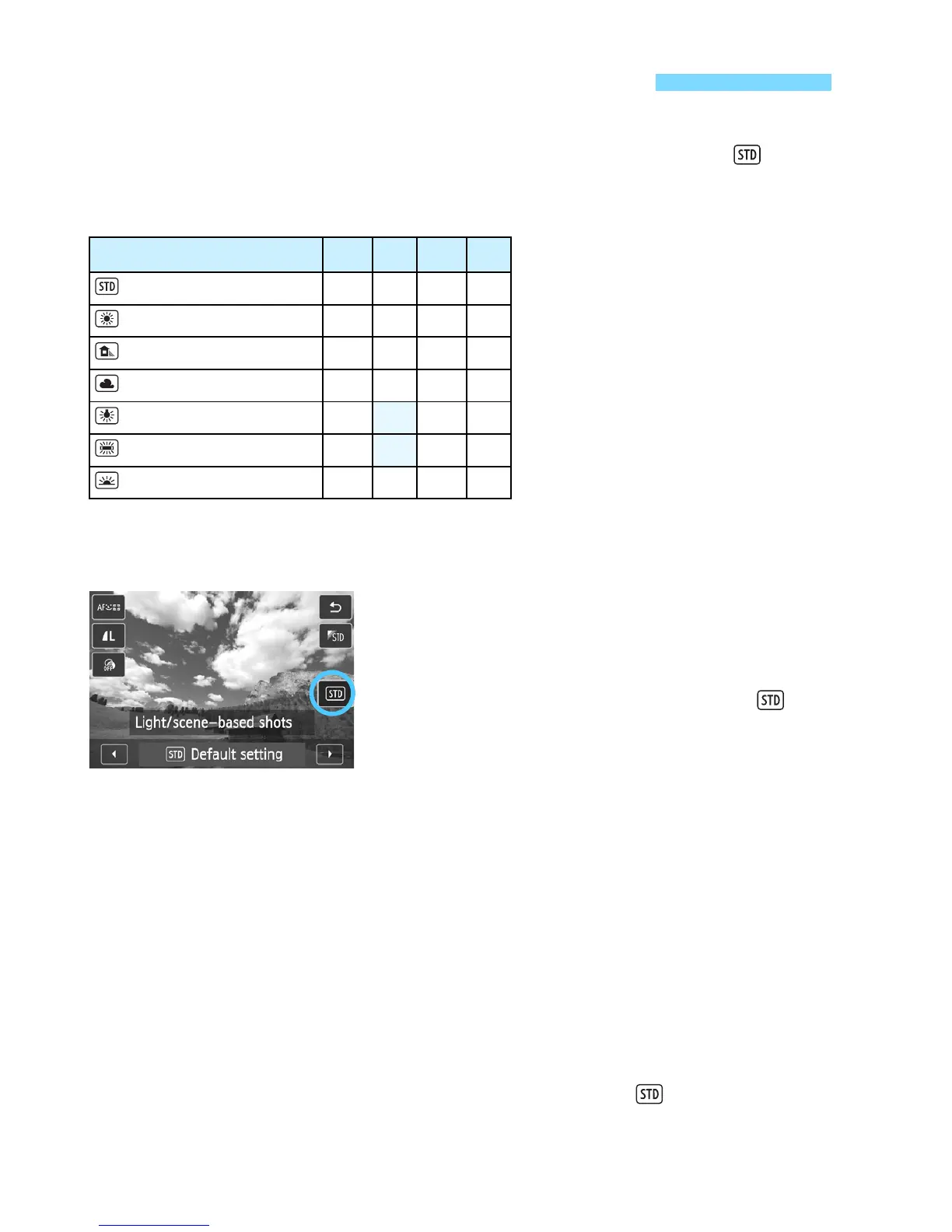
On the Quick Control screen,
select the lighting or scene type.
Display the Quick Control screen.
As shown in the figure, tap on [ ] so
that [Light/scene-based shots]
appears on the screen.
Tap [Y]/[Z] to select the lighting or
scene type.
X With the Q Quick Control screen, the
LCD monitor will show how the image
will look with the selected lighting or
scene type.
3
Take the picture.
Press the shutter button.
If you change the shooting mode or
set the power to <2>, the setting
will revert back to [ Default
setting].
Shoot by Lighting or Scene Type
Lighting or Scene
2 3 4 5
Default setting
k k k k
Daylight
k k k k
Shade
k k k k
Cloudy
k k k k
Tungsten light
k k k
Fluorescent light
k k k
Sunset
k k k k



 To Next Page