45
The LCD monitor is a touch-sensitive panel that you can operate with your
fingers.
Also, on the camera back, you can turn the Main Dial to make a selection and
press the dial’s top, bottom, left, right, or center.
You can operate this camera by touching the LCD monitor or using the Main
Dial (turning it or pressing the top, bottom, left, or right) to select an item, then
pressing the Main Dial’s center button to set it.
Tap
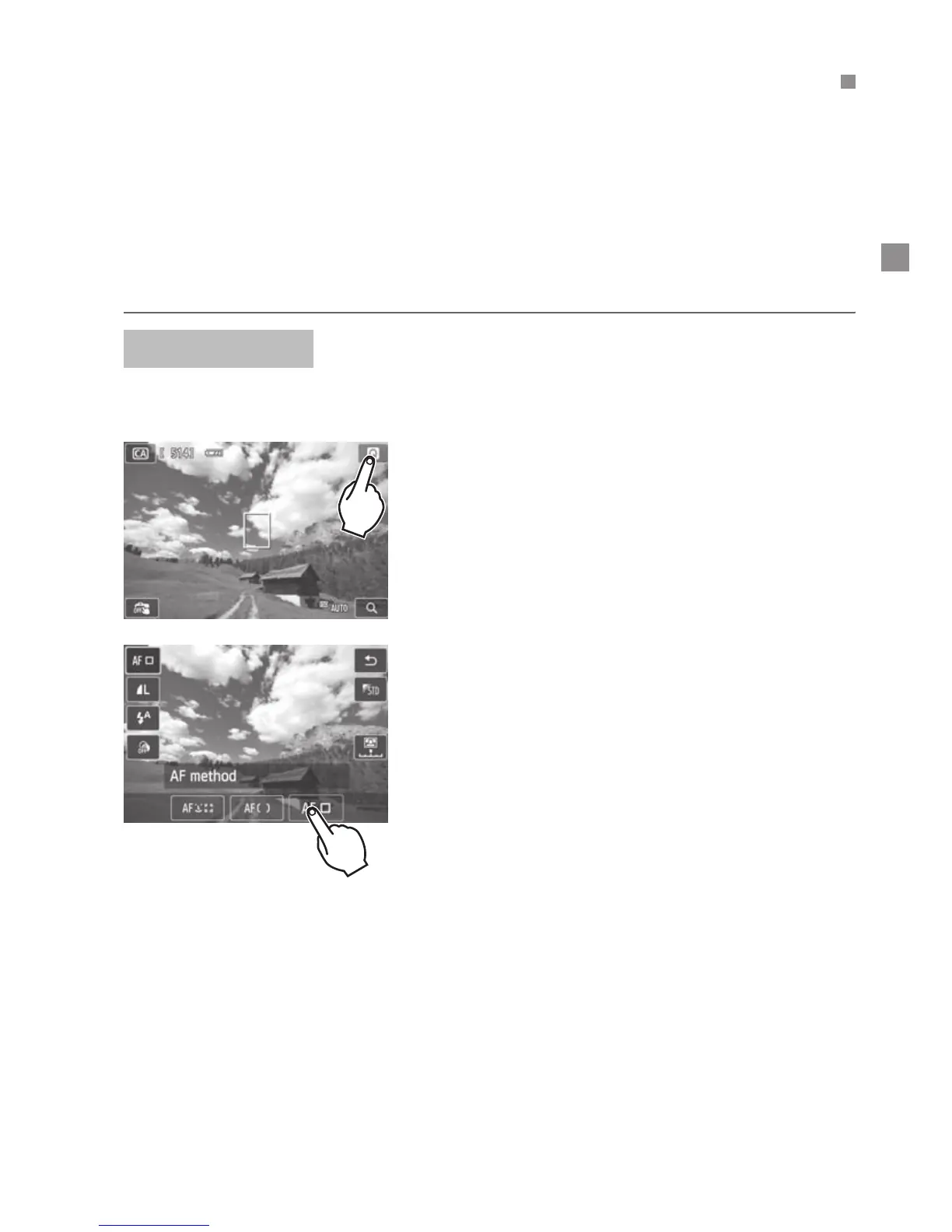
Quick Control (Sample display)
Use your finger to tap (touch and let go)
the LCD monitor.
By tapping, you can select menus, icons,
etc., displayed on the LCD monitor.
Icons that you can tap are displayed in a
frame (except for the menu screen).
By tapping [2], you can return to the
previous screen.
Operations possible by tapping the screen
Setting menu functions after pressing the <M> button
Quick Control
Setting a function after you press the <Wj/i>, <XL>, <YA>, or
<ZO> button
Touch shutter
Playback operations
d
Using the Touch Screen and Main Dial
Touch Screen



 To Next Page