268
The screen display and setting options will differ depending on the
printer. Some settings may not be available. For details, refer to the
printer’s instruction manual.
1
Select the image to be printed.
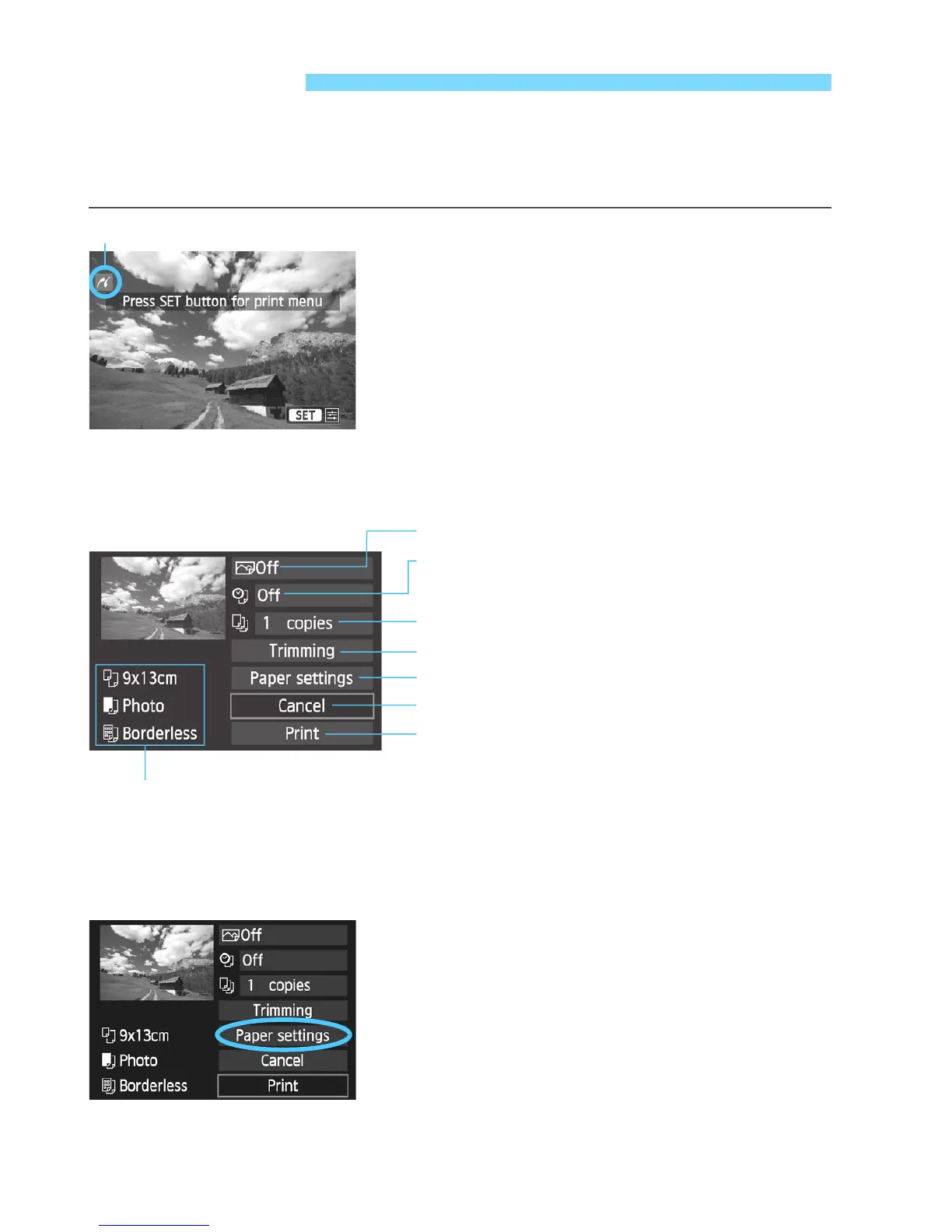
Check that the <w> icon is
displayed on the upper left of the LCD
monitor.
Press the <YA>/<ZO> button to
select the image to be printed.
2
Press <
Q
/
0
>.
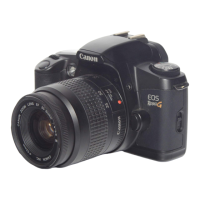
X The print setting screen will appear.
3
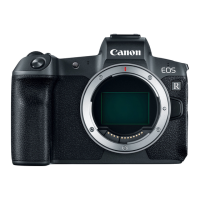
Select [Paper settings].
Select [Paper settings], then press
<Q/0>.
X The paper settings screen will
appear.
wPrinting
Printer-connected icon
Print setting screen
* Depending on the printer, certain settings such as the date and file
number imprinting and trimming may not be selectable.
Sets the printing effects (p.270).
Sets the date or file number imprinting to on
or off.
Sets the quantity to be printed.
Sets the trimming (cropping) (p.273).
Sets the paper size, type, and layout.
Returns to the screen in step 1.
Starts the printing.
The paper size, type, and layout you have set are displayed.


 To Next Page