252
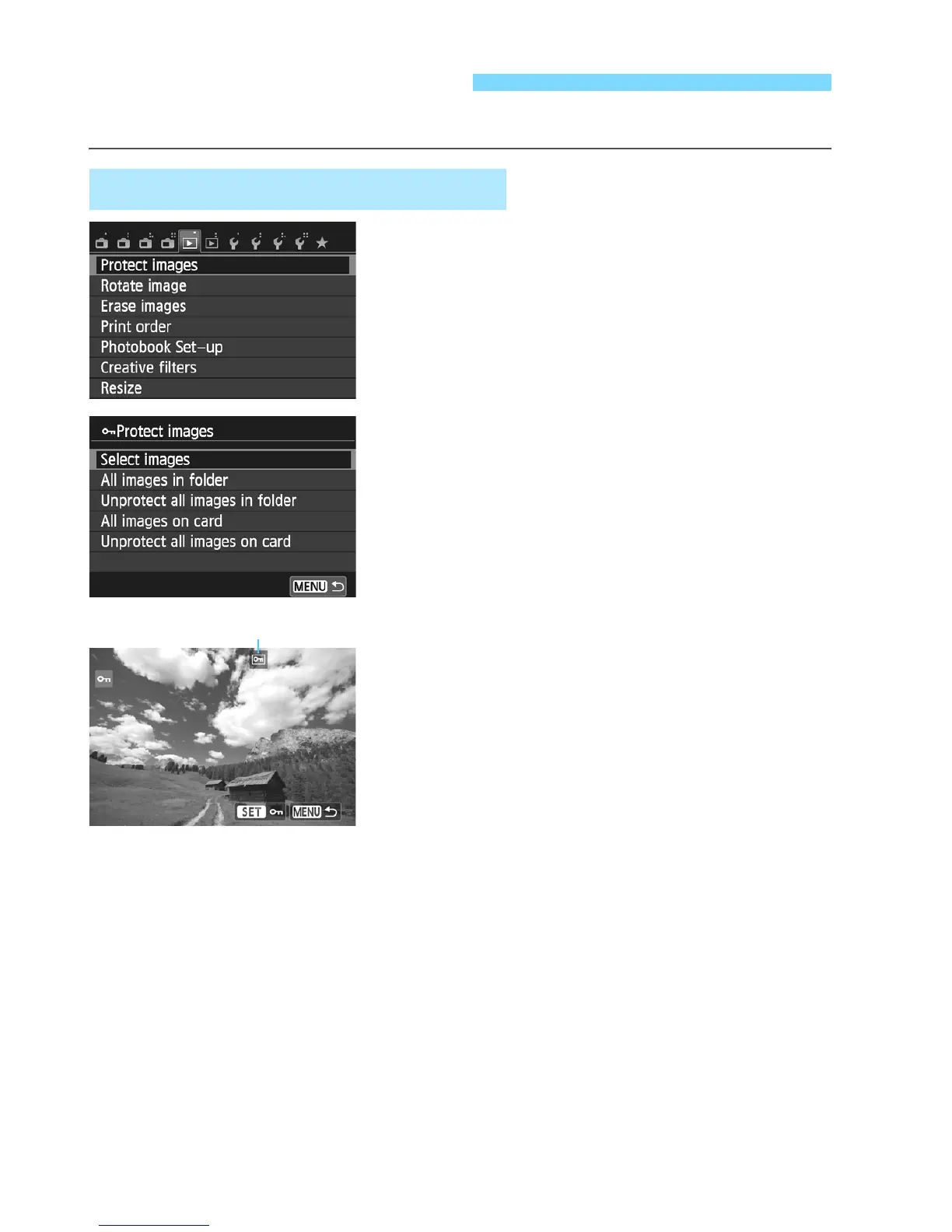
Protecting an image prevents it from being erased accidentally.
1
Select [Protect images].
Under the [x1] tab, select [Protect
images], then press <Q/0>.
2
Select [Select images].
Select [Select images], then press
<Q/0>.
3
Protect the image.
Use the <YA>/<ZO> button to
select an image to be protected, then
press <Q/0>.
X When an image is protected, the
<K> icon will appear on the top of
the screen.
To cancel the image protection, press
<Q/0> again. The <K> icon will
disappear.
To protect another image, repeat step
3.
Press the <M> button to return to
the screen in step 2.
K Protecting Images
3 Protecting a Single Image
Image protect icon



 To Next Page