241
You can edit out the first and last scenes of a movie in 1-sec.
increments (except for video snapshots).
1
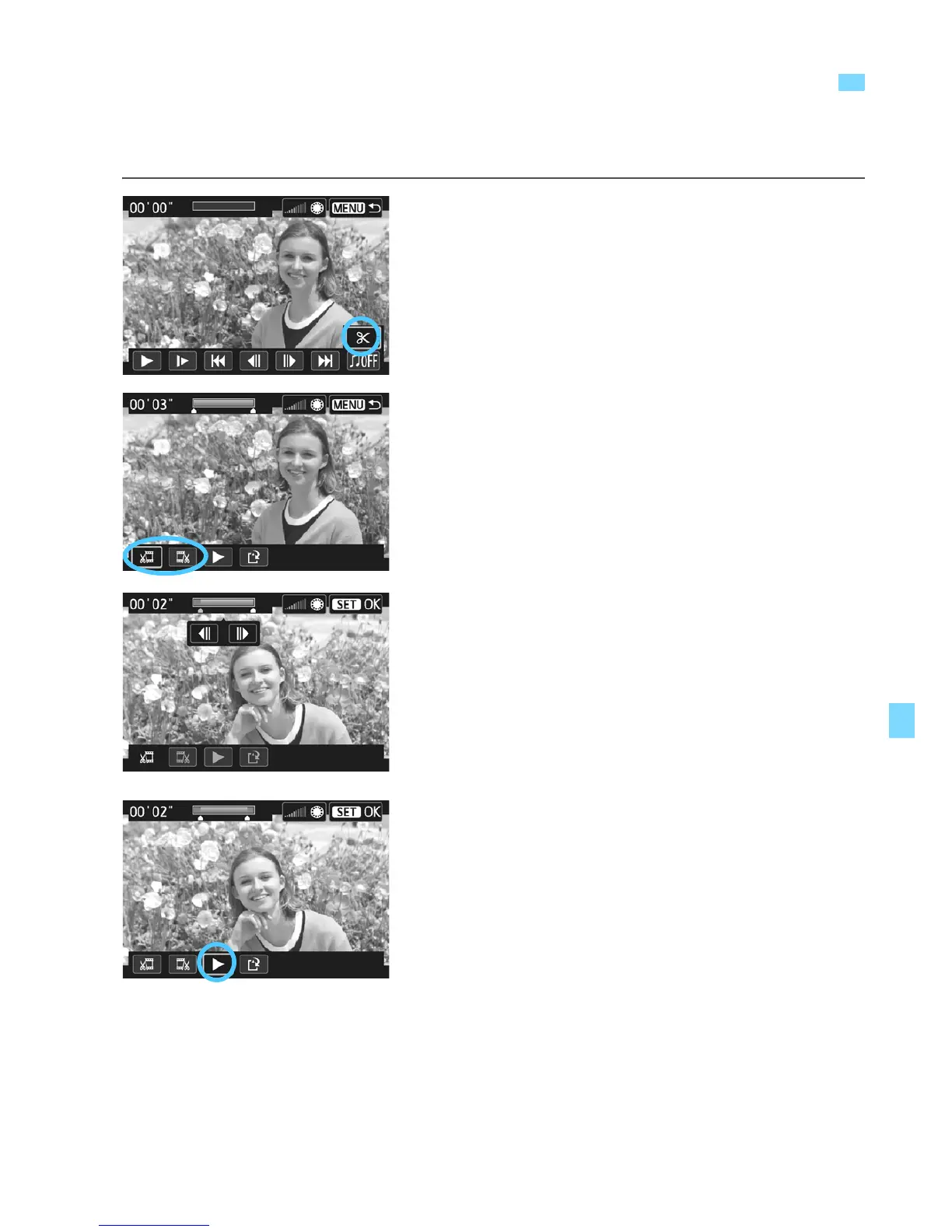
On the movie playback screen,
select [X].
X The editing screen will be displayed.
2
Specify the part to be edited out.
Select either [U] (Cut beginning) or
[V] (Cut end), then press <Q/
0>.
Tap [3]/[6] to see the previous or
next frame. Tap and hold down [3]/
[6] to fast forward the frames.
After deciding which part to edit out,
press <Q/0>. The portion
highlighted in gray on the top of the
screen is what will remain.
3
Check the edited movie.
Select [7] and press <Q/0> to
play the portion shown in gray.
To change the editing, go back to step
2.
To cancel the editing, press the
<M> button, select [OK] on the
confirmation dialog, then press <Q/
0>.
X Editing a Movie’s First and Last Scenes



 To Next Page