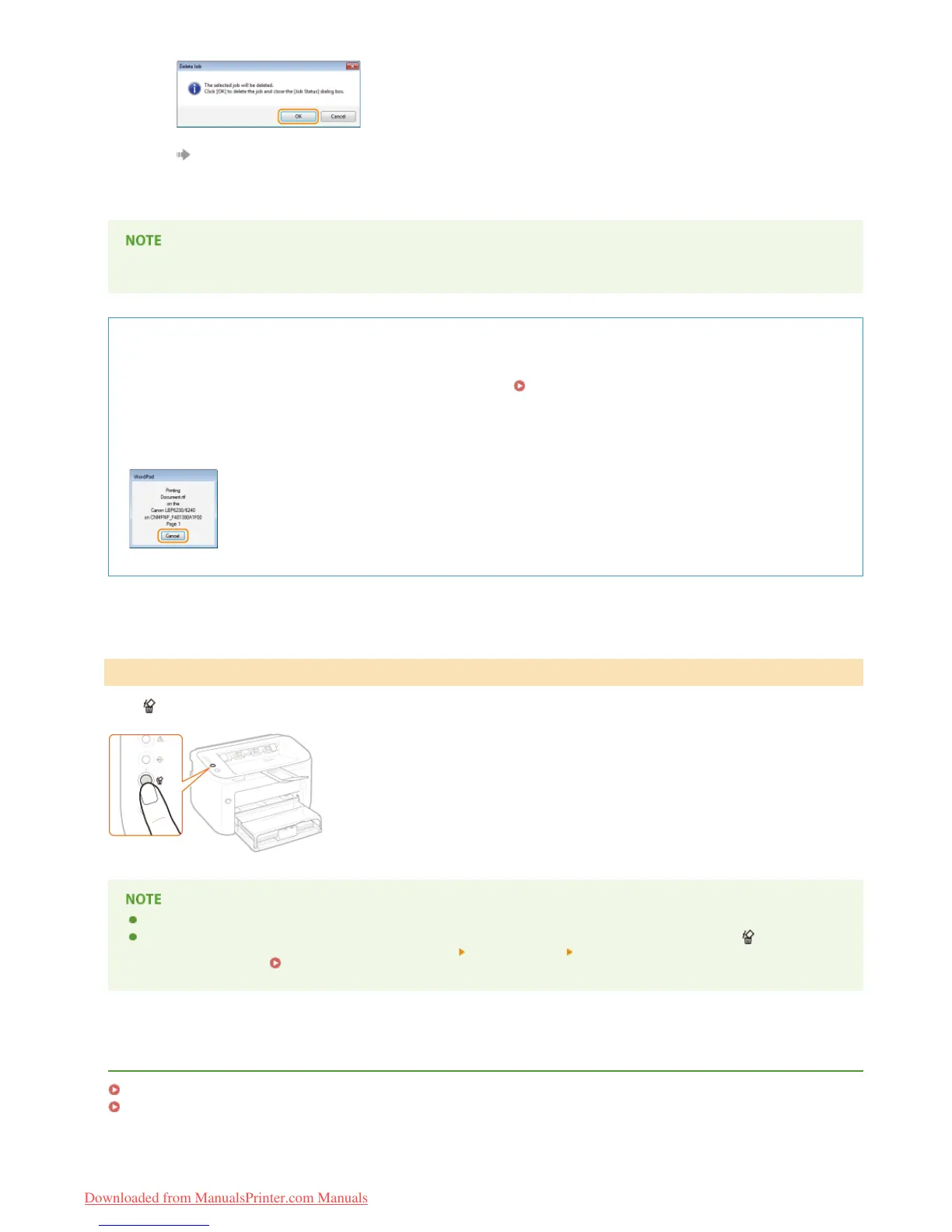
3
Click [OK].
Printing of the selected document is canceled.
Several pages may be output after you cancel printing.
TIPS
Canceling from the Remote UI
You can cancel printing from the [Job Status] page on the Remote UI. Checking the Current Status of Print Documents
Canceling from an application
On some applications, a screen like the one shown below is displayed during printing. You can cancel printing by clicking
[Cancel].
If the
(Cancel Job) key of the operation panel is pressed, the print job that is currently printing is canceled.
Several pages may be output after you cancel printing.
If you want to prevent inadvertent canceling of printing due to misuse of the key, you can restrict use of the
(Cancel Job)
key. Make the necessary setting with the [Options] menu
[Device Settings] [Settings for Cancel Job Key] dialog box of the
Printer Status Window.
Printer Status Window
LINKS
Basic Print Operations
Checking the Print Status
From the Operation Panel
㻠㻡㻌㻛㻌㻞㻠㻜
Downloaded from ManualsPrinter.com Manuals









 To Next Page