0K57-011
Connecting via Wired LAN
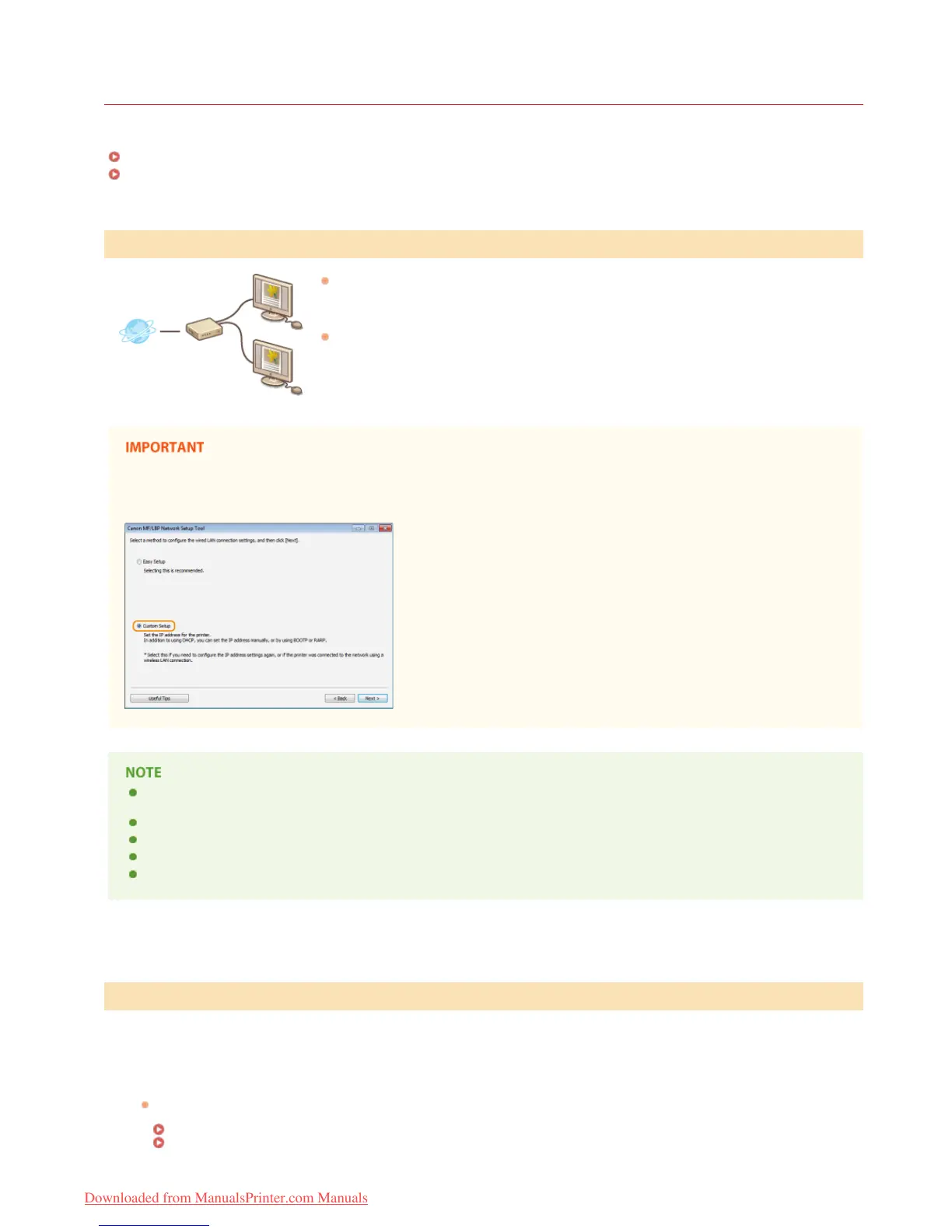
Connect the printer to a computer via a wired router. Use a LAN cable to connect the printer and the router.
Things to Check before Starting (Wireless LAN)
Configuring Wireless LAN Connection Settings
Have the computer and the router been connected correctly via a LAN cable? For more
information, see the instruction manuals for the devices you are using, or contact the
manufacturer.
Have the network settings been completed on the computer? If the network has not been set
up properly, you will not be able to use the printer on the wired LAN network, even if you
perform the rest of the procedure below.
When switching the connection method from wireless LAN to wired LAN
You need to uninstall the currently installed printer driver, configure the wired LAN connection, and then reinstall the printer
driver. When configuring the wired LAN connection, select [Custom Setup] for the configuration method.
The printer does not come with a router or LAN cable. Have them ready as necessary. Use a Category 5 or higher twisted pair
cable for the LAN.
Make sure that there are ports available on the router to connect the printer and the computer.
See the "e-Manual" supplied with your printer for the Ethernet types supported by the printer.
Wired LAN and wireless LAN cannot be used at the same time.
If you are using the printer in your office, consult your network administrator.
Log on to the computer with an administrator account.
Start the MF/LBP Network Setup Tool.
There are two ways to start the MF/LBP Network Setup Tool: "Start it from the CD-ROM/DVD-ROM," and "Start it from a
downloaded file."
Starting from the CD-ROM/DVD-ROM
Starting from a Downloaded File
Things to Check before Starting (Wired LAN)
Configuring Wired LAN Connection Settings
1
2
㻠㻝㻌㻛㻌㻡㻢
Downloaded from ManualsPrinter.com Manuals




 To Next Page