Adding a standard TCP/IP port
1
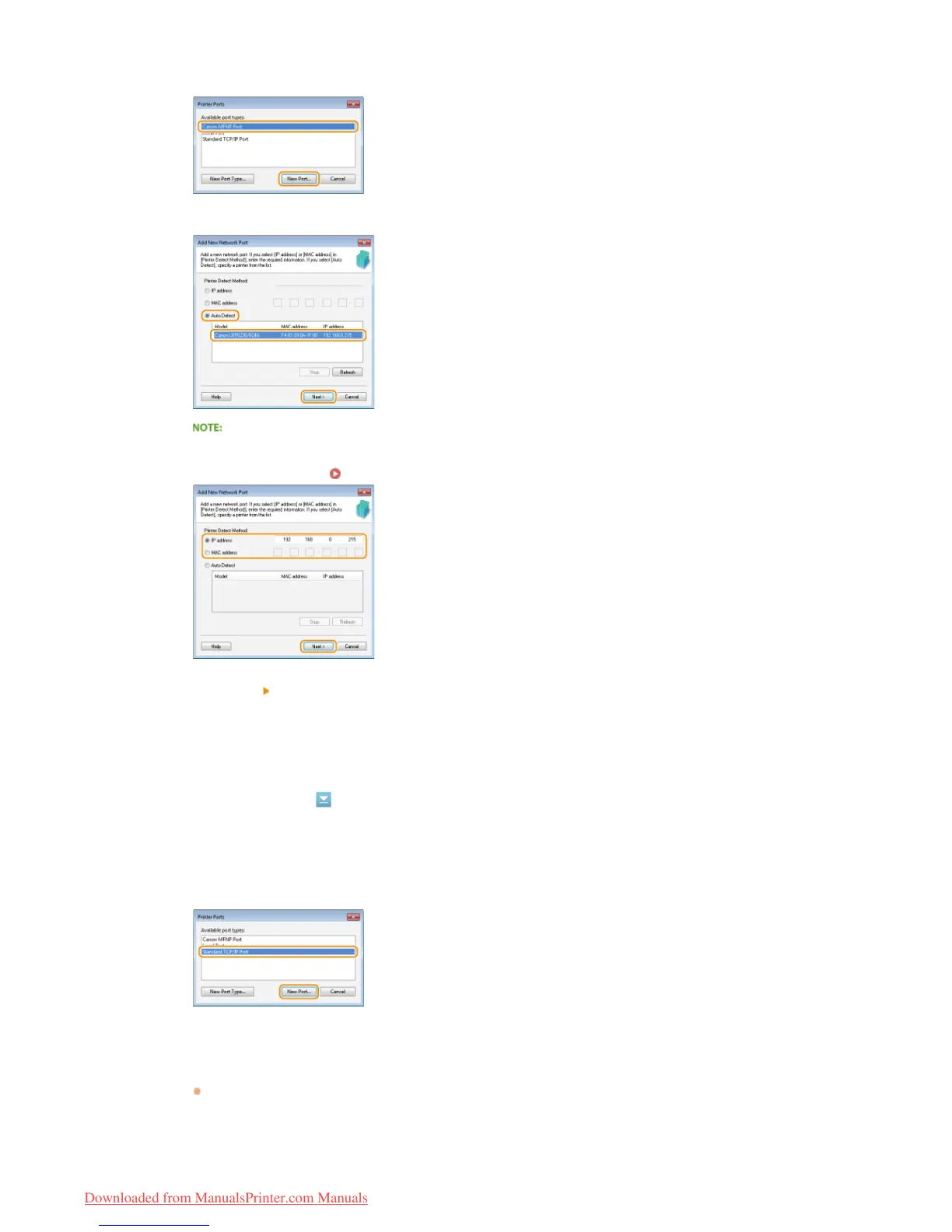
Click [Add Port].
2
Select [Canon MFNP Port] in [Available port types] and click [New Port].
3
Select [Auto Detect] and select the machine when it is detected, and then click [Next].
If the machine is not detected
Click [Refresh]. If the problem persists, select [IP address] or [MAC address], enter the IP address or MAC
address of the machine (
Viewing Network Settings) and then click [Next].
4
Click [Add] [Finish].
5
Click [Close].
1
Click [Add Port].
2
Select [Standard TCP/IP Port] in [Available port types] and click [New Port].
3
Click [Next].
4
Enter the IP address or the DNS name of the machine, and click [Next].
The [Port Name] is entered automatically. If necessary, you can change it.
㻤㻥㻌㻛㻌㻞㻠㻜
Downloaded from ManualsPrinter.com Manuals









 To Next Page