Checking the Ink Status with the Touch Screen on the Machine
1. Make sure that the power is turned on, and display the HOME screen.
If the HOME screen is not displayed, press the HOME button to display it.
2. Tap on the HOME screen.
Using the Operation Panel
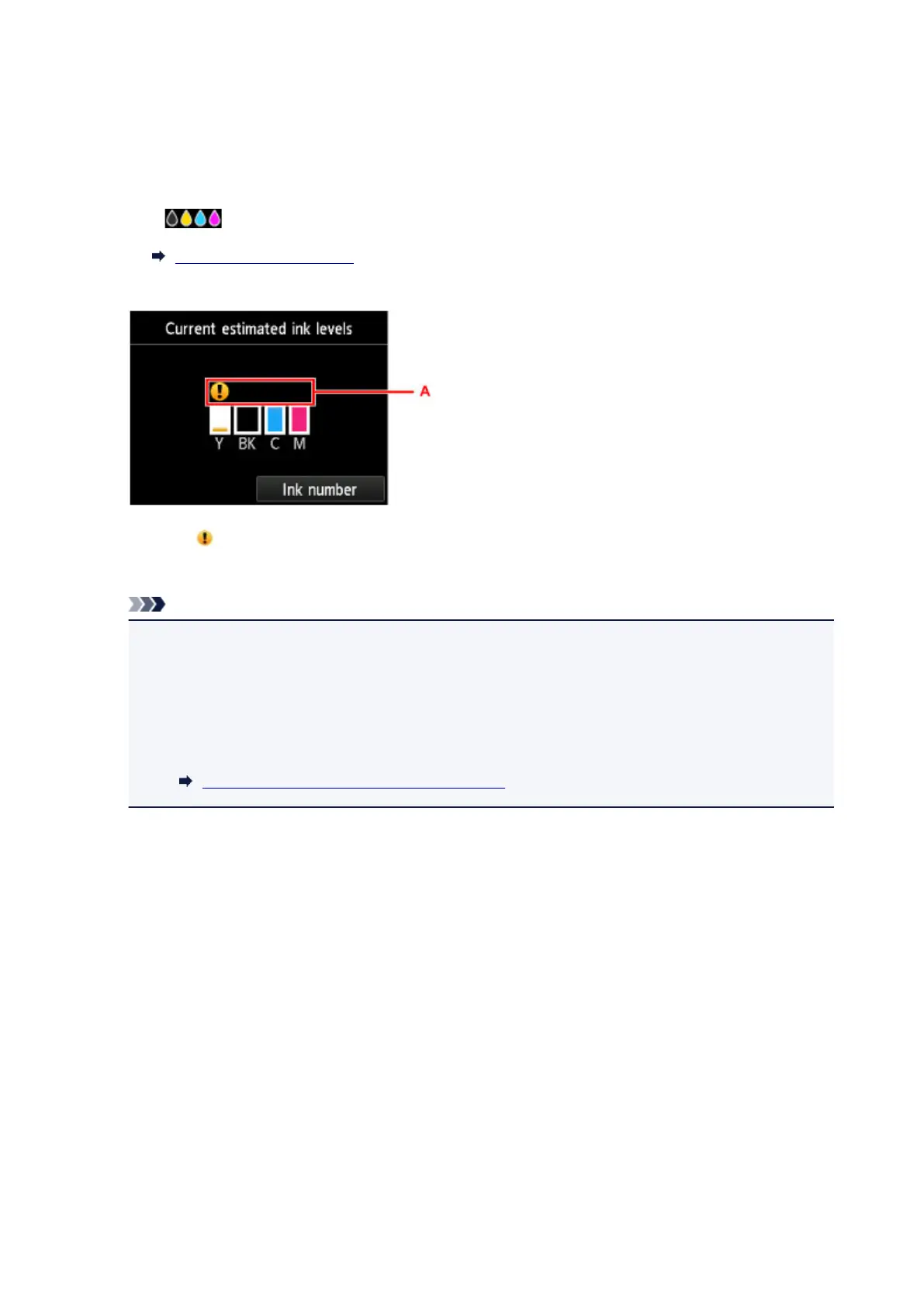
A symbol appears in the area (A) if there is any information about the remaining ink level.
Example:
Ink tank is running low. Prepare a new ink tank.
Note
• The above screen shows estimated ink levels.
• The Current estimated ink levels screen can also be displayed by tapping Setup in the HOME
screen and selecting Estimated ink levels in the setup menu.
• Tap Ink number to display and print the model number of the ink tank.
• You can also check the ink status on a screen of the touch screen displayed while printing.
• You can also check the ink status on the computer screen.
Checking the Ink Status from Your Computer
200




 To Next Page