Scanning in Basic Mode
Use the Basic Mode tab to scan easily by following the on-screen steps.
Refer to "Scanning Multiple Documents at One Time with ScanGear (Scanner Driver)" to scan multiple
documents at one time from the Platen.
When scanning from the ADF (Auto Document Feeder), documents are scanned without preview.
Important
• The following types of documents may not be scanned correctly. In that case, click (Thumbnail)
on the Toolbar to switch to whole image view and scan.
• Photos that have a whitish background
• Documents printed on white paper, hand-written text, business cards, etc.
• Thin documents
• Thick documents
• The following types of documents may not be scanned correctly.
• Documents smaller than 1.2 inches (3 cm) square
• Photos that have been cut to various shapes
Note
• When using a model supporting ADF duplex scanning, you can scan both sides of the documents
automatically from the ADF.
1.
Place the document on the Platen or ADF, then start ScanGear (scanner driver).
Placing Items (When Scanning from a Computer)
Starting ScanGear (Scanner Driver)
2.
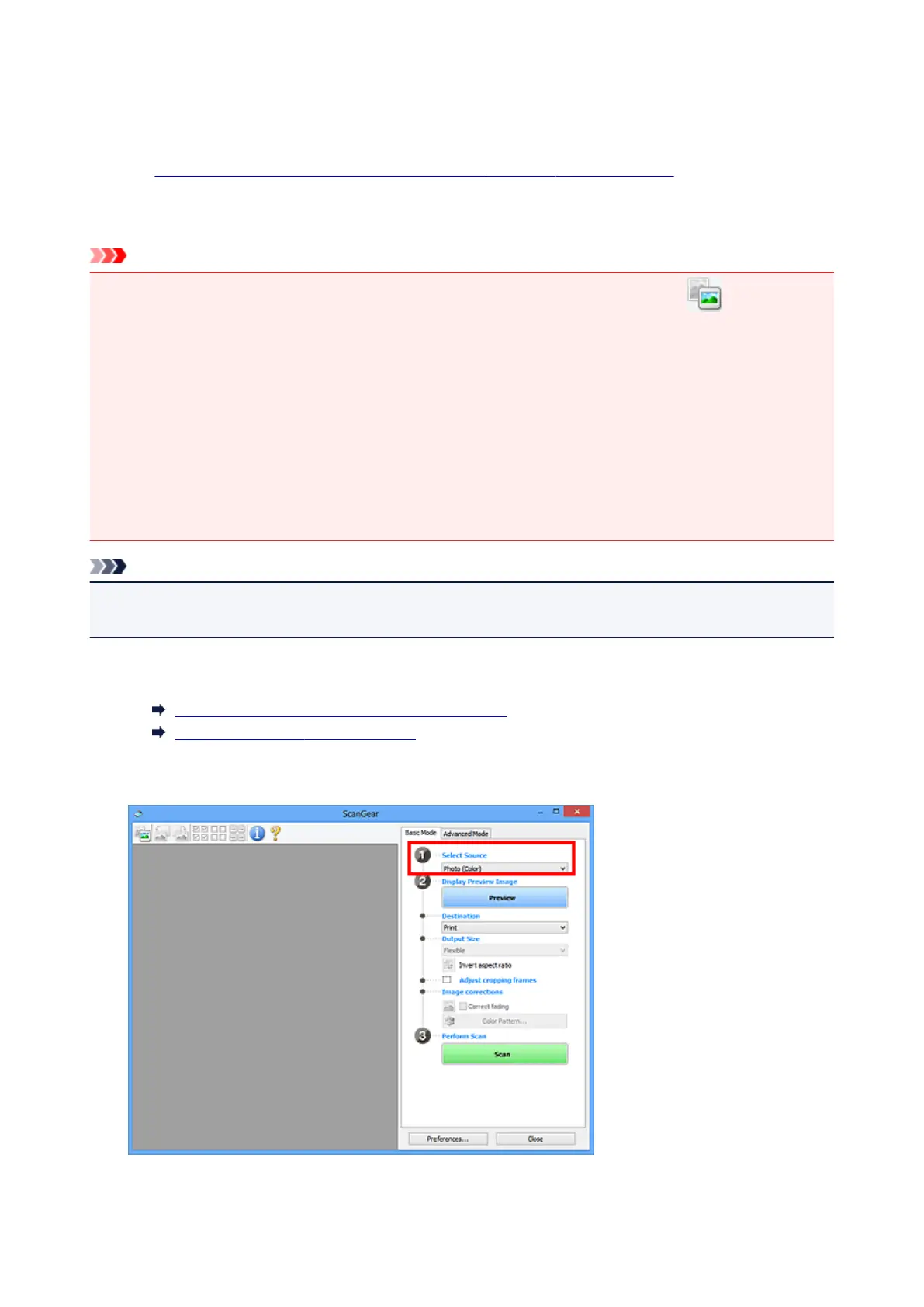
Set Select Source according to the document placed on the Platen or ADF.
656




 To Next Page