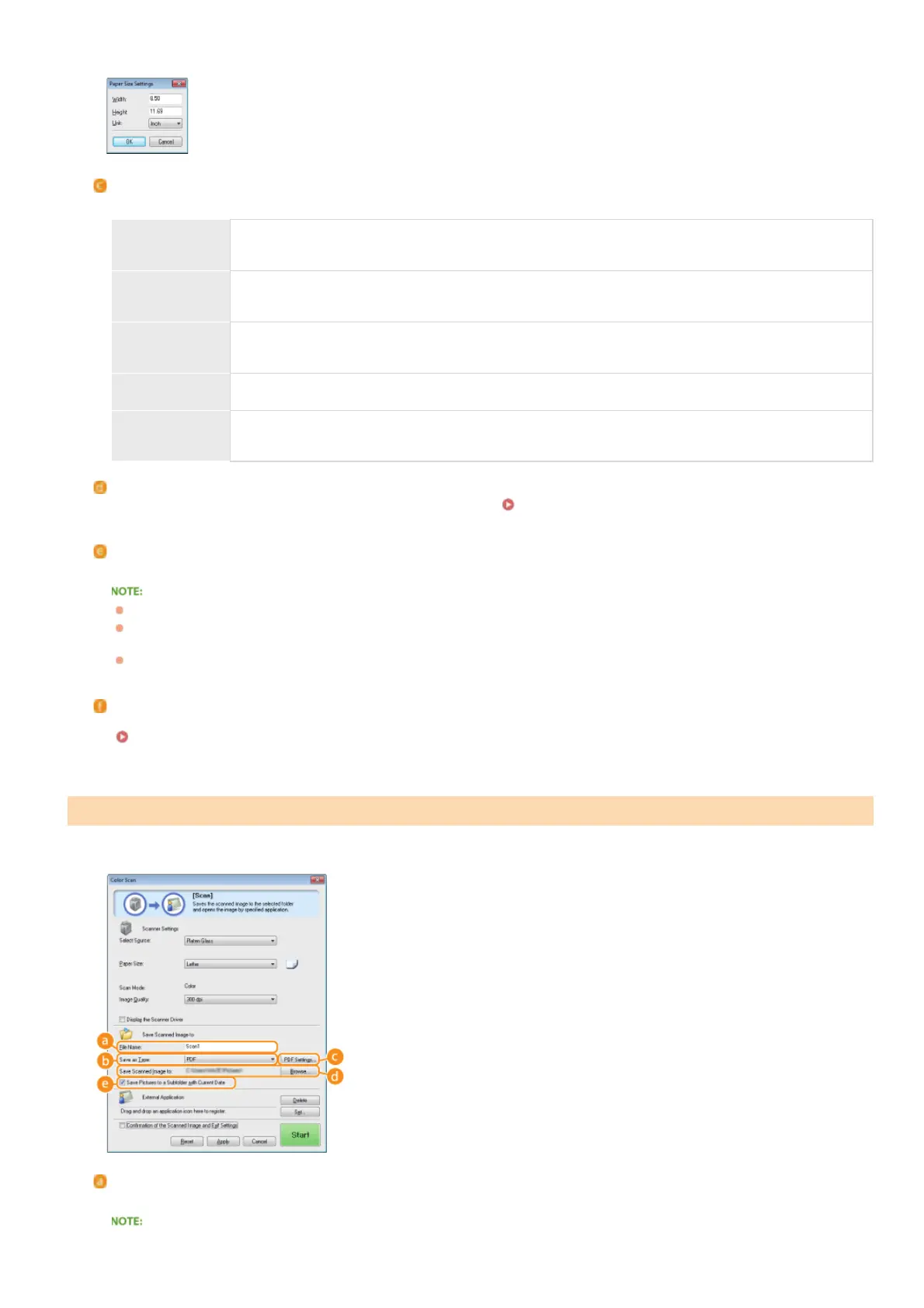
Select the document size. If you select an option for a custom size, the [Paper Size Settings] screen opens. You can then enter a
custom size.
[Scan Mode]
Select the image type to scan documents. Available items vary depending on the type of scan, such as [Mail] or [PDF].
[Black and
White]
The document is scanned as a black and white image (in black and white only, with no intermediate
shades of gray).
[Black and
White (OCR)]
The document is scanned as a black and white image optimized for processing by OCR (optical character
recognition) software.
[Grayscale]
The document is scanned as a grayscale image (in black and white with intermediate shades of gray,
similar to a black and white photograph).
[Color] The document is scanned as a color image.
[Color
(Magazine)]
The document is scanned as a color image. The color unevenness and moire that occurs when scanning
print material is reduced. It takes more time to scan when using this setting than when using [Color].
[Upper Limit of Attached File]
This item is displayed when [Mail] is selected for the type of scan (
Scanning Using MF Toolbox). The quality of the scanned
image is automatically adjusted so that the file size does not exceed the maximum limit that you specify here.
[Image Quality]
Select the resolution of the scanned image that suits your intended use.
Available resolutions vary with the file format (PDF/JPEG).
A resolution of 75 dpi is a rough guide for displaying the scanned image on a computer, and 300 dpi for printing or creating a
searchable PDF.
If you double the output resolution, the image file size increases by a factor of 4. If the file size is too large, a memory
shortage or other error may occur. Set the resolution to the minimum required for your intended use.
[Display the Scanner Driver]
Select this check box to enable you to configure advanced scan settings with ScanGear MF. To start ScanGear MF, click [Start]
(
Configuring Scan Settings in ScanGear MF).This item is not displayed when [OCR] is selected for the type of scan.
Specify settings for the scanned data, such as the file name, file format (PDF, JPEG, etc.) and save destination.
[File Name]
Enter the name for the scanned data file.
If a file with the same name already exists in the save destination, a unique sequential four-digit number (for example, "0001") is
Configuring Storing Settings
㻝㻞㻤㻌㻛㻌㻟㻟㻢





 To Next Page