0L40-056
Setting Up Connection Using WPS PIN Code Mode
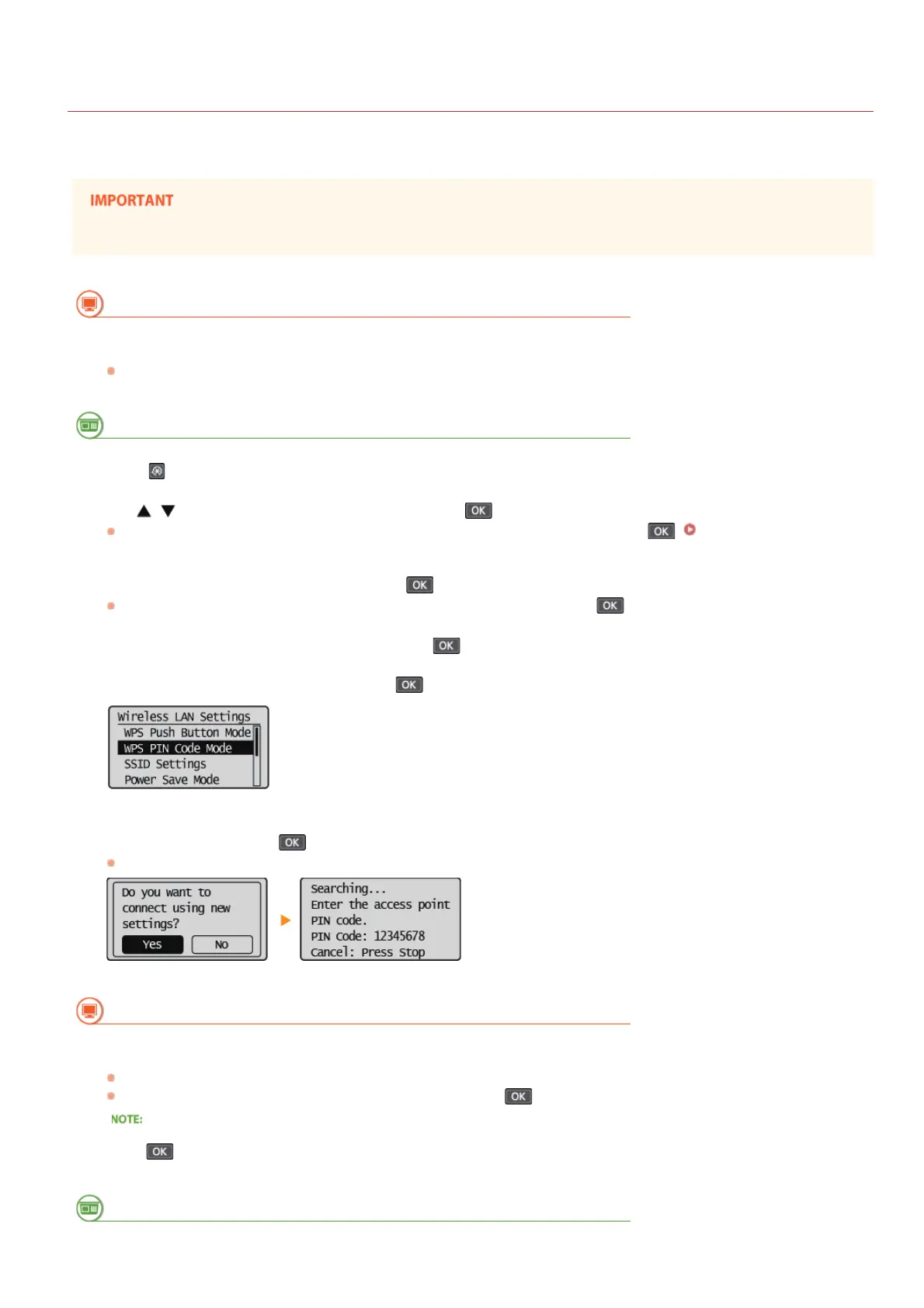
If your wireless router supports WPS PIN code mode, generate a PIN code with the machine and register the code to the networking
device.
How to operate the wireless router may vary on each device. See the instruction manuals for your networking device for help.
From a Computer
Access your wireless router from a computer and display the screen for entering a WPS PIN code.
For more information, see the instruction manuals for your networking device.
From the Operation Panel
Press .
Use / to select <Network Settings>, and press .
If a screen for entering a PIN is displayed, enter the PIN with the numeric keys and press . Setting the System
Manager PIN
Select <Wireless LAN Settings>, and press .
If the <Enable the wireless LAN?> message is displayed, select <Yes> and press .
Read the message that is displayed, and press .
Select <WPS PIN Code Mode>, and press .
Select <Yes>, and press .
A PIN code is generated.
From a Computer
Register the generated PIN code to the wireless router.
Register the PIN code on the setup screen displayed in step 1.
The PIN code must be registered within 10 minutes after pressing
in step 7.
If an error message is displayed during setup
Press
and return to step 6.
From the Operation Panel
1
2
3
4
5
6
7
8
㻝㻡㻠㻌㻛㻌㻟㻟㻢







 To Next Page