0L40-046
Changing Default Settings
The default settings are the settings that are first displayed whenever you open the print settings screen of the printer driver. You can
change these settings to the settings that you use most often. For example, if you always want to print 2 document pages on each
printout page, set [2 on 1] as the default page layout setting. From the next time that you open the printer driver screen, the setting
will always be [2 on 1], eliminating the need to
change this setting every time you make prints.
To perform the following procedure, log on to your computer with an administrator account.
Open the printer folder. Displaying the Printer Folder
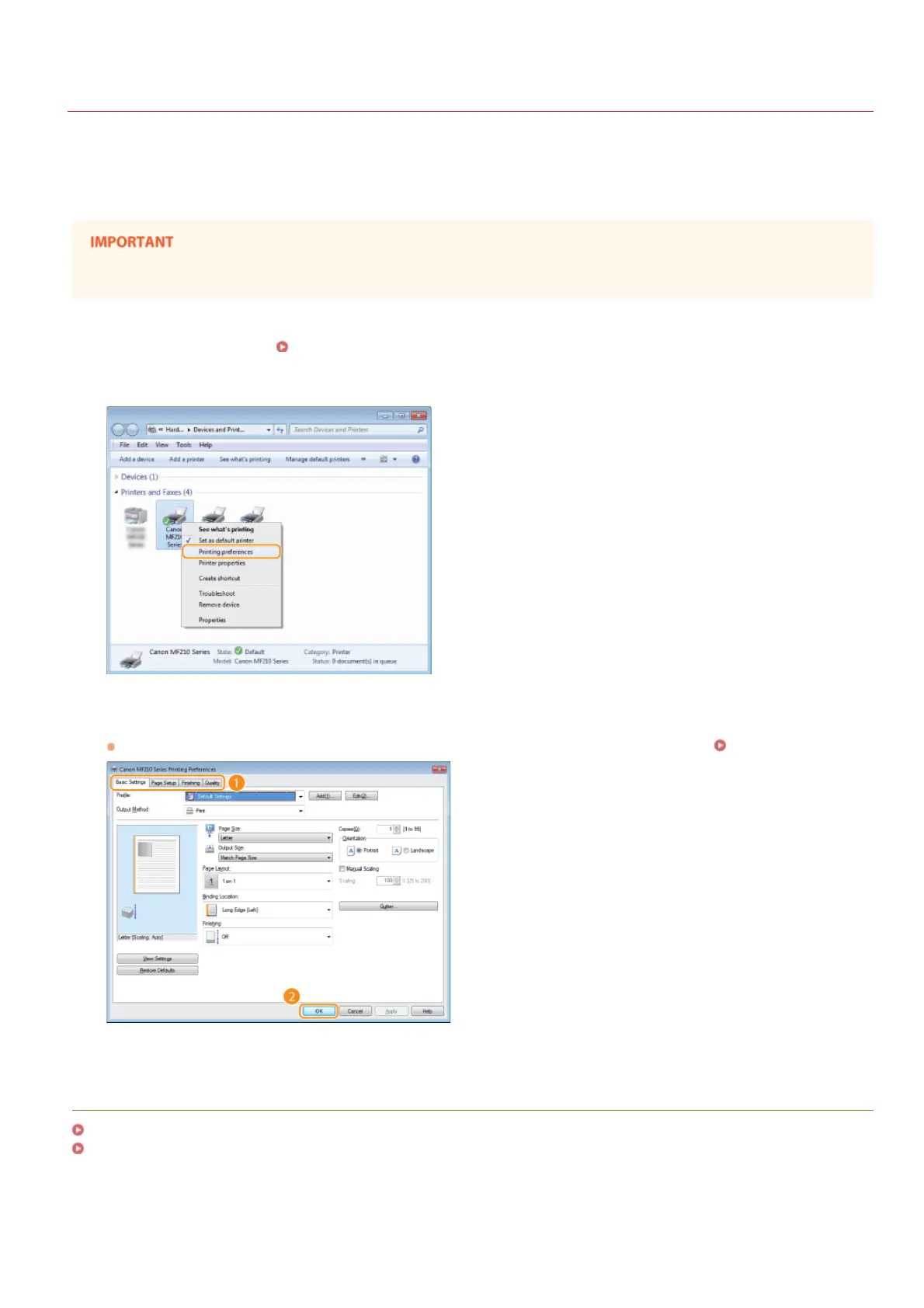
Right-click the icon of the machine and then click [Printing preferences].
Change the settings on the printing preferences screen, and click [OK].
Make print settings as required on the [Basic Settings], [Page Setup], [Finishing], and [Quality] tabs. Various Print Settings
LINKS
Printing a Document
Registering Combinations of Frequently Used Print Settings
1
2
3
㻥㻟㻌㻛㻌㻟㻟㻢







 To Next Page