0L40-0A2
Basic Windows Operations
Displaying [Computer] or [My Computer]
Windows XP Professional/Server 2003/Server 2003 R2
[Start]
select [My Computer].
Windows Vista/7/Server 2008/Server 2008 R2
[Start]
select [Computer].
Windows 8/Server 2012
Right-click the lower-left corner of the screen
select [File Explorer] [Computer].
Windows 8.1/Server 2012 R2
Right-click [Start]
select [File Explorer] [Computer].
Displaying the Printer Folder
Windows XP Professional/Server 2003/Server 2003 R2
[Start]
select [Printers and Faxes].
Windows XP Home Edition
[Start]
select [Control Panel] [Printers and Other Hardware] [Printers and Faxes].
Windows Vista
[Start]
select [Control Panel] [Printer].
Windows 7/Server 2008 R2
[Start]
select [Devices and Printers].
Windows Server 2008
[Start]
select [Control Panel] double-click [Printers].
Windows 8/Server 2012
Right-click the lower-left corner of the screen
select [Control Panel] [View devices and printers].
Windows 8.1/Server 2012 R2
Right-click [Start]
select [Control Panel] [View devices and printers].
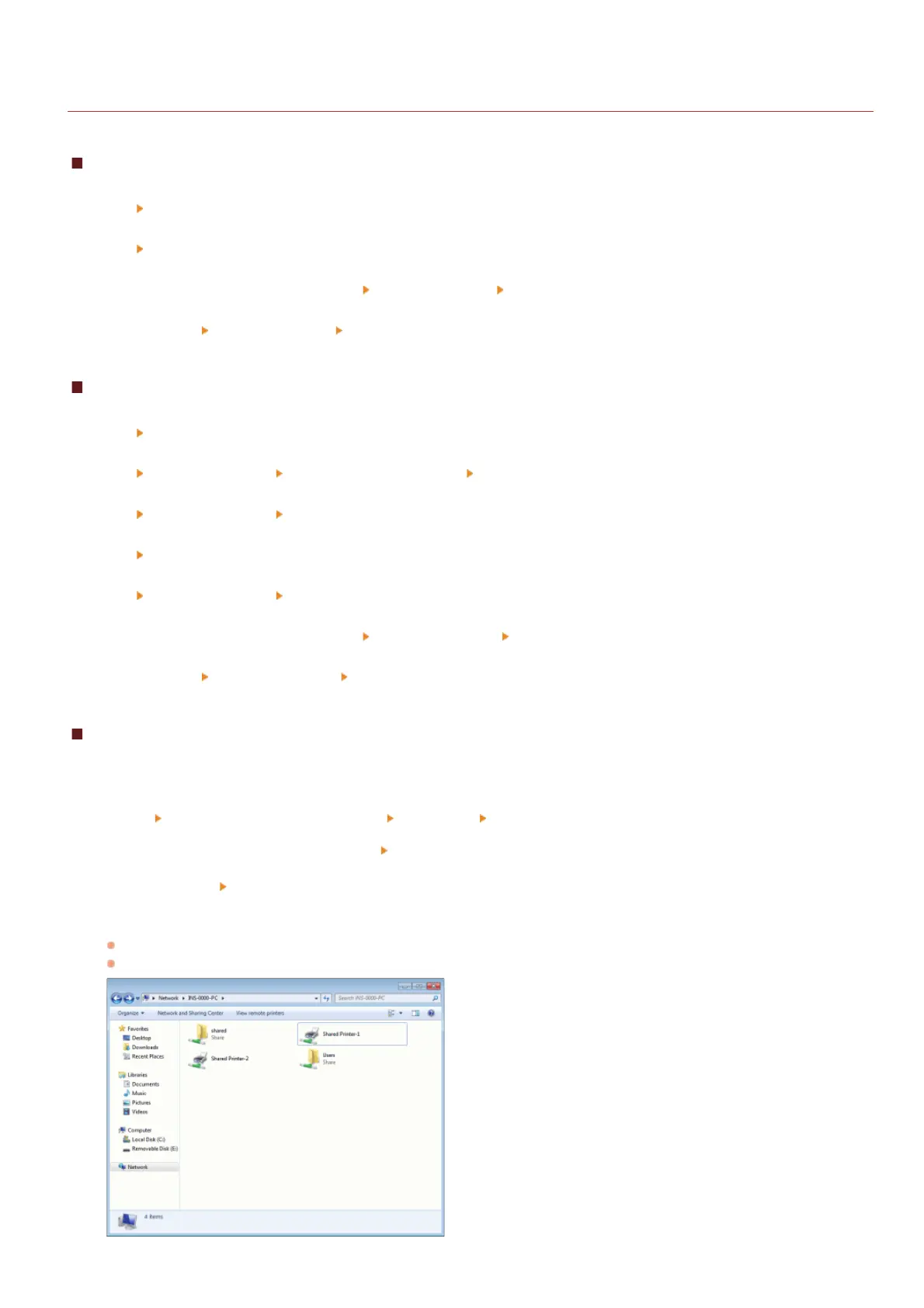
Displaying Shared Printers in the Print Server
Open Windows Explorer.
Windows XP/Vista/7/Server 2003/Server 2003 R2/Server 2008/Server 2008 R2
[Start]
select [All Programs] (or [Programs]) [Accessories] [Windows Explorer].
Windows 8/Server 2012
Right-click the lower-left corner of the screen
select [File Explorer].
Windows 8.1/Server 2012 R2
Right-click [Start]
select [File Explorer].
Select [Network] or [My Network Places] and double-click the computer set up as a print server.
To view computers on the network, you may need to turn on network discovery or search the network for computers.
Check if your shared printer is displayed.
1
2
㻟㻞㻢㻌㻛㻌㻟㻟㻢







 To Next Page