Displaying the [Software Programs/Manuals Setup] Screen
If your computer does not display the [Software Programs/Manuals Setup] screen after inserting the DVD-ROM, follow the procedure
below. The DVD-ROM drive name is indicated as "D:" in this manual. The DVD-ROM drive name may differ depending on the computer
you are using.
Windows XP/Server 2003/Server 2003 R2
1
[Start] select [Run].
2
Enter "D:\Minst.exe", and then click [OK].
Windows Vista/7/Server 2008/Server 2008 R2
1
Enter "D:\Minst.exe" in [Search programs and files] (or [Start Search]) under the [Start] menu.
2
Press the [ENTER] key.
Windows 8/Server 2012
1
Right-click the lower-left corner of the screen select [Run].
2
Enter "D:\Minst.exe", and then click [OK].
Windows 8.1/Server 2012 R2
1
Right-click [Start] select [Run].
2
Enter "D:\Minst.exe", and then click [OK].
Printing a Test Page in Windows
You can check whether the printer driver is operational by printing a test page in Windows.
Load A4 size paper in the manual feed slot. Loading Paper in the Manual Feed Slot
Open the printer folder. Displaying the Printer Folder
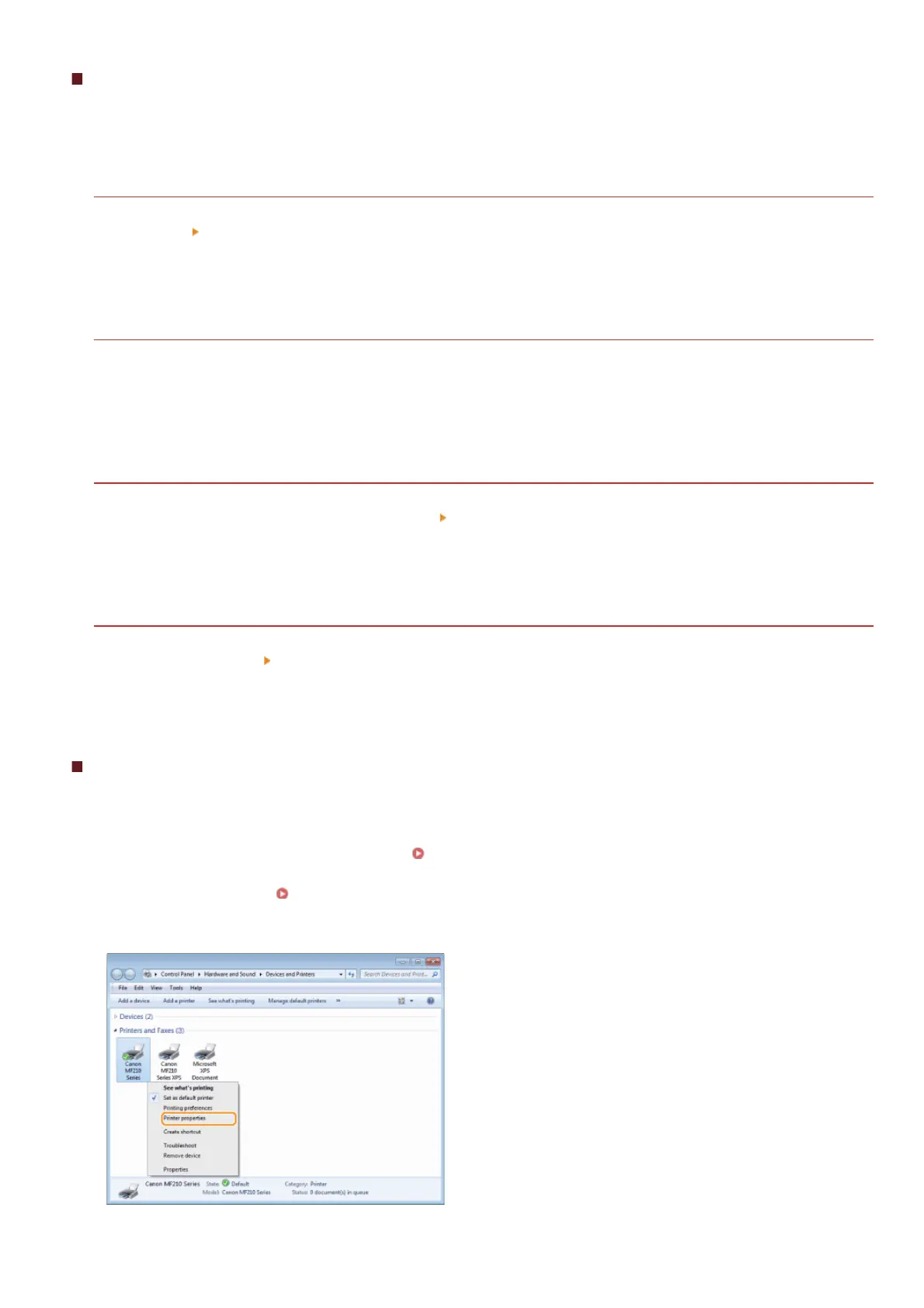
Right-click your printer icon and click [Printer properties] (or [Properties]) in the pop-up menu.
1
2
3
㻟㻞㻣㻌㻛㻌㻟㻟㻢







 To Next Page