0L40-05S
Configuring Ethernet Settings
Ethernet is a standard for communicating data in a local area network (LAN). You can set the communication mode (half-duplex/full-
duplex) and the Ethernet type (10BASE-T/100BASE-TX). In general, the machine can be used without changing the defaults
(
Ethernet Driver Settings), but you can change these settings to suit your network environment.
Press .
Use / to select <Network Settings>, and press .
If a screen for entering a PIN is displayed, enter the PIN with the numeric keys and press . Setting the System
Manager PIN
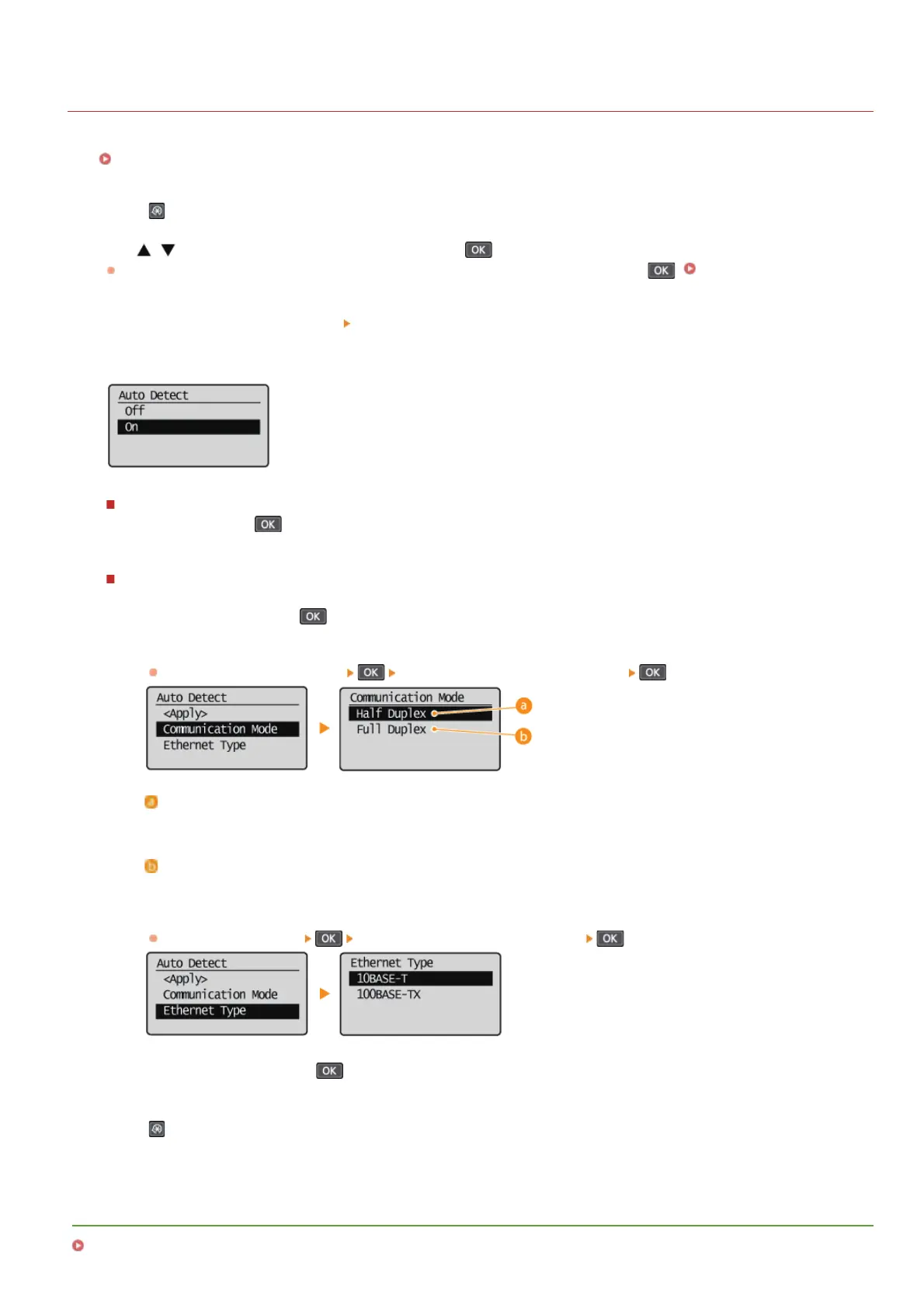
Select <Ethernet Driver Settings> <Auto Detect>.
Select whether to configure Ethernet settings automatically or manually.
Configuring Ethernet settings automatically
Select <On>, and press . The machine detects and automatically sets the communication mode and the Ethernet type that
can be used.
Configuring Ethernet settings manually
1
Select <Off>, and press .
2
Select the communication mode.
Select <Communication Mode>
select <Half Duplex> or <Full Duplex> .
<Half Duplex>
Alternately sends and receives communication data. Select when the machine is connected to a networking device using
half duplex.
<Full Duplex>
Simultaneously sends and receives communication data. Use this setting for most environments.
3
Select the Ethernet type.
Select <Ethernet Type>
select <10BASE-T> or <100BASE-TX> .
4
Select <Apply>, and press .
Press .
LINKS
Changing the Maximum Transmission Unit
1
2
3
4
5
㻝㻤㻟㻌㻛㻌㻟㻟㻢







 To Next Page