0L40-03K
Enlarging or Reducing
You can make enlarged or reduced printouts by using a preset print ratio, such as A5 to A4, or a custom print
ratio that you set in increments of 1%.
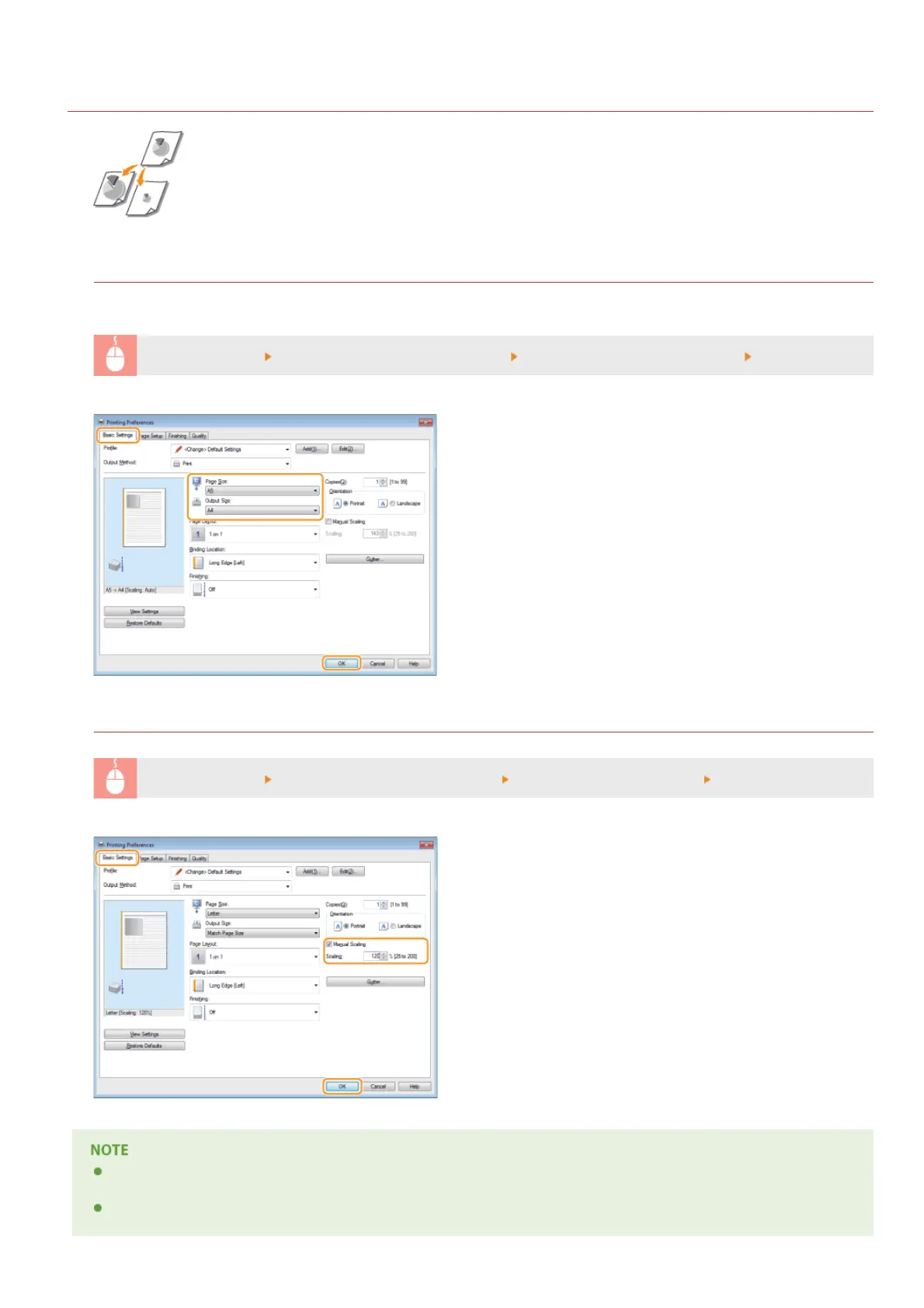
Setting Print Ratio by Specifying the Original Document and Paper Size (Preset Ratio)
The print ratio is automatically set based on the document and paper size you have specified.
[Basic Settings] tab
Select the document size in [Page Size] Select the paper size in [Output Size] [OK]
Specifying Print Ratio in Increments of 1%
[Basic Settings] tab Select the [Manual Scaling] check box Enter the print ratio in [Scaling] [OK]
Depending on the selected paper size, you may not be able to set the optimum enlarging/reducing ratio. For example, there
may be large blank spaces on your printout, or portions of the document that are missing.
The enlarging/reducing settings on some applications have priority over those on the printer driver.
㻣㻢㻌㻛㻌㻟㻟㻢







 To Next Page