0L40-00K
Using the Operation Panel
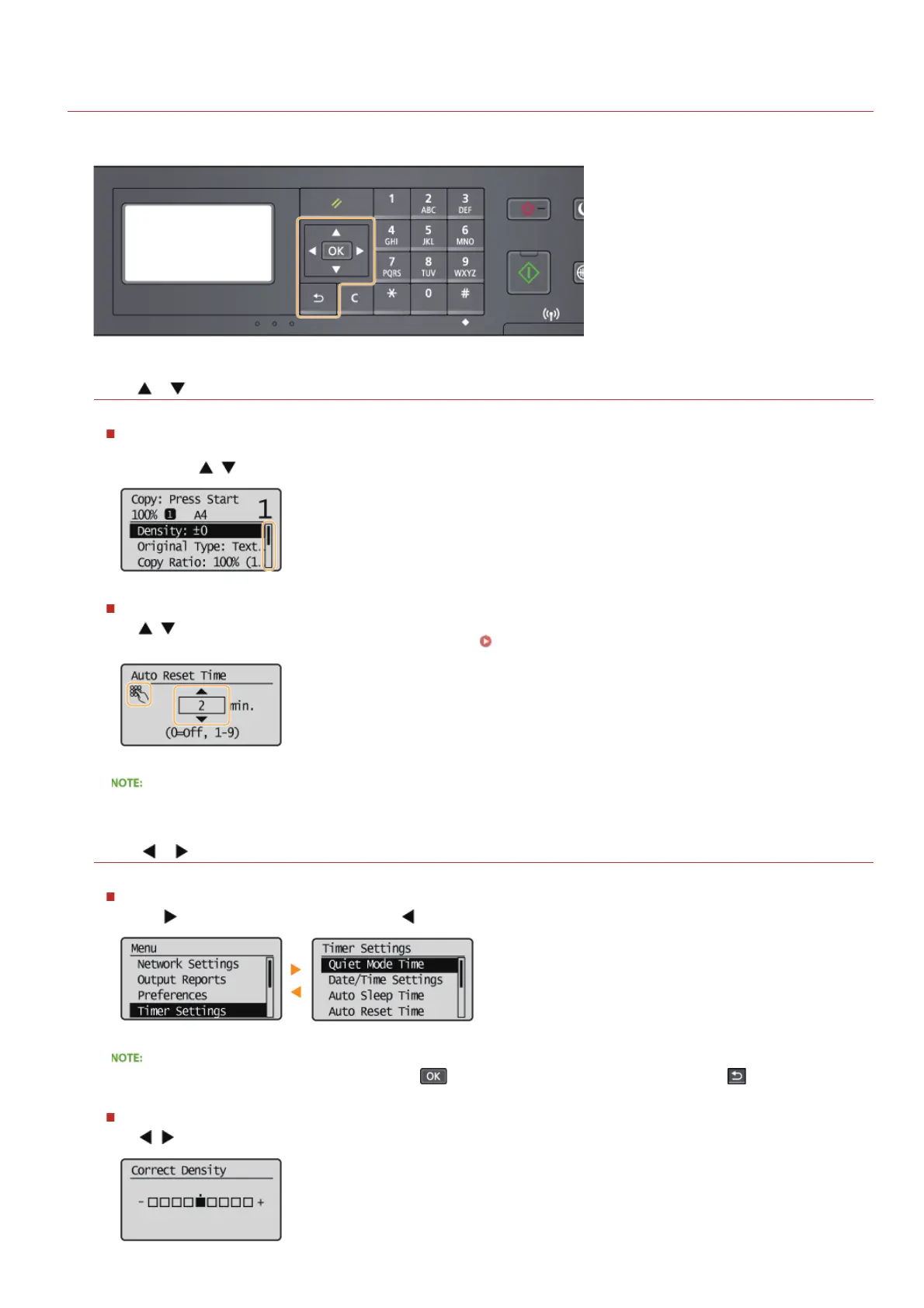
Use the keys shown below to specify settings and adjust values.
Using /
Scrolling the screen
The scroll bar is displayed on the right side of the screen when not all of the information fits on one screen. If the scroll bar is
displayed, use
/ to scroll up or down. The text and background colors of an item are inverted when it is selected.
Changing a setting value
Use / when entering numbers. You can also enter the value directly using the numeric keys when the numeric key icon is
displayed in the top-left corner of the screen, as shown below.
Entering Text
The numbers in parentheses beneath the value input field indicate the range of possible values.
Using /
Proceeding to next screen/Returning to previous screen
Press to proceed to the next screen. Press to return to the previous screen.
You can also proceed to the next screen by pressing , and return to the previous screen by pressing .
Adjusting a setting value
Use / when adjusting the value on a scale.
㻟㻜㻌㻛㻌㻟㻟㻢







 To Next Page