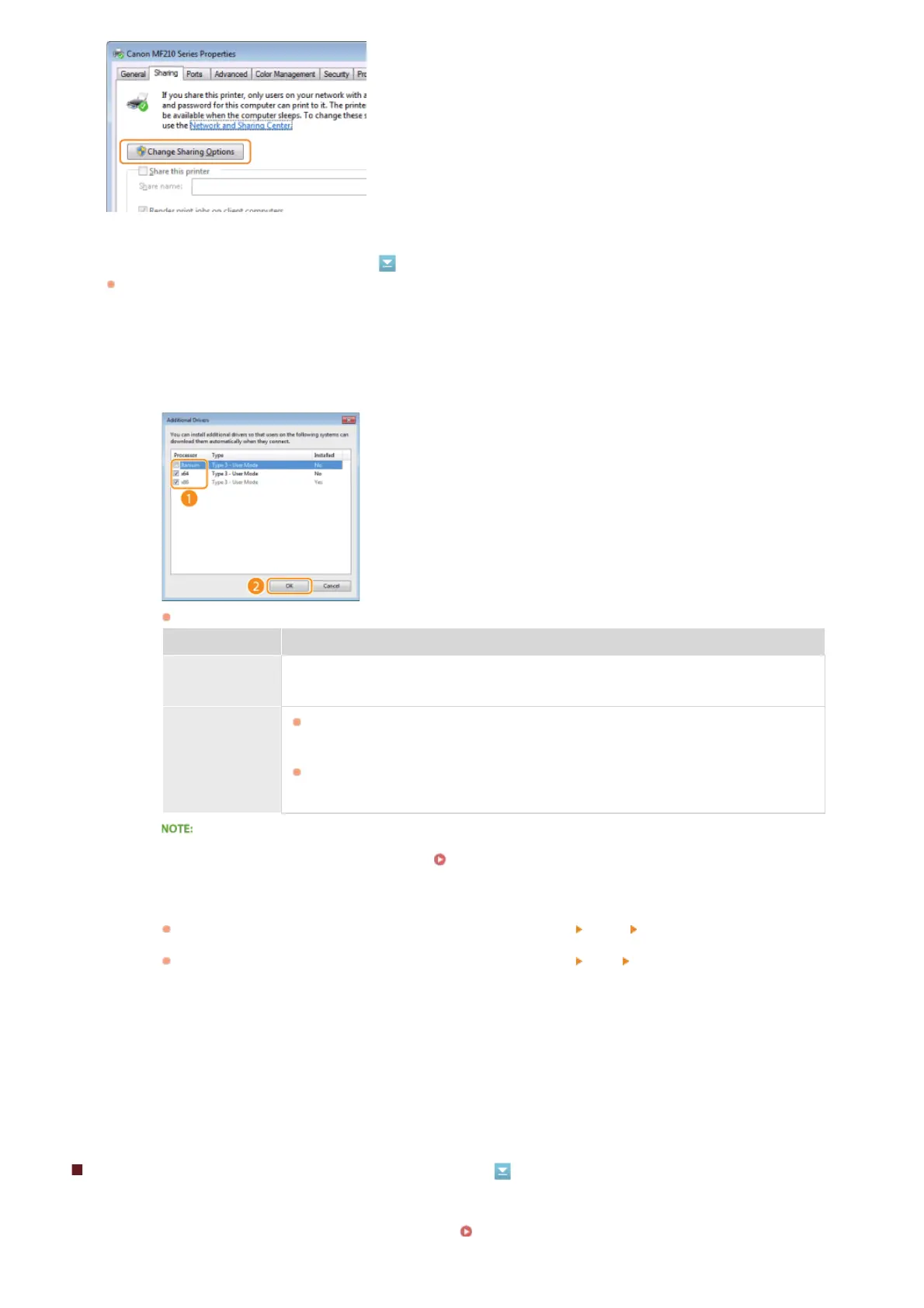
Install additional drivers as necessary.
This operation is required if you want to install MF Drivers in other computers running a different bit architecture via the print
server.
Click [OK].
Installing MF Drivers on a Computer via the Print Server
1
Click [Additional Drivers].
2
Select the check box for the bit architecture that other computers are running, and click [OK].
Select additional drivers from the following, according to the operating system of the print server.
Print server Select the check box for
32-bit operating
systems
[x64]
64-bit operating
systems
Windows XP/Server 2003/Server 2003 R2
[Windows 2000, Windows XP, Windows Server 2003, and Server 2003 R2] under
[Version]
Windows Vista/7/8/8.1/Server 2008/Server 2008 R2/Server 2012/Server
2012 R2
[x86] under [Processor]
If you do not know whether your Windows Vista/7/8/8.1/Server 2008/Server 2008 R2/Server 2012/Server 2012
R2 is a 32-bit or 64-bit operating system, see
Checking the Bit Architecture.
3
Insert the User Software and Manuals DVD-ROM into the drive on the computer, click [Browse] to
specify the folder that contains MF Drivers, and then click [OK].
If the print server runs a 32-bit operating system, select [DRIVERS]
[32bit] [Driver] folders on the provided
DVD-ROM.
If the print server runs a 64-bit operating system, select [DRIVERS]
[x64] [Driver] folders on the provided
DVD-ROM.
4
Follow the on-screen instructions to install the drivers.
Locate the shared printer in the print server. Displaying Shared Printers in the Print Server
4
5
1
㻝㻤㻜㻌㻛㻌㻟㻟㻢







 To Next Page