1
[Start] select [Control Panel].
2
Display the [System] screen.
Click [Performance and Maintenance]
[System].
3
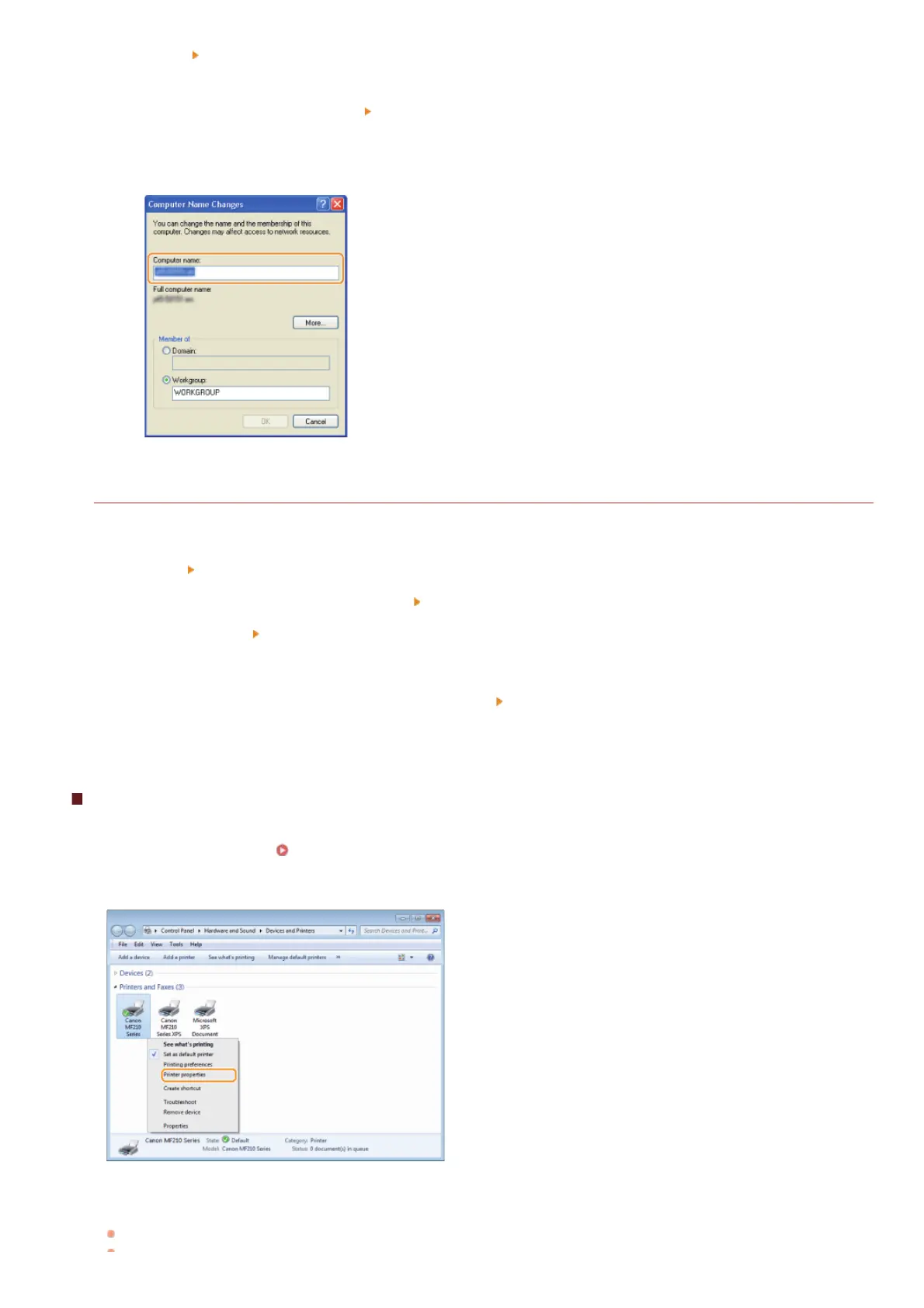
Click the [Computer Name] (or [Network ID]) tab.
4
Click [Change] (or [Properties]).
Windows Vista/7/8/8.1/Server 2008/Server 2008 R2/Server 2012/Server 2012 R2
1
Display [Control Panel].
Windows Vista/7/Server 2008/Server 2008 R2
[Start]
select [Control Panel].
Windows 8/Server 2012
Right-click the lower-left corner of the screen
select [Control Panel].
Windows 8.1/Server 2012 R2
Right-click [Start]
select [Control Panel]
2
Display [System].
Windows Vista/7/8/8.1/Server 2008 R2/Server 2012/Server 2012 R2
Click [System and Security] (or [System and Maintenance])
[System].
Windows Server 2008
Double-click [System].
Checking the LPR/RAW Printer Port
Open the printer folder. Displaying the Printer Folder
Right-click your printer icon and click [Printer properties] (or [Properties]) in the pop-up menu.
Check the port settings.
Click the [Ports] tab.
1
2
3
㻟㻞㻥㻌㻛㻌㻟㻟㻢







 To Next Page