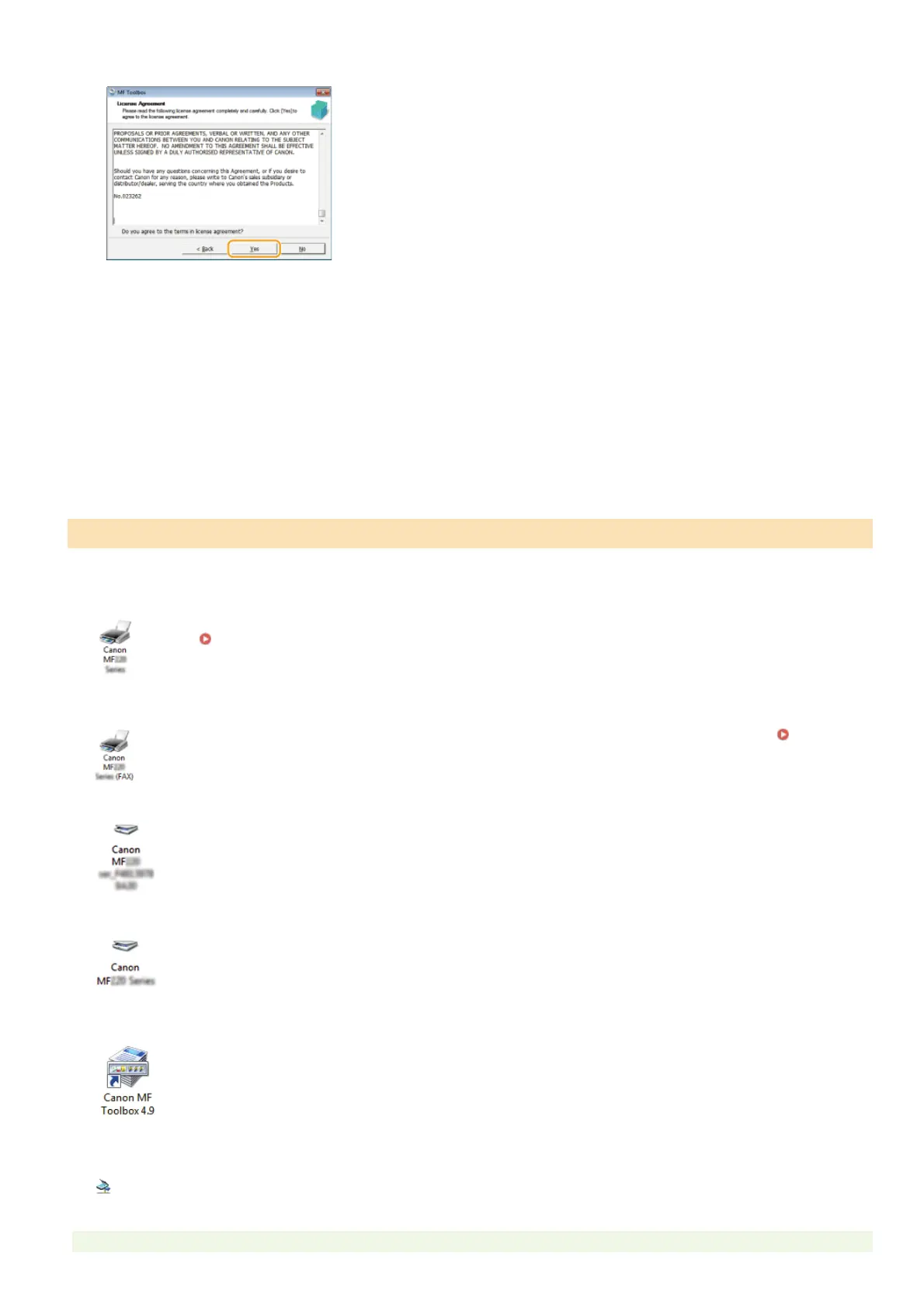
Read the License Agreement, and click [Yes] to agree.
Specify the folder to install to, and click [Next].
Specify the folder for adding an icon, and click [Next].
Click [Start].
Click [Exit].
You can check whether the MF Drivers are installed correctly or not by whether the icons appear.
Printer driver
When the printer driver is installed correctly, an icon for the installed printer appears in the printer folder
(
Displaying the Printer Folder).
Fax driver
When the fax driver is installed correctly, an icon for the installed fax appears in the printer folder ( Displaying
the Printer Folder).
Scanner driver (network connection)
When the scanner driver is installed correctly, an icon for the installed scanner appears in the [Scanners and
Cameras] or [Scanners and Cameras Properties] folder.
Scanner driver (USB connection)
When the scanner driver is installed correctly, an icon for the installed scanner appears in the [Scanners and
Cameras] or [Scanners and Cameras Properties] folder.
MF Toolbox
When MF Toolbox is installed correctly, an MF Toolbox icon appears on the desktop.
Network Scan
Utility
When Network Scan Utility is installed correctly, a Network Scan Utility icon appears in the taskbar.
Checking the Results of the Installation
7
8
9
10
11
㻞㻡㻌㻛㻌㻠㻣







 To Next Page