Windows 8/Server 2012
Right-click the lower-left corner of the screen
select [Run] enter "D:\MInst.exe" click [OK].
Windows 8.1/Server 2012 R2
Right-click [Start]
select [Run] enter "D:\MInst.exe" click [OK].
Checking the Bit Architecture
If you are not sure whether your computer is running 32-bit or 64-bit Windows, follow the procedure below to check.
Display [Control Panel].
Windows Vista/7/Server 2008/Server 2008 R2
[Start]
select [Control Panel].
Windows 8/Server 2012
Right-click the lower-left corner of the screen
select [Control Panel].
Windows 8.1/Server 2012 R2
Right-click [Start]
select [Control Panel].
Display [System].
Windows Vista/7/8/8.1/Server 2008/Server 2008 R2/Server 2012/Server 2012 R2
Click [System and Security] or [System and Maintenance]
[System].
Windows Server 2008
Double-click [System].
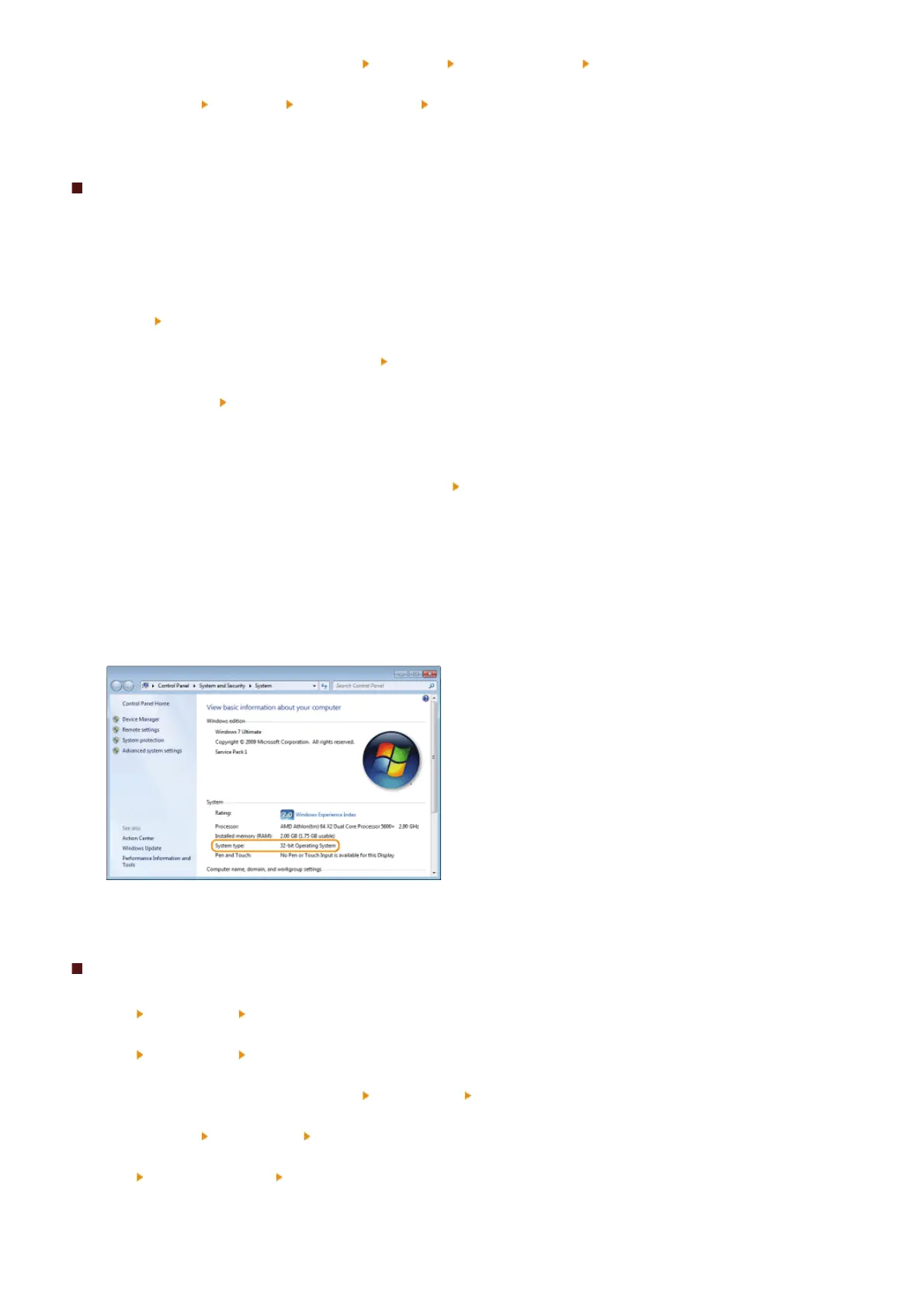
Check the bit architecture.
32-bit operating systems
[32-bit Operating System] is displayed.
64-bit operating systems
[64-bit Operating System] is displayed.
Displaying [Programs and Features] or [Add or Remove Programs]
Windows XP/Server 2003
[Start]
[Control Panel] select [Add or Remove Programs].
Windows Vista/7/Server 2008 R2
[Start]
[Control Panel] select [Uninstall a Program].
Windows 8/Server 2012
Right-click the lower-left corner of the screen
[Control Panel] select [Uninstall a Program].
Windows 8.1/Server 2012 R2
Right-click [Start]
[Control Panel] select [Uninstall a Program].
Windows Server 2008
[Start]
select [Control Panel] double-click [Programs and Features].
1
2
3
㻠㻡㻌㻛㻌㻠㻣







 To Next Page