Printing Photographs Directly from a Digital Camera
3 Load the
101.6x
152.4mm/
4" x6" paper into the Paper Support
in
the
portrait position (feed from the short side) with the print side facing up.
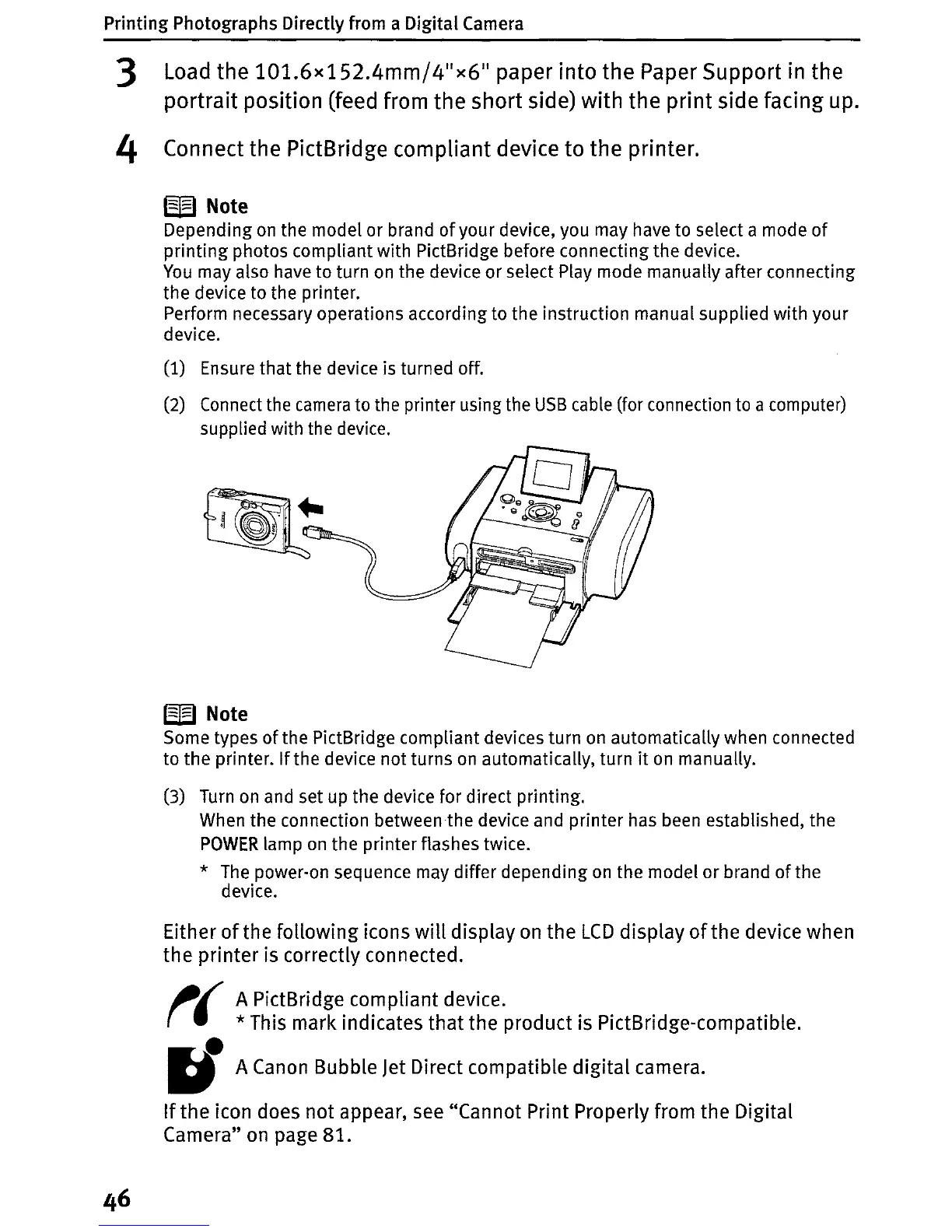
4 Connect the PictBridge compliant device to the printer.
W Note
Depending
on
the model or brand
of
your device, you may have to select a mode
of
printing
photos compliant with PictBridge before connecting the device.
You
may also have to turn
on
the device or select Play mode manually after connecting
the device to the printer.
Perform necessary operations according to the instruction manual supplied with your
device.
(1) Ensure that the device is turned off.
(2) Connect the
camera
to the printer using the
USB
cable (for connection to a computer)
supplied with the device.
W Note
Some types
of
the PictBridge compliant devices turn
on
automatically when connected
to the printer.
If
the device not turns
on
automatically, turn
it
on
manually.
(3) Turn
on
and set up the device for direct printing.
When the connection between
the
device and printer has been established, the
POWER
lamp
on
the printer flashes twice.
*
The
power-on sequence may
differ
depending
on
the model or brand
of
the
device.
Either
of
the following icons
will
display
on
the
LCD
display
of
the device when
the printer is correctly connected.
t(
rI
A PictBridge compliant device.
* This mark indicates that the product is PictBridge-compatible.
A Canon Bubble
Jet
Direct compatible
digital
camera.
If
the
icon does not appear, see "Cannot Print Properly from the Digital
Camera"
on
page 81.





 To Next Page