Printing
with
the Computer
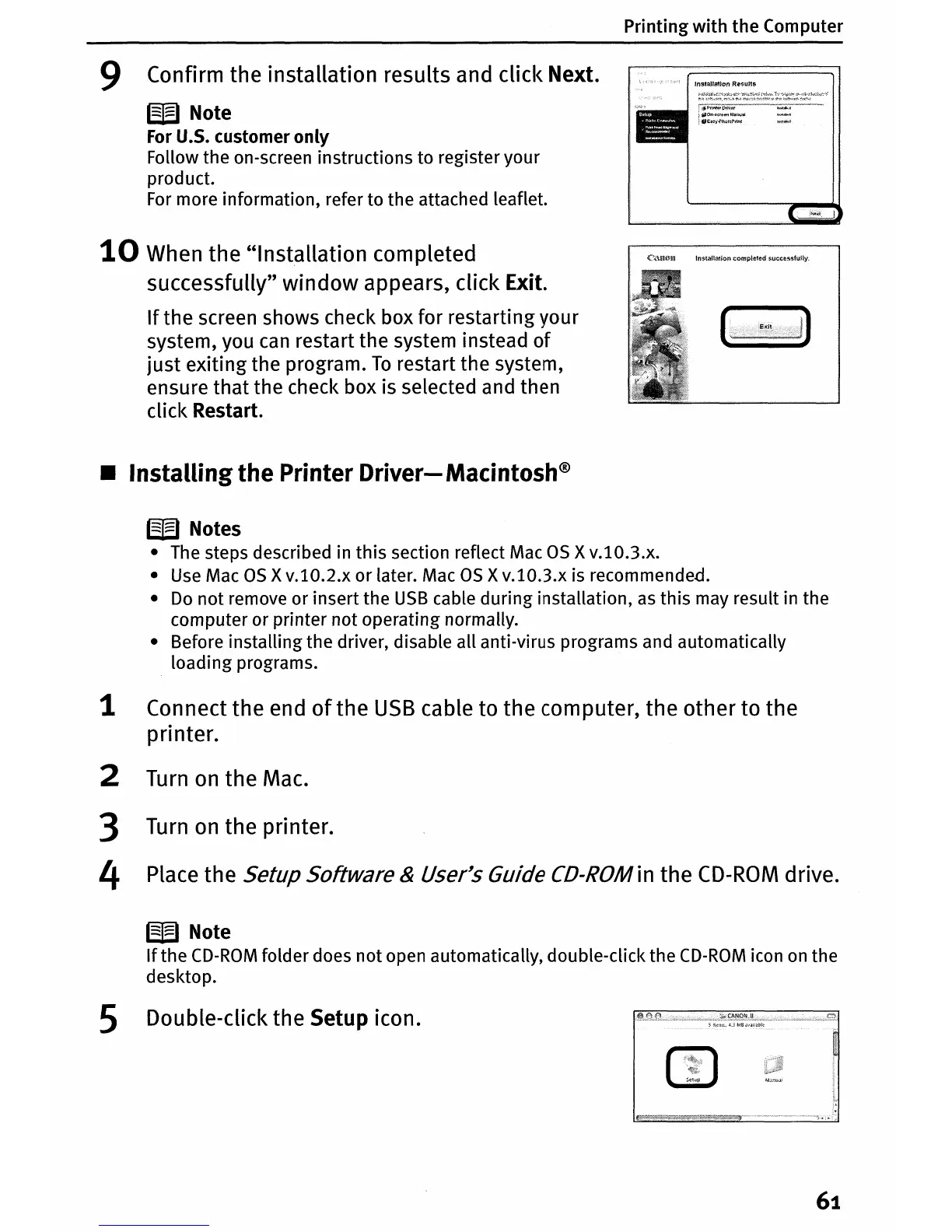
9 Confirm the installation results and click Next.
W Note
For U.S. customer
only
Follow the on-screen instructions to register your
product.
For
more information, refer to the attached leaflet.
10
When the "Installation completed
successfully" window appears, click Exit.
If
the screen shows check box for restarting your
system, you
can
restart the system instead
of
just
exiting the program.
To
restart the system,
ensure that the check box is selected and then
click Restart.
• Installingthe Printer
Driver-
Macintosh®
C"'\fI~~U
Installation completed successfully.
W Notes
•
The
steps described in this section reflect Mac
as
x
v.l0.3.x.
•
Use
Mac
as
xv.10.2.x or later. Mac
as
xv.10.3.x is recommenderl.
•
Do
not remove or insert the
USB
cable during installation,
as
this may result in the
computer or printer not operating normally.
• Before installingthe driver, disable all anti-virus programs and automatically
loading programs.
1 Connect the end
of
the
USB
cable to the computer, the other to the
printer.
2
Turn
on
the Mac.
3
Turn
on
the printer.
4 Place the Setup Software & User's Guide CD-ROM in the
CD-ROM
drive.
W Note
If
the
CD-ROM
folder does not open automatically, double-click the
CD-ROM
icon
on
the
desktop.
S Double-click the Setup icon.
61





 To Next Page