13 610 02 1018
38
Operation
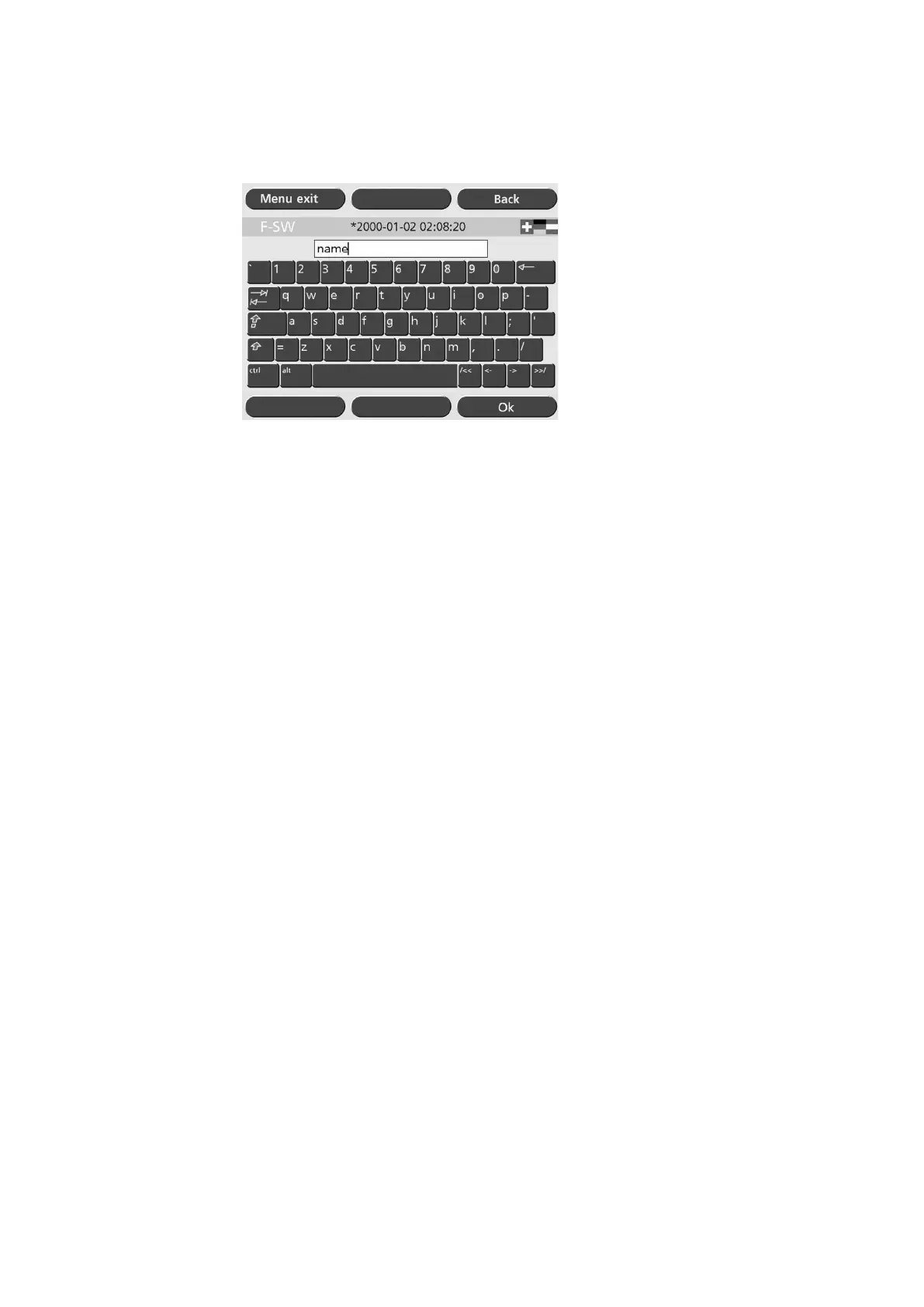
• To rename the conguration, touch the button again that has already been se-
lected. This activates the keyboard window.
Fig. 5-22 Keyboard window
You can save your parameter setting either as an indication or under a patient’s name.
• To save the parameters as an indication, place an “*” before the name of the
indication or leave it in place (“*Indication name”).
The saved and selected or loaded indication appears in the status bar. This display
disappears if a parameter is subsequently changed.
• To save the parameters for a particular patient (patient record), store the setting
directly under the name of the patient (“last name, rst name”).
The conguration stored for a patient name is also displayed in the status bar. The
display of patients’ names does not disappear when the parameters are changed. All
parameter changes are logged in a table. The patient record is closed when:
– a new patient record is called up (loaded),
– an indication is loaded,
– a parameter reset is performed (actual value),
– the unit is switched off.
• Conrm each of your entries by touching the “OK” button.
• Delete a stored conguration that is no longer required using the “Delete” button
(Fig. 5-21/3).
Up to 1000 treatments can be stored.



 To Next Page