13 610 02 1018
49
Operation
5.11.2 Extracting the software with WinZip
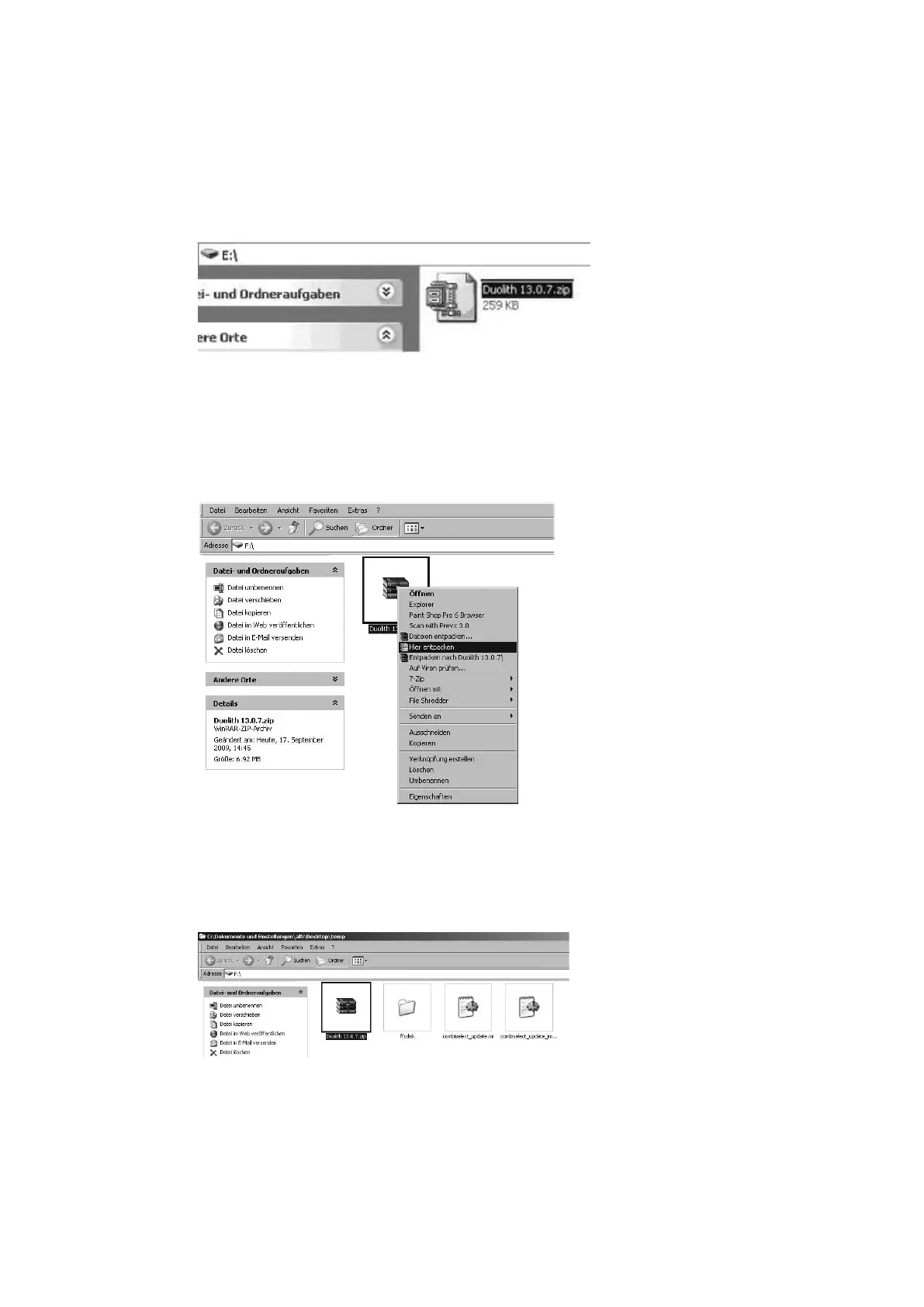
• Connect the USB stick to your computer.
• Save the ZIP le onto the USB stick.
Fig. 5-40 Zip le saved on USB stick
• Right-click on the ZIP le icon.
• In the shortcut menu, select the WinZip icon.
• Select “Extract to here” (see picture below).
Fig. 5-41 Extracting les
• Following extraction, the following les are displayed on the USB stick: “combise-
lect_update.ini”, “combiselect_update_img.ini” and “ffsdisk” folder.
Fig. 5-42 Files have been extracted
• Remove the USB stick and start the software update as described in the following
chapter.



 To Next Page