4.0 CONFIGURATION MENU
4-4 Cheetah Xi Programming Manual
Rev 1, 09/2013 P/N: 06-651
MODULE FUNCTIONALITY - ANY OF 3 ZONES
This function setting requires a state broadcast matching the activation state shown in Row D to come from at
least one of the three specified zones before the control modules output will activate.
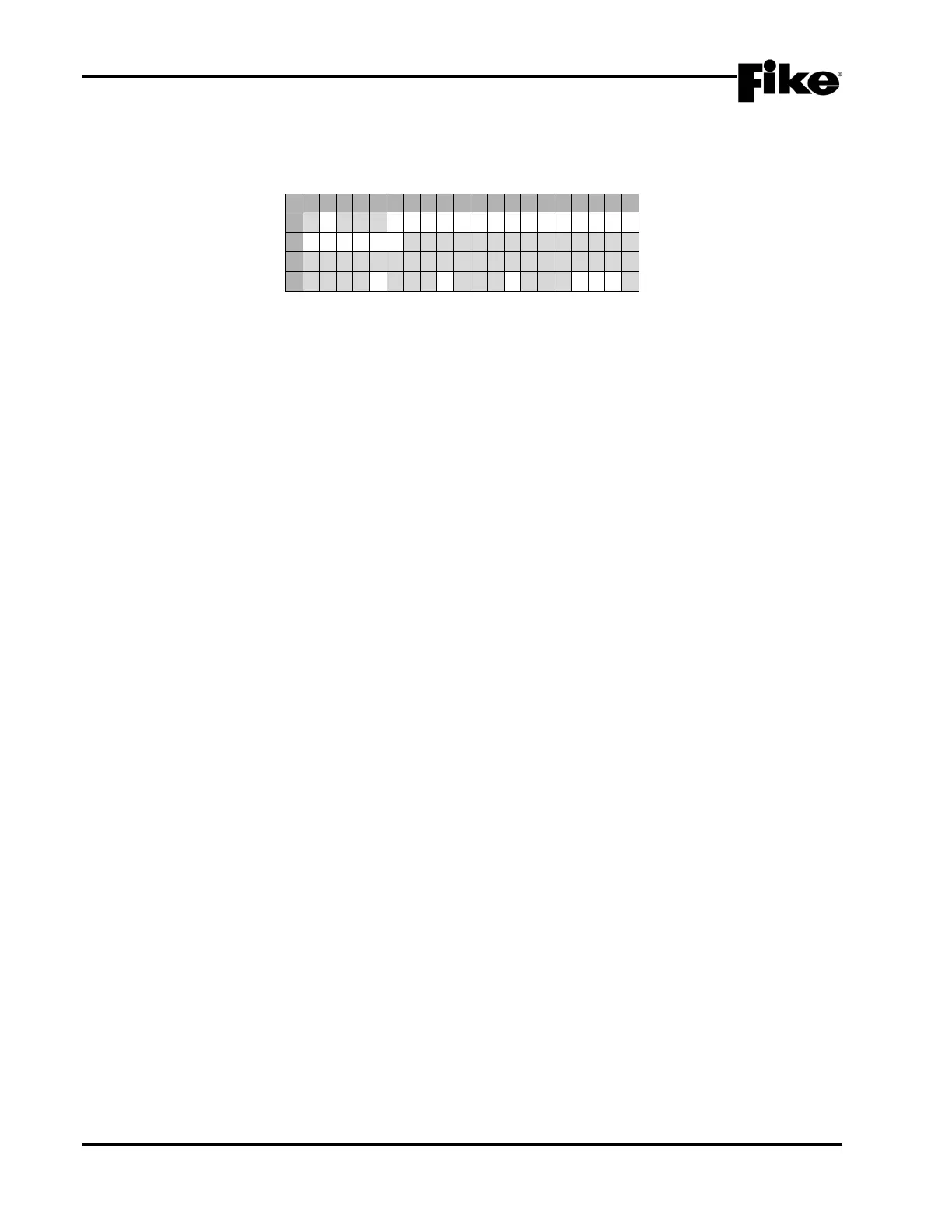
1 2 3 4 5 6 7 8 9 0 1 2 3 4 5 6 7 8 9 0
A
1 - 0 0 1 : C O N T R O L M O D U L E
B
F U N C : * A N Y O F 3 Z O N E S
C
C U S T O M M E S S A G E 1 - 0 0 1
D
A L R M : 0 0 0 0 0 0 0 0 0P:*
Exhibit 4-6: Any of 3 Zones Function Screen
• Row D - Provides access to the first row of the modules output priority control table. To cycle
through the possible states of activation, use the ◄► arrow keys to position the cursor under the
ALRM field; then use the +/- keys to change the activation state:
AVON = Alarm Verification On
LTRB = Low Power Trouble
STRB = Short Circuit Trouble
OTRB = Open Circuit Trouble
MTRB = Maintenance Trouble
TSTA = Test Alarm
TRBL = Trouble
PROC = Process
PRA2 = Pre-Alarm 2
PRA1 = Pre-Alarm 1
SUPV = Supervisory
SUMA = Summing Alarm
ALRM = Alarm
ALRT = Voice Alert
EVAC = Voice Evacuation
PAGE = Voice Page
MSSA = Mass Notification All Zones
MSSZ = Mass Notification by Zone
2ALL = Page to Alert, Page to EVAC, Page All, Page R&R All
ZDIS = Zone Disable
The 000 fields allow you to set zone settings for the selected device address in Row A. Use the ◄►
arrow keys to position the cursor under one of the zone number fields (000); then use the +/- keys to
change the zone number. To add multiple zones, move the cursor to the 2nd-3rd zone number
fields; then use the +/- keys to change or add the zone number.
P:X allows you to select the activation pattern for the modules output, where X signifies:
0 = OFF F = FAST
1 = ON T = TEMPORAL
S = SLOW W = WALKTEST)
Use the ◄► arrow keys to position the cursor under pattern field; then use the +/- keys to change
the activation pattern.


 To Next Page