EasyManua.ls Logo

Ciara-tech Discovery - User Manual

Ciara-tech Discovery
81 pages
Print Icon
To Next Page IconTo Next Page
Loading...
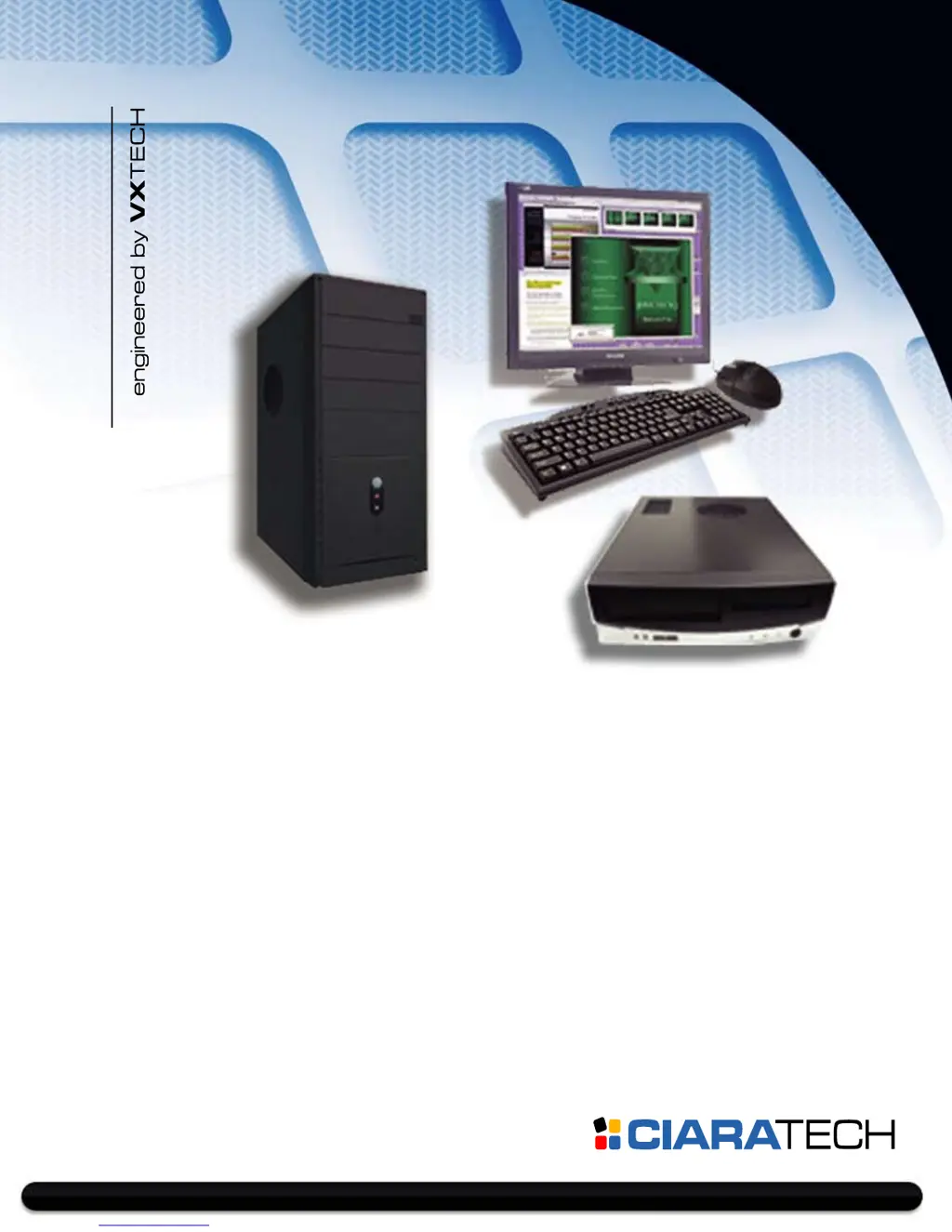
User Guide
Discovery / Enterprise TP
Personal computer
µATX
form factor
Intel
®
D945GTP
motherboard
Quality | Performance | Service www.C IARA-TE C H .com

Table of Contents

Questions and Answers

  • B
    bradleykathleenSep 12, 2025
    Why won't the arrow keys move the cursor on my Ciara-tech Discovery Desktop?
    • C
      christopherwalterSep 12, 2025
      If the cursor won't move using the arrow keys on the keypad of your Ciara-tech Desktop, the Num Lock key may be on. Press the Num Lock key to turn it off. The Num Lock light should not be on if you want to use the arrow keys.
  • C
    Christopher VillarrealSep 13, 2025
    Why does the diskette drive light stay on for my Ciara-tech Discovery?
    • B
      brandy64Sep 13, 2025
      If the diskette drive light stays on in your Ciara-tech Desktop, it could be due to several reasons: * The diskette might be damaged. In Microsoft Windows 2000 and Microsoft Windows XP, right-click Start, click Explore, and select a drive. Select File > Properties > Tools. Under Error-checking, click Check Now. * The diskette might be incorrectly inserted. Remove and reinsert it. * The drive button might not be pushed in. Push it in. * Files on the diskette might be damaged. Check the program diskettes. * The drive cable might not be properly connected. Reconnect the drive cable, ensuring all four pins are connected.
  • C
    Charles DuranSep 15, 2025
    Why can't my Ciara-tech Discovery Desktop diskette drive write to a diskette?
    • T
      taylorfeliciaSep 15, 2025
      If your Ciara-tech Desktop diskette drive cannot write to a diskette, it could be due to several reasons: * The diskette is not formatted; format the diskette. * The diskette is write-protected; use another diskette or remove the write protection. * You are writing to the wrong drive; check the drive letter in the path statement. The default letter for the diskette drive is 'A'. * Not enough space is left on the diskette; use another diskette.
  • E
    Elizabeth TateSep 17, 2025
    Why can't my Ciara-tech Discovery Desktop diskette drive read a diskette?
    • A
      albert48Sep 18, 2025
      If your Ciara-tech Desktop diskette drive cannot read a diskette, consider the following: * The diskette is not formatted; format the diskette. * You are using the wrong diskette type for the drive type; check the type of drive you are using and use the correct diskette type. * You are reading the wrong drive; check the drive letter in the path statement. The default letter for the diskette drive is 'A'. * The diskette is damaged; replace the diskette with a new one.
  • B
    Breanna PhelpsNov 25, 2025
    Why won't my Ciara-tech Discovery power on with no LEDs?
    • E
      elizabeth10Nov 25, 2025
      If your Ciara-tech Desktop doesn't power on and no LEDs are flashing, the system may be unable to power on. Here's what you can try: * Press and hold the power button for less than 4 seconds. * If the hard drive LED turns green, check that the voltage selector on the rear of the power supply is set to the appropriate voltage. * If the hard drive LED doesn't turn green: 1. Check that the unit is plugged into a working AC outlet. 2. Open the hood and check that the power button harness is properly connected to the system board. 3. Check that both power supply cables are properly connected to the system board. 4. Ensure the 4-wire power supply cable is seated into the connector on the system board. 5. If the problem persists, contact Ciara Technology since the ...

Summary

Compatibility

One Year Limited Warranty

Radio Interference Precautions

1.0: Introduction to the Ciara Enterprise;Discovery 945 GTP

2.0: The Ciara Enterprise;Discovery 945 GTP BIOS

2.1: BIOS Configuration and Installation

Procedure for setting up BIOS configuration options for system readiness.

2.11: BIOS Security Features

Features for restricting access to BIOS setup and controlling system boot.

3.0: Ciara Enterprise;Discovery 945 GTP Specifications

3.1: Configuration & Layout - Ciara Enterprise;Discovery 945 GTP Main board

Illustration and description of the motherboard components and their layout.

4.0: Installing and Upgrading Your System

4.3: Connecting I;O Devices

Procedure for connecting external input/output devices like monitors, keyboards, and mice.

4.8: Installing DIMM Memory Modules

Instructions for installing or upgrading system memory (RAM) modules.

5.0: Using the Ciara Enterprise;Discovery 945 GTP

7.0: Quick Installation Guide

7.4: Preparing the chassis for installation

Steps for preparing the computer chassis, including installing drive cages and standoffs.

7.5: Insertion of the motherboard

Procedure for correctly seating and securing the motherboard into the chassis.

7.6: Insertion of the processor

Detailed steps for installing the CPU, including handling precautions and fan installation.

7.8: Installation of the hard drive

Procedure for installing IDE and Serial ATA hard disk drives into the chassis.

7.16: Installation of the memory modules

Step-by-step instructions for installing DDR2 memory modules into the motherboard slots.

7.18: Precautions against static electricity

Essential precautions and protective wear to prevent damage from static electricity during installation.

8.0: Troubleshooting Your System

8.1: BIOS Errors and Messages

Interpreting error messages and codes displayed by the BIOS during system startup.

8.2: Beep Codes

Understanding the meaning of different beep codes for diagnosing system startup problems.

8.4: Solving General Problems

Guidance on resolving common problems like system lock-ups or performance issues.

8.5: Solving Power Supply Problems

Troubleshooting steps for issues related to power supply shutdown or LED indicators.

8.7: Solving Hard Drive Problems

Troubleshooting for hard drive errors, transaction problems, and system lock-ups.

8.8: Solving Display Problems

Solutions for blank screens, blurry video, and other display-related issues.

8.11: Solving Keyboard and Mouse Problems

Troubleshooting steps for issues with keyboard commands and mouse responsiveness.

8.12: Solving Hardware Installation Problems

Solutions for problems encountered when installing new hardware devices or memory.

8.13: Solving Memory Problems

Guidance for resolving issues related to system memory installation and operation.

8.14: Solving Processor Problems

Troubleshooting steps for issues related to processor overheating or improper installation.

Ciara-tech Discovery Specifications

General IconGeneral
BrandCiara-tech
ModelDiscovery
CategoryDesktop
LanguageEnglish