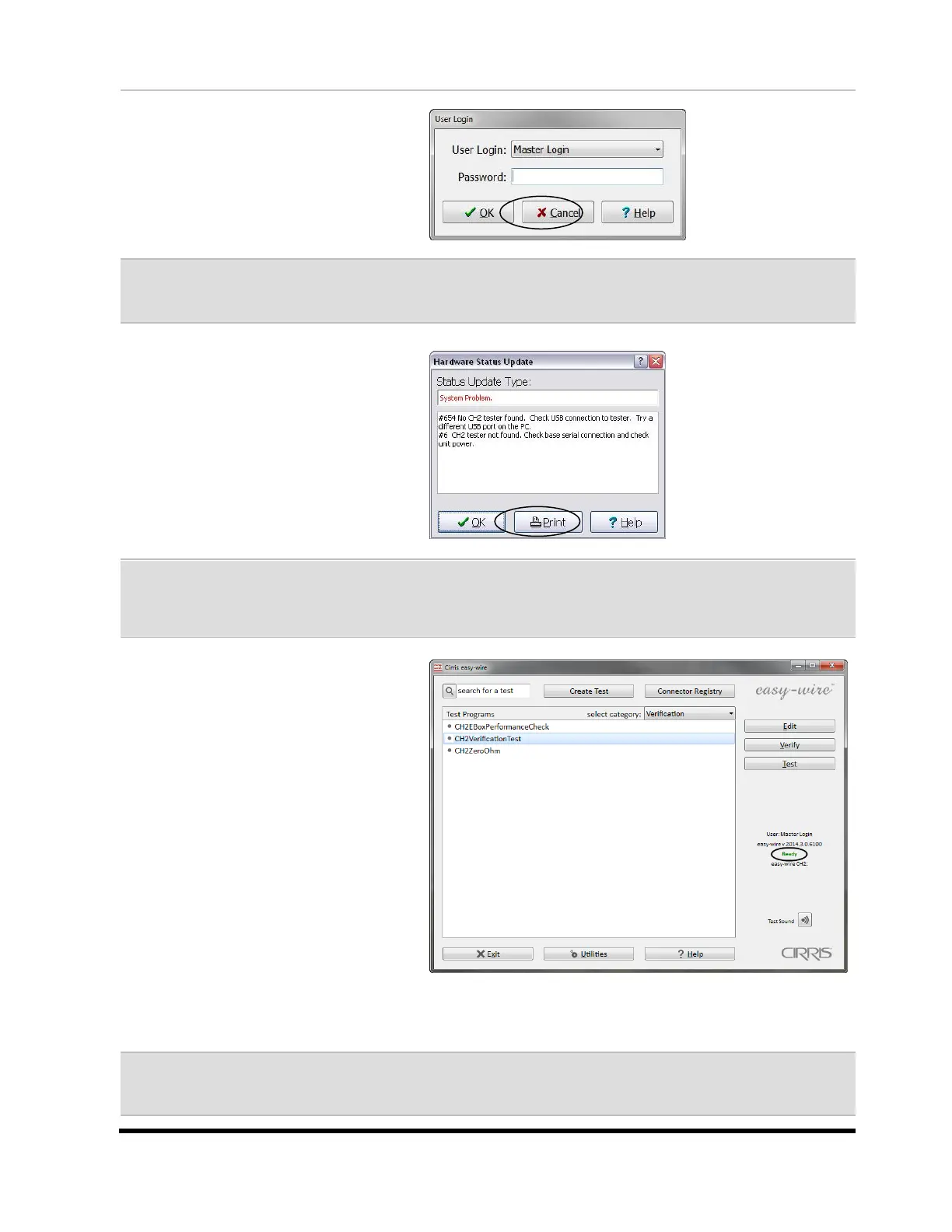
3. The Easy-Wire software will load.
In the “User Login” window,
click OK.
Note: Initially, no password is required for the "Master Login" user. To learn how to create
login user names and passwords, click the Help button in the “User Login” window.
4. If the “Hardware Status Update”
window opens, read the message
and click OK.
Note: Each time you run the software, the Hardware Status Update window will display if the
system has been changed or disconnected. Click the Help button in this window for more
information.
The Easy-Wire main menu will
open. If you are updating an
existing installation, ensure that
your test programs are in the
test program list.
5. In the Easy-Wire main menu,
verify that the status indicator is
green.
If the status indicator says
ready, the tester is working.
Skip to page 12 to check the
sound.
If the status indicator says
error, the tester has a problem.
See “Troubleshooting a Red
Status Indicator” on the next
page.
For other unresolved problems, see “Startup and Verify” in the help system, or call Cirris Technical
Support at 1-800-441-9910.


 To Next Page