Set Up
In order to use the xHV Power Supply, the PC running your CH2 tester must have 2 USB
ports. The xHV Power Supply requires the current version of the Easy-Wire software (version
2009.2.0 or higher) and a driver (see below). Prepare all cords to be assembled.
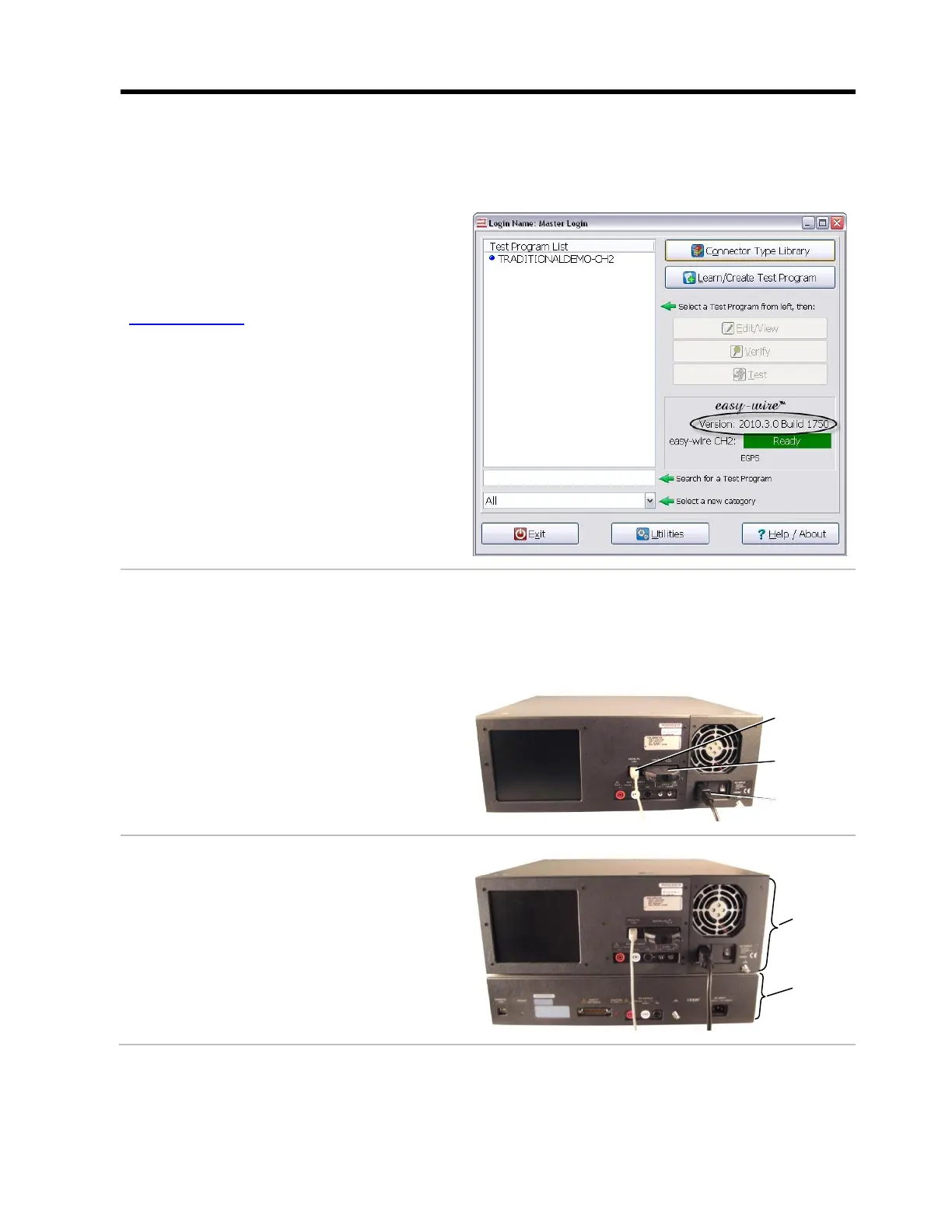
The version of your Easy-Wire software is
found on the Easy-Wire main menu.
If you need to install the current version
of the Easy-Wire software, go to
www.cirris.com. A password will be
needed to access the software. To
obtain your password, call Cirris
customer support at 1-800-441-9910.
Installing the Driver
Ensure that Easy-Wire version 2009.2.0 or higher is installed on your PC. Then navigate to the
file path C:\Program Files\Cirris\easywire\xHVAC Supply, double-click USBXpressInstaller.exe,
and follow the installation steps provided. This installation may take a few minutes.
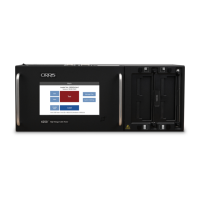
The electrical assembly of the CH2 Base
should already be completed.
Setting Up the xHV Power Supply:
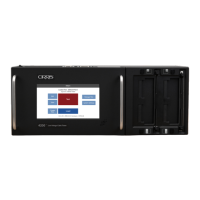
1. Place the CH2 Base on top of the CH2
xHV Power Supply aligning the back
and side panels of both units as
shown.
xHV power
supply
(rear view)


 To Next Page