The tester goes through a series of self tests upon boot up. These tests check to ensure that
the hardware and software are working properly. In the Easy-Wire main menu, you can tell if
the tests pass or fail by checking the status indicator. You can also check the sound from the
Easy-Wire main menu.
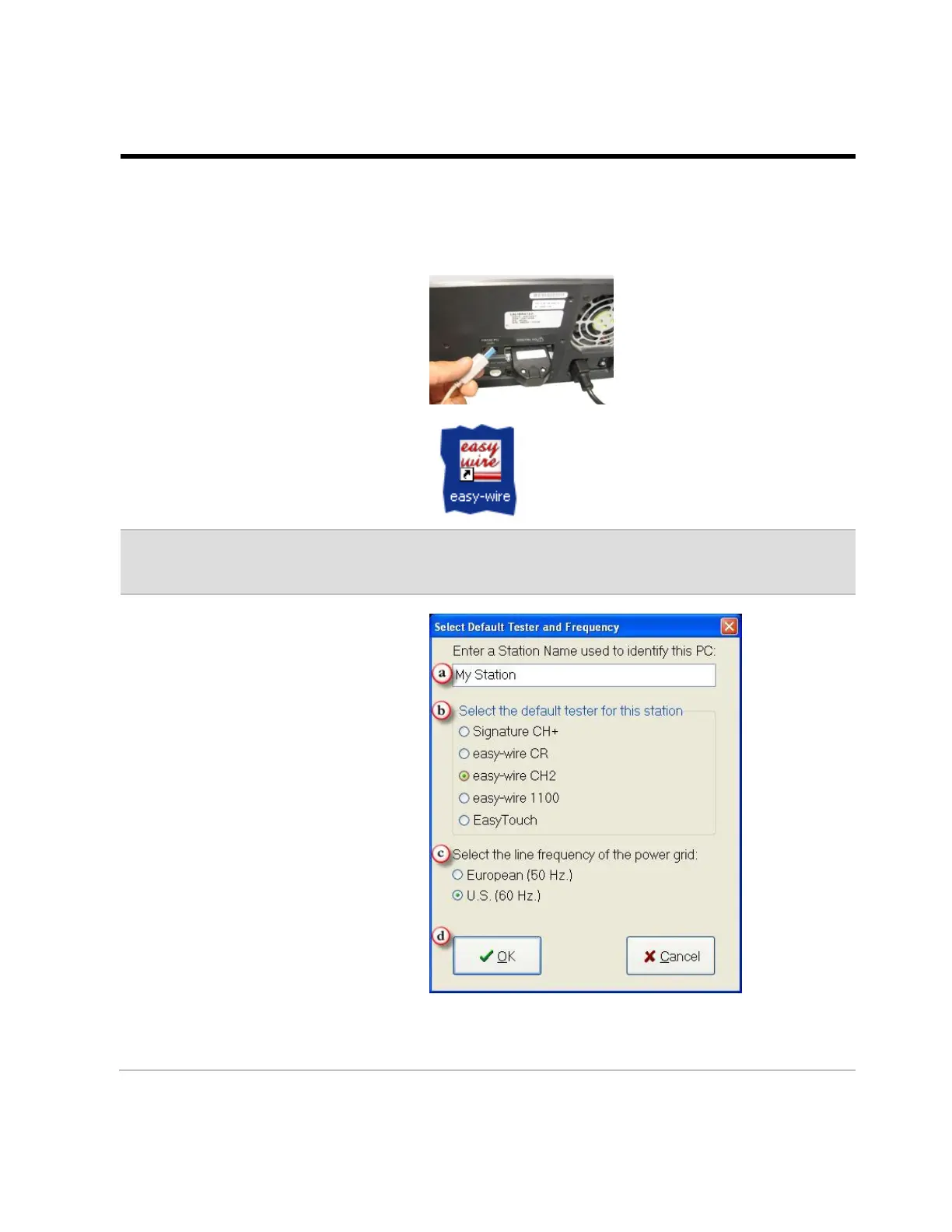
If you disconnected the USB cable
while updating the software,
reconnect it.
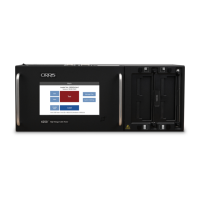
Note: If you don’t see the icon on the desktop, from the Windows task bar, click Start>All
Programs>Cirris Systems Corporation, Easy-Wire>Easy-Wire.
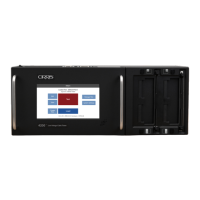
2. If this is your first time opening
Easy-Wire, the “Select Default
Tester and Frequency” window
will appear on your screen.
a) Enter the station name or
server name (the station
name will be used on reports
generated by this station).
b) Select Easy-Wire CH2 as tester
that will be attached to this
station.
Important! Make sure you
select the correct tester. If you
select the incorrect tester and
click OK, call Cirris for
assistance.
c) Select your line
frequency.
d) Click OK.


 To Next Page