3.5.10 - CREATING A CONDITIONED OUTPUT
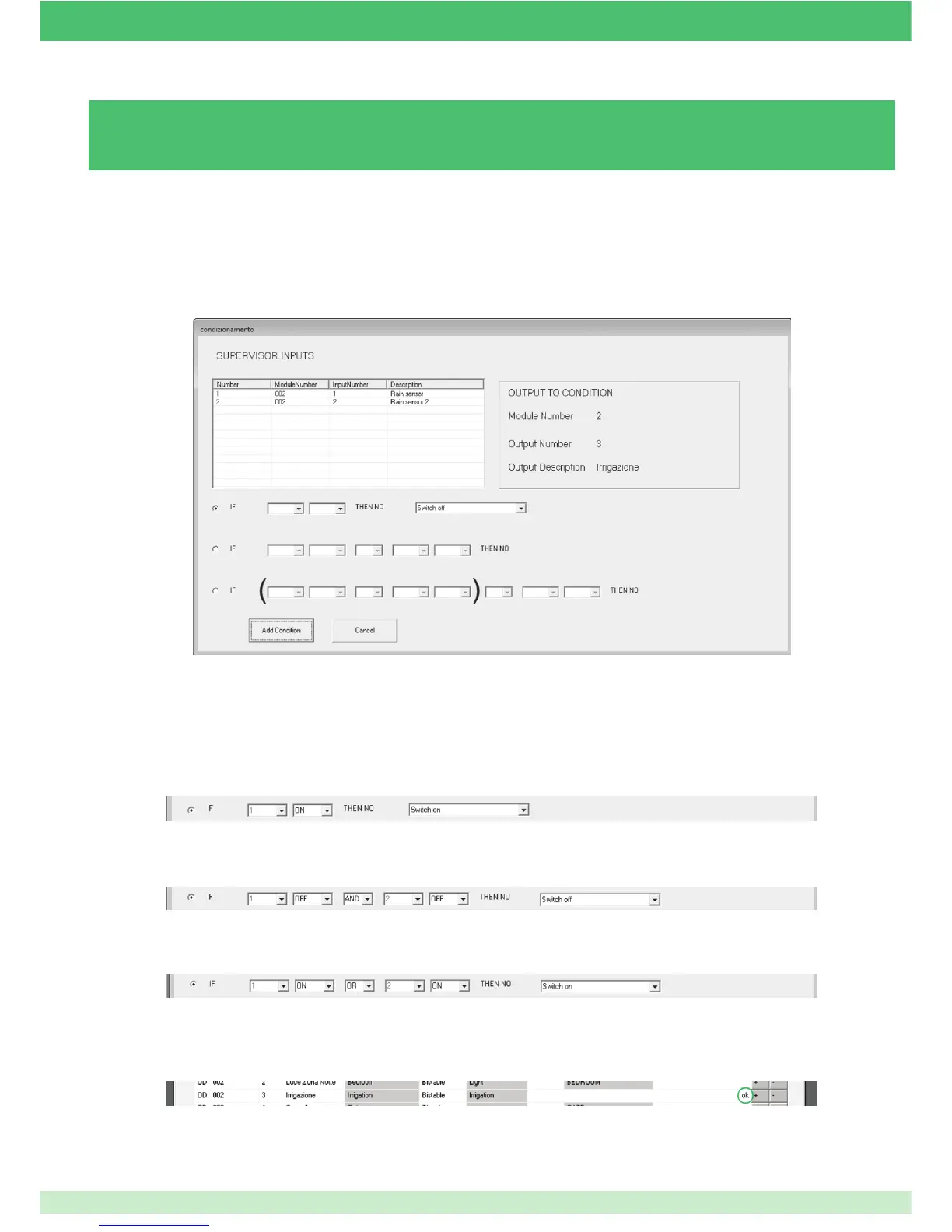
To use the Conditioned Output function, at least one input on one of the digital modules installed must be set as supervisor.
1. On the Modules tab, click the icon + corresponding to the output you wish to condition.
• The table in the top left-hand corner of the screen lists the available Supervisor inputs.
• The details relating to the output being conditioned are provided in the top right-hand corner.
• The various conditioning criteria are provided at the bottom.
Below you will fi nd some examples of output conditioning based on 1 Supervisor input:
Example 1
If input 1 is OFF and input 2 is OFF, the conditioned output will not be deactivated automatically by the timer.
Example 2
3. Click Add condition to save and exit.
Th text "ok" will appear to confi rm that conditioning has been completed successfully.
2. Fill in the conditioning criteria boxes.
If input 1 is ON, the conditioned output will not be activated automatically by the timer.
If one of the two inputs is ON, the conditioned output will not be activated automatically by the timer.
Example 3
Conditioning is activated by the Planux Manager / Minitouch.
The conditioned output makes it possible to stop the timers set for that output on the supervisor, depending on the status of an input
on a digital module set as supervisor.
91



 To Next Page