3.5.11 - CREATING A CONDITIONED SCENARIO
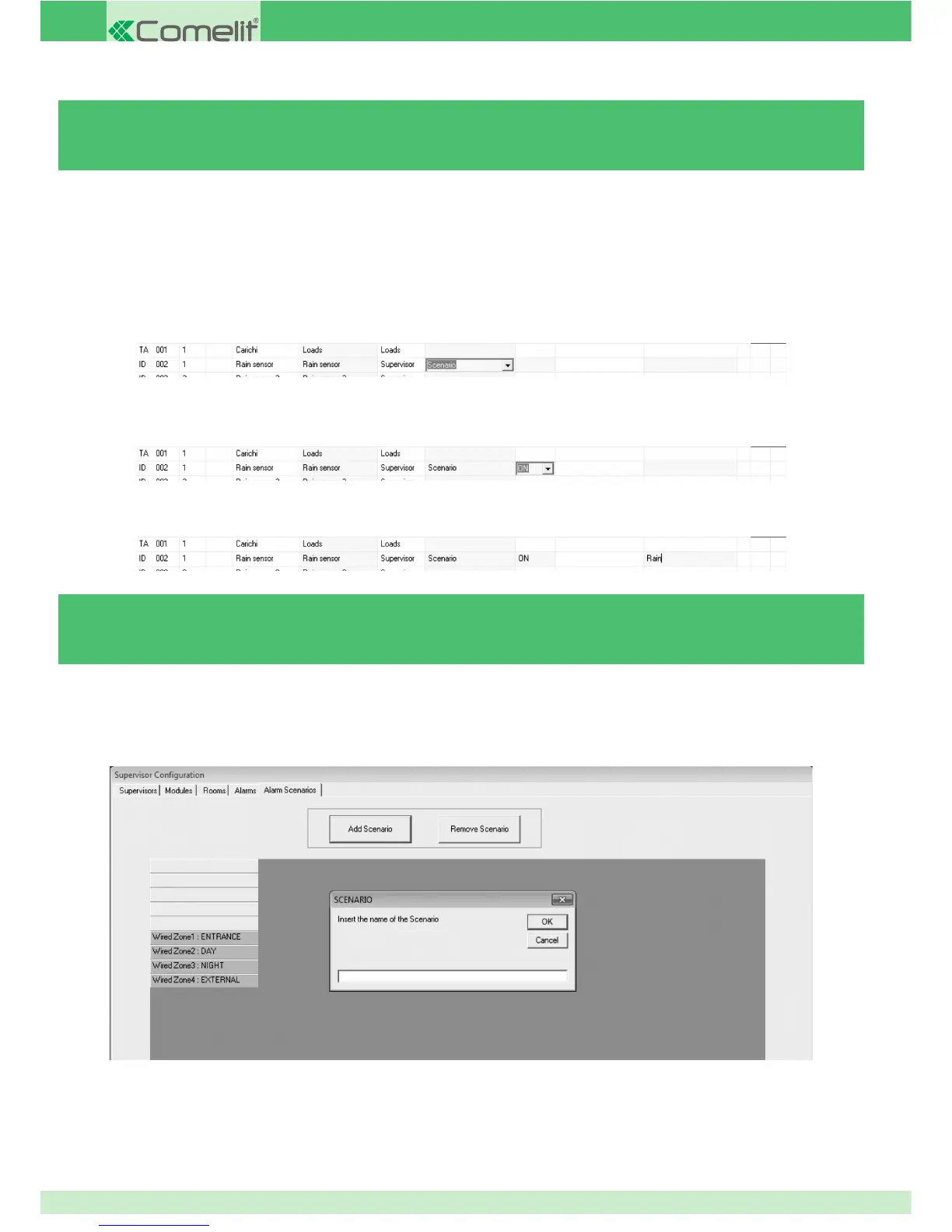
To create a Conditioned Scenario, at least one digital input on one of the modules installed must be set as supervisor.
2. In the relevant Input/Output Type cell, set the value as Scenario.
3. In the relevant Activation cell, set the parameter in accordance with the function performed by the sensor connected to the input.
4. In the relevant Name cell, type the name you wish to assign to the scenario.
3.5.12 - CREATING AN ALARM SCENARIO
} On the Alarm Scenarios tab, press Add Scenario.
If set to ON, the scenario will be activated when the input is closed. If set to OFF the scenario will be activated when the input is open.
» This name will appear in the list of conditioned scenarios on the Planux Manager monitor.
1. On the Modules tab, identify the Supervisor input you wish to use for the Conditioned Scenario.
The scenario is activated and confi gured by the Planux Manager / Minitouch.
» This will be the name which appears on the Planux Manager / Minitouch monitor display in the conditioned scenarios.
1. Enter the name you wish to assign to the scenario.
2. Press OK.
A conditioned scenario is a scenario sent by a supervisor and applied when the input associated with it opens or closes.
An alarm scenario is a scenario sent by a supervisor and applied when a set function takes place. For example, if you want the lights
to switch off when a sensor does not detect anyone in the room for 6 seconds.
92



 To Next Page