DEEP LEARNING PLUS USER MANUAL
66
i. Video Source: Select a video source channel for the DL Counter.
ii. Target Object: Select at least one target object for counting (person/bike/car).
iii. Zone Name: Enter a custom name for the DL Counter Zone.
iv. Zone Type: Select a zone shape for counting (line/area).
v. Count Increase: Select a behaviour for increasing the counter (line: forward/
reverse/both; area: enter/exit/both).
vi. Count Decrease: Select a behaviour for decreasing the counter (line: forward/
reverse/both; area: enter/exit/both).
vii. Click <APPLY> to finished creating the new Zone.
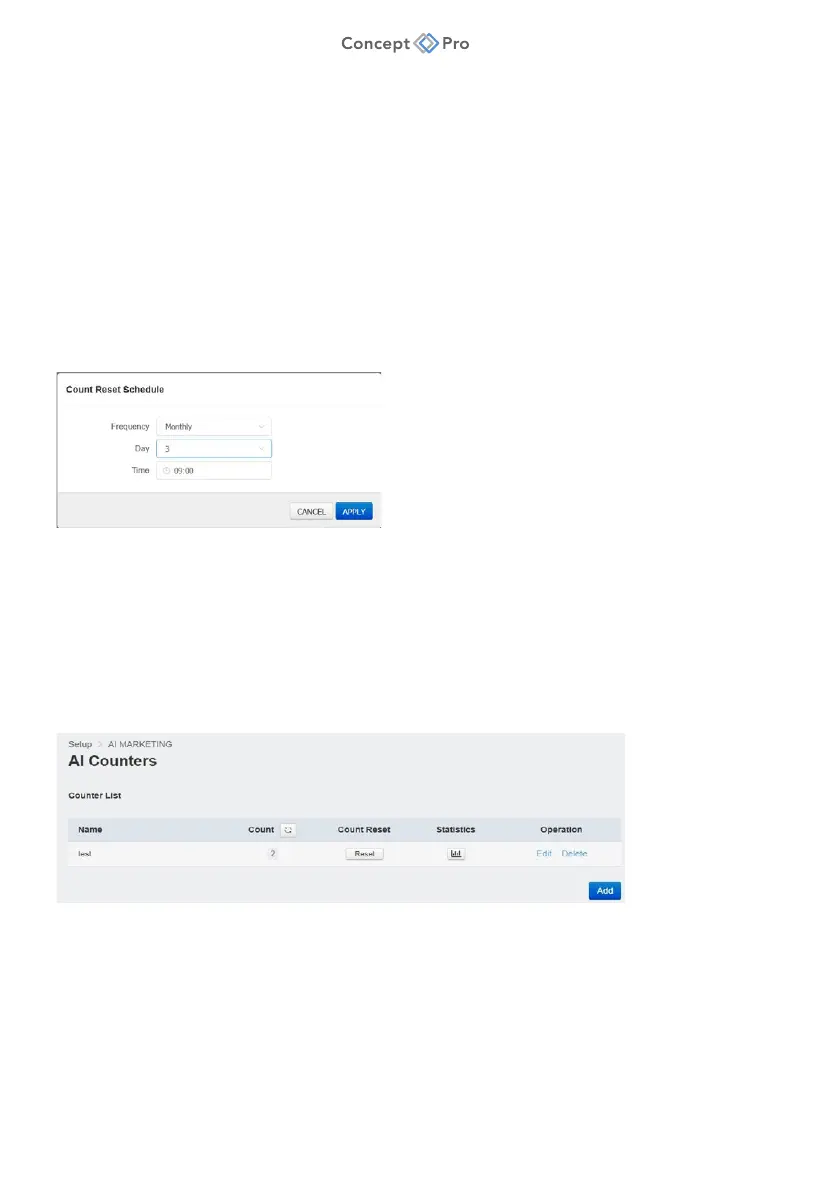
c. Count Reset: Click <ADD SCHEDULE> to create a new schedule for resetting the DL Counter.
i. Frequency: Select the frequency for resetting the DL Counter (daily/weekly/
monthly).
ii. Day: Select the day of the week/month for resetting the DL Counter.
iii. Time: Select the time of day for resetting the DL Counter.
iv. Click <APPLY> to finish creating the new Count Reset profile.
d. When finished, click <APPLY> to save these settings.
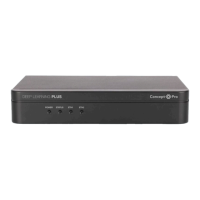
4. Whenever the <DL COUNTERS> menu is re-opened, a live Counter List will display all
created DL Counters. Different operations can be completed from this Counter List:
a. Name: Lists the names of each created DL Counter.
b. Count: Displays the most recent count for each DL Counter. Click the button to
update all counts.
c. Count Reset: Click <RESET> to reset a DL Counter.
d. Statistics: Click the button to filter and search statistics:


 To Next Page