⚫ Double-click one-mark information item, you can see system pops up a dialogue box for you to change
mark information. You can only change mark name here.
⚫ Delete
⚫ Here you can check the mark information item you want to delete and then click Delete button, you can
remove one-mark item.
⚫ After you go to the mark management interface, system needs to pause current playback.
⚫ System resume playback after you exit mark management interface.
⚫ If the mark file you want to playback has been removed, system begins playback from the first file in the
list.
1.6.5 Playback Image
⚫ Here you can search and play the image. Follow the steps listed below.
Step 1 Select Main Menu > PLAYBACK, or on the preview window right click mouse and then
click Search, you can go to the Search interface.
⚫ Step 2 At the top right corner, select image and then input playback interval.
⚫ Step 3 Select date and channel, click to play.
1.6.6 Splice Playback
⚫ You can clip the recorded video files into splices and then play back at the same time to save your time.
⚫ This function is for some series products only.
Step1 Select Main Menu > PLAYBACK, the PLAYBACK interface is displayed.
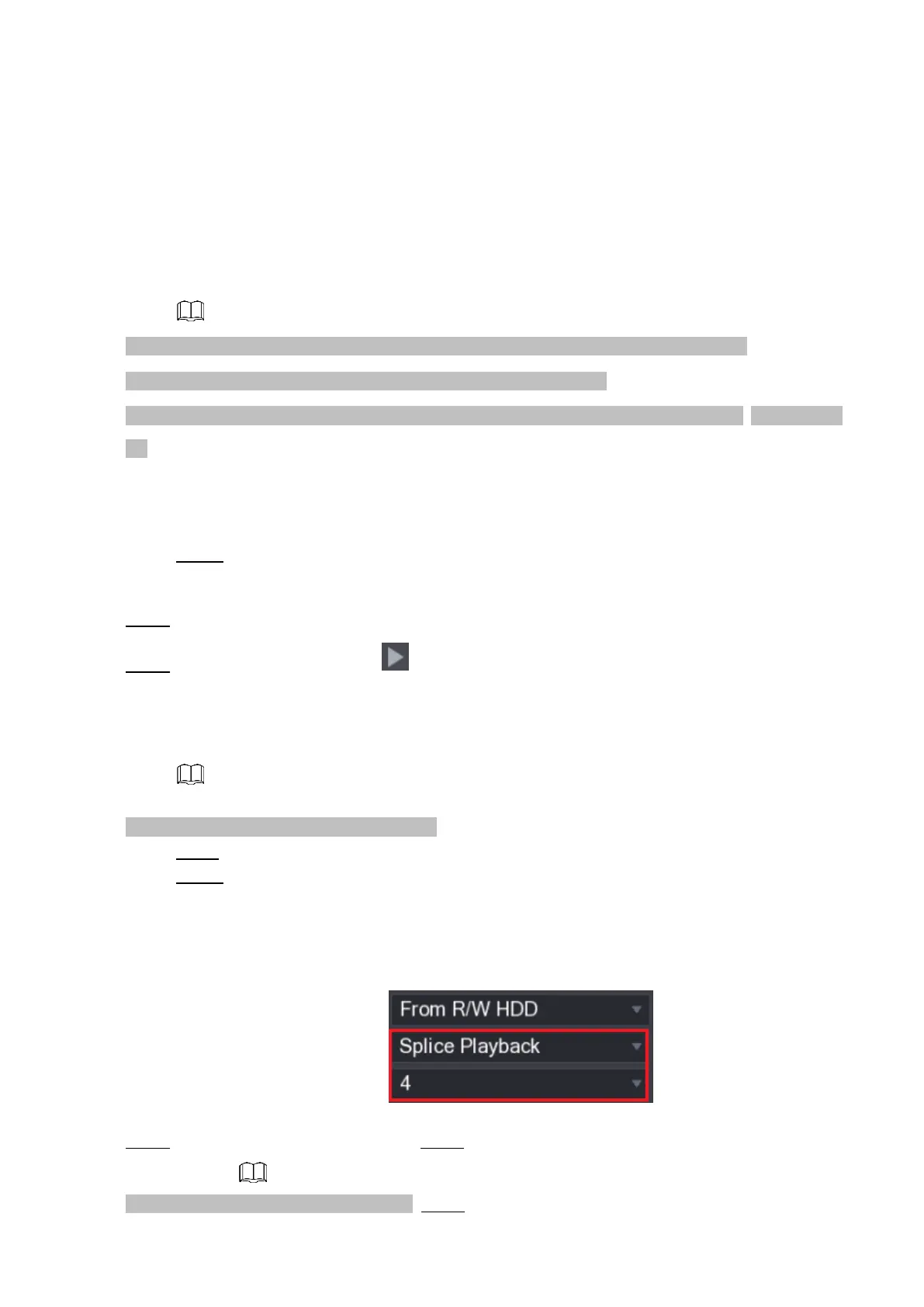
Step 2 In the Search Type list, select Splice Playback; In the Split Mode list, select 4, 9, or 16.
⚫ See Figure 1-100.
⚫ Figure 1-100
⚫ Step 3 In the Calendar area, select a date. Step 4 In the CAM NAME list, select a channel.
⚫ Only single-channel supports this function. Step 5 Start playing back splices. See Figure 1-101.



 To Next Page