28 • HD-MD4X2-4KZ-E and HD-MD4X1-4KZ-E Web Interface Configuration Guide — Doc. 8907B
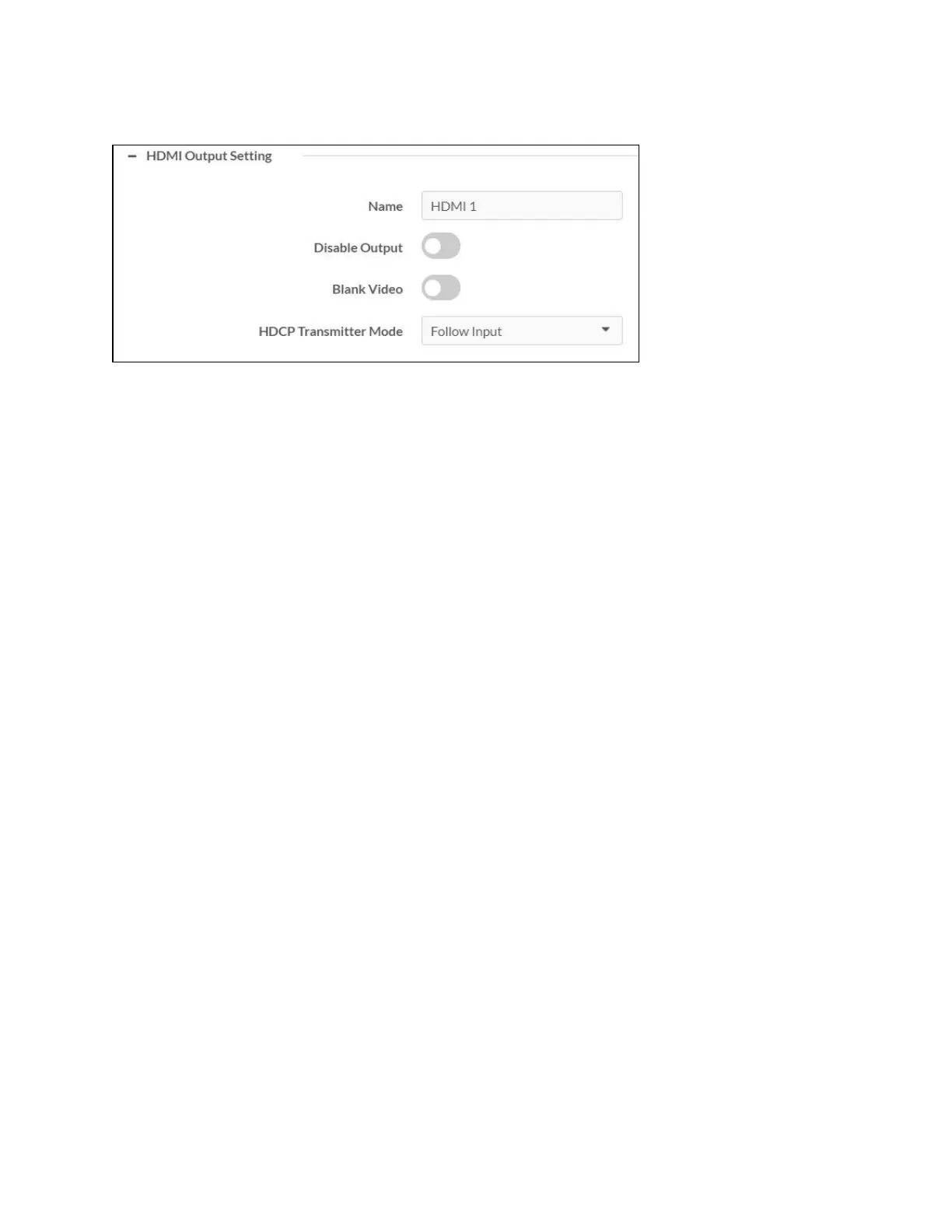
Configure HDMI Output Setting
1. Optionally, edit the name of the HDMI output in the Name field.
2. Move the Disable Output slider to the right to disable the audio and video outputs. To
enable the audio and video outputs, move the slider to the left.
3. Move the Blank Video slider to the right to disable video. To enable video, move the slider
to the left.
4. Select the desired option from the HDCP Transmitter Mode drop-down menu to set the
HDCP Mode as follows:
a. Follow Input (Default): Authenticates each time the input sync changes its state.
The output will authenticate to the level reported at the Input.
b. Force Highest: Authenticates to the highest level HDCP supported by the
downstream device and always maintains sync.
c. Never Authenticate: The HDMI output will blank if the input is HDCP encrypted.
5. Click OK to save. Click Cancel to cancel the changes.






 To Next Page