Web Interface Configuration Guide — Doc. 8907B HD-MD4X2-4KZ-E and HD-MD4X1-4KZ-E • 29
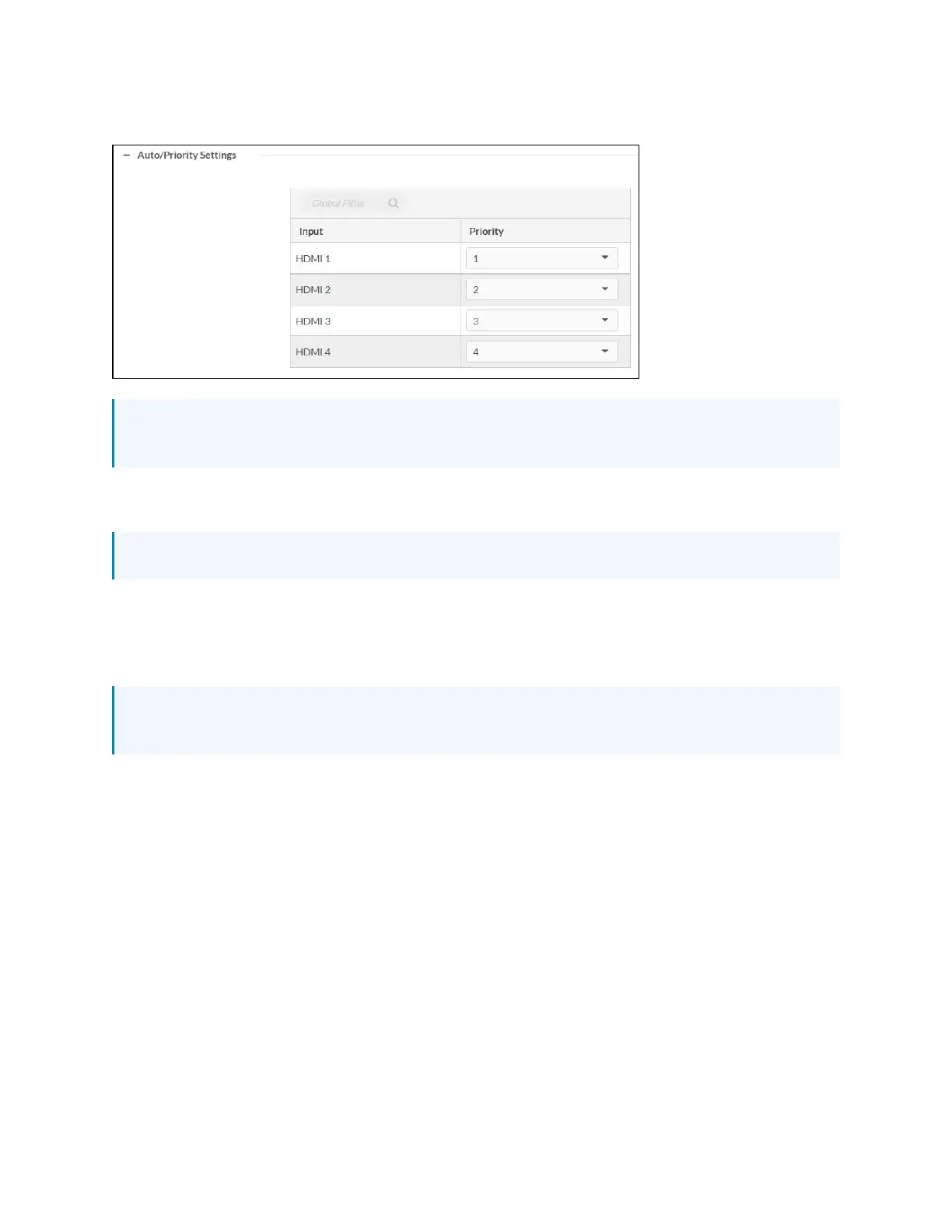
Configure Auto/Priority Settings
NOTE: For Priority Routing to work, make sure that Auto Routing is enabled under the
Routing panel.
Priority levels for automatic routing of an input range from Priority 1 (highest priority) to Priority
4 (lowest priority).
NOTE: If priority is set as 0, then the input source is not considered for priority routing.
Automatic routing of an input occurs according to the routing priority level and the detection of
a source at the input. Routing of an input remains until the input is disconnected. If the input
that is being routed is disconnected, automatic routing switches to the input with the next
highest priority setting.
NOTE: If the same priority level is set for all inputs, the last connected input is automatically
routed.
To configure the priority level:
1. Select the priority level from the Priority drop-down menu for the input.
Optionally, enter the input source name in the Global Filter field to search for an input
source, then set the priority level.
2. Click OK to save. Click Cancel to cancel the changes.






 To Next Page