96 • TST-902 Product Manual — Doc. 7750C
Wi-Fi Setup
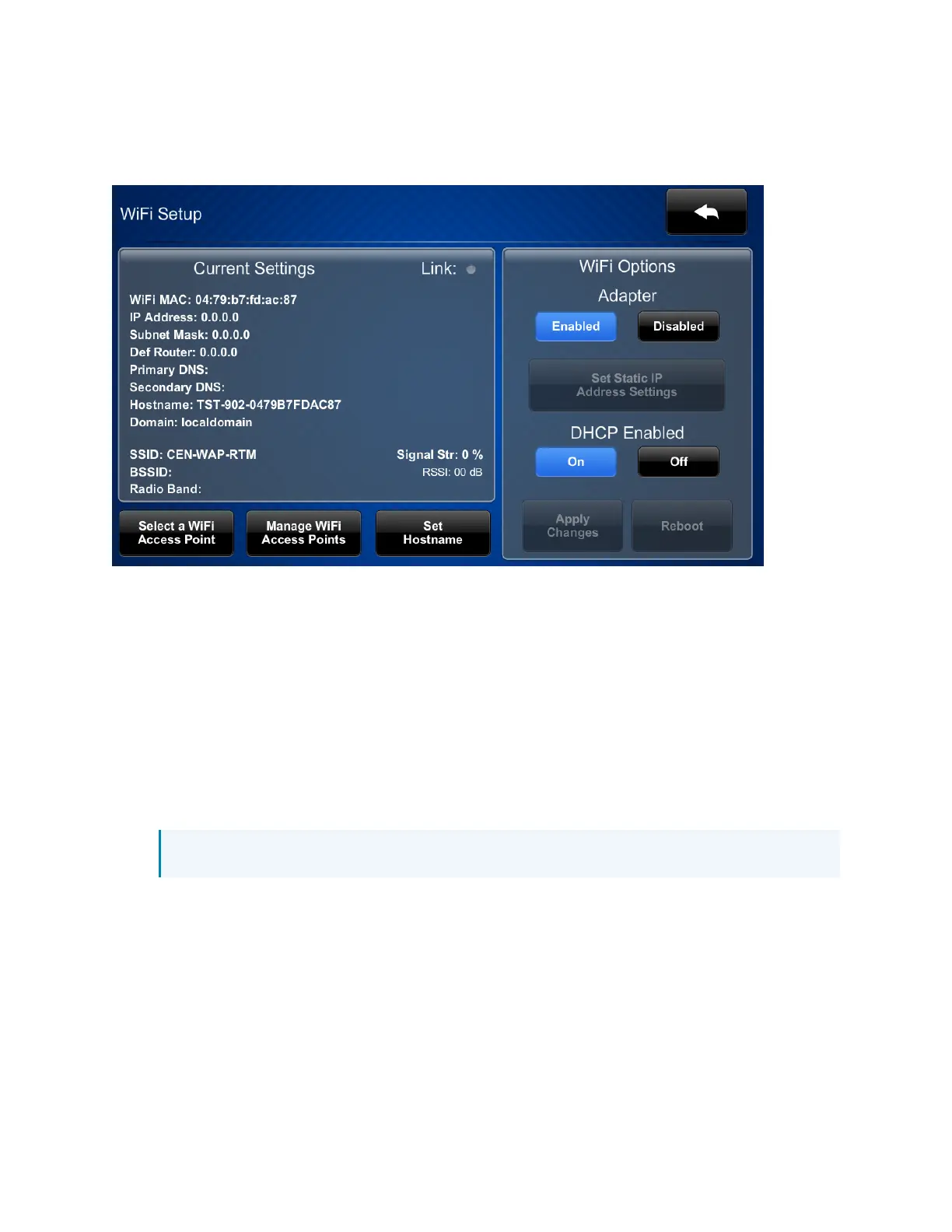
Tap Wi-Fi Setup on the TST-902 Setup screen to display the Wi-Fi Setup screen.
Use the Wi-Fi Setup screen to view the Wi-Fi network MAC and IP addresses, subnet mask
address, default router address, primary and secondary DNS addresses, host name, domain, and
various details about the Wi-Fi connection. A Link indicator is provided to indicate the status of
the Wi-Fi connection. (Green indicates that the Wi-Fi connection is active.)
The following buttons are provided for configuring Wi-Fi settings:
l
Tap Enabled or Disabled under Adapter to turn the Wi-Fi adapter on or off. If Adapter is
set to Disabled, Wi-Fi will not function and the TST-902 will only function over Extended
Range (ER)RF.
l
Tap On or Off under DHCP Enabled to turn DHCP (Dynamic Host Configuration Protocol)
on or off.
NOTE: DHCP is enabled on the touch screen by default.
l
If DHCP is turned off, tap Set Static IP Address Settings to enter static IP addresses
manually.
l
Tap Set Hostname to enter a new touch screen host name using an on-screen keyboard.
l
Tap Apply Changes to apply any new Wi-Fi settings to the touch screen and to stay in
setup mode.
l
Tap Reboot to exit setup mode and restart the touch screen.
To change a static IP address, tap Off under DHCP Enabled. Then, tap Set Static IP Address
Settings to display the Wi-Fi Setup - Static IPs screen.









 To Next Page