Scanshell 1000 Scanning Documents
IdScan User Manual version 9.0
©
Card Scanning Solutions, all rights reserved 25
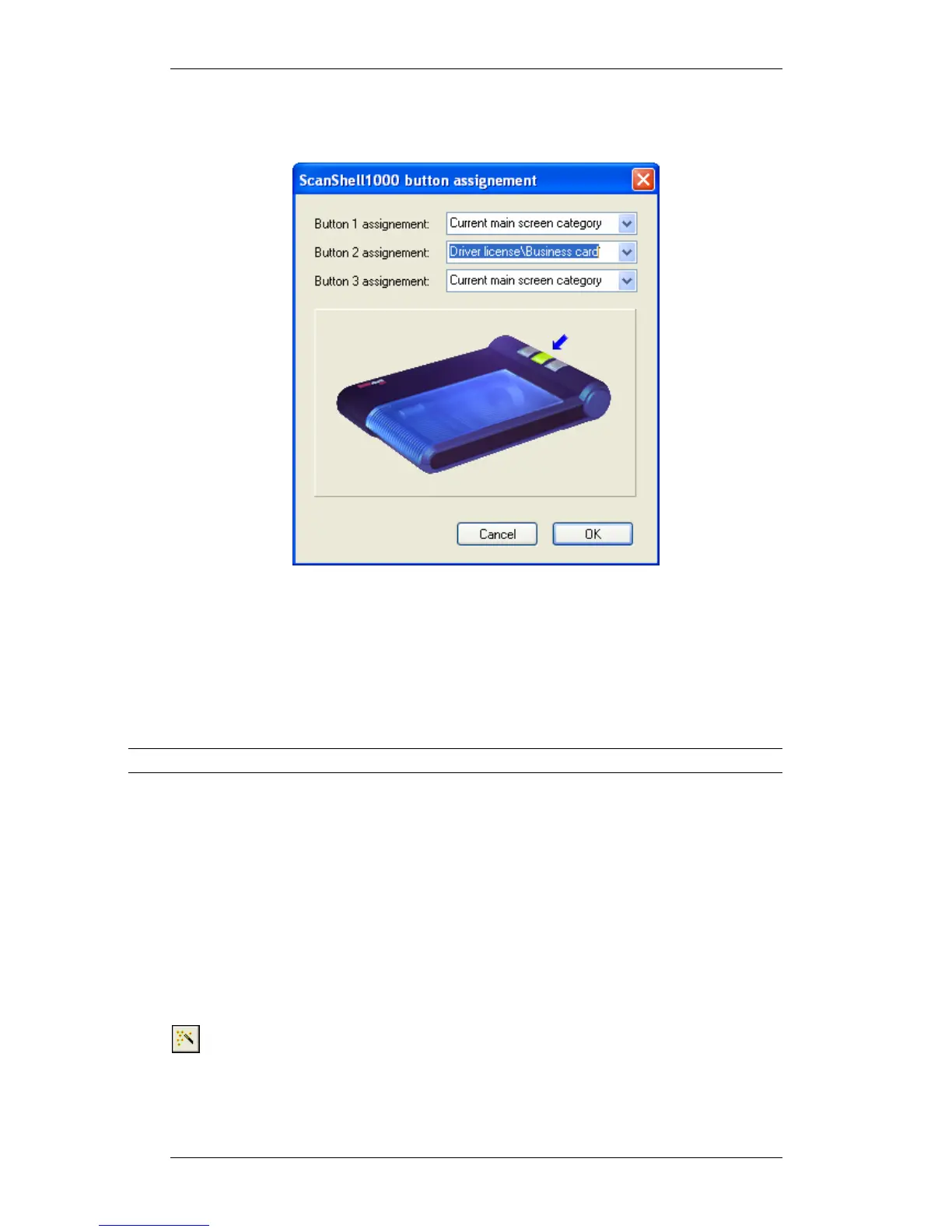
4. The following window will open, allowing you to assign specific document
category to each of the scanner buttons.
Figure 10: Scanshell 1000 button configuration
To configure the Scanshell 1000 buttons:
Select a document type from the dropdown list of the desired scanner button.
Note that an arrow is marking the corresponding button in the picture.
Click OK.
Repeat the selection for the other buttons.
Note: The scanner button assignment option is available only if auto-detection is enabled.
SCANNING DOCUMENTS
Before scanning, you need to set up the scanning configuration. This can be done in
two ways:
1. In the configuration panel, in which you can control all the program settings,
see chapter 7, Configuring the Program, page 55.
2. Most settings can also be set up from within the application main window, as
described below.
AUTO-DETECT
Click on this button to enable scanning using the scanner buttons. If this button
is pressed, scanning will start as soon as you press one of the scanner buttons,
according to your buttons configuration. If auto-detect is not turned on, scanning
starts when you click the
Scan Image button on the screen.


 To Next Page