Scanshell 1000 ID Card VERIFICATION
IdScan User Manual version 9.0
©
Card Scanning Solutions, all rights reserved 33
ID CARD VERIFICATION
Use this option to check if the card you scan is genuine. IdScan
will scan the data on the card using OCR, and then compare it to
data from a second source on the card, either the barcode or the
magnetic strip (if available). If the data from the two sources
match, the card is genuine. Else, the card is either faked, or one of
the data sources on the card is corrupted.
TO VERIFY A CARD:
Select Record -> New Record from the menu bar or click on the New Record
button from tool bar.
4. The New Record Screen will appear.
5. Select a state from the State dropdown list or use the State Detect option (for
OCR). You are advised to select the state manually, because if the state is not
recognized for some reason, you’ll have to repeat the process. You can also
select a state from the quick state selection buttons, if you have predefined
them. (To set a button for the desired state, right-click on the button. Select the
desired state from the list. After you release the mouse button, you’ll notice
that the button name has been changed to the state you selected).
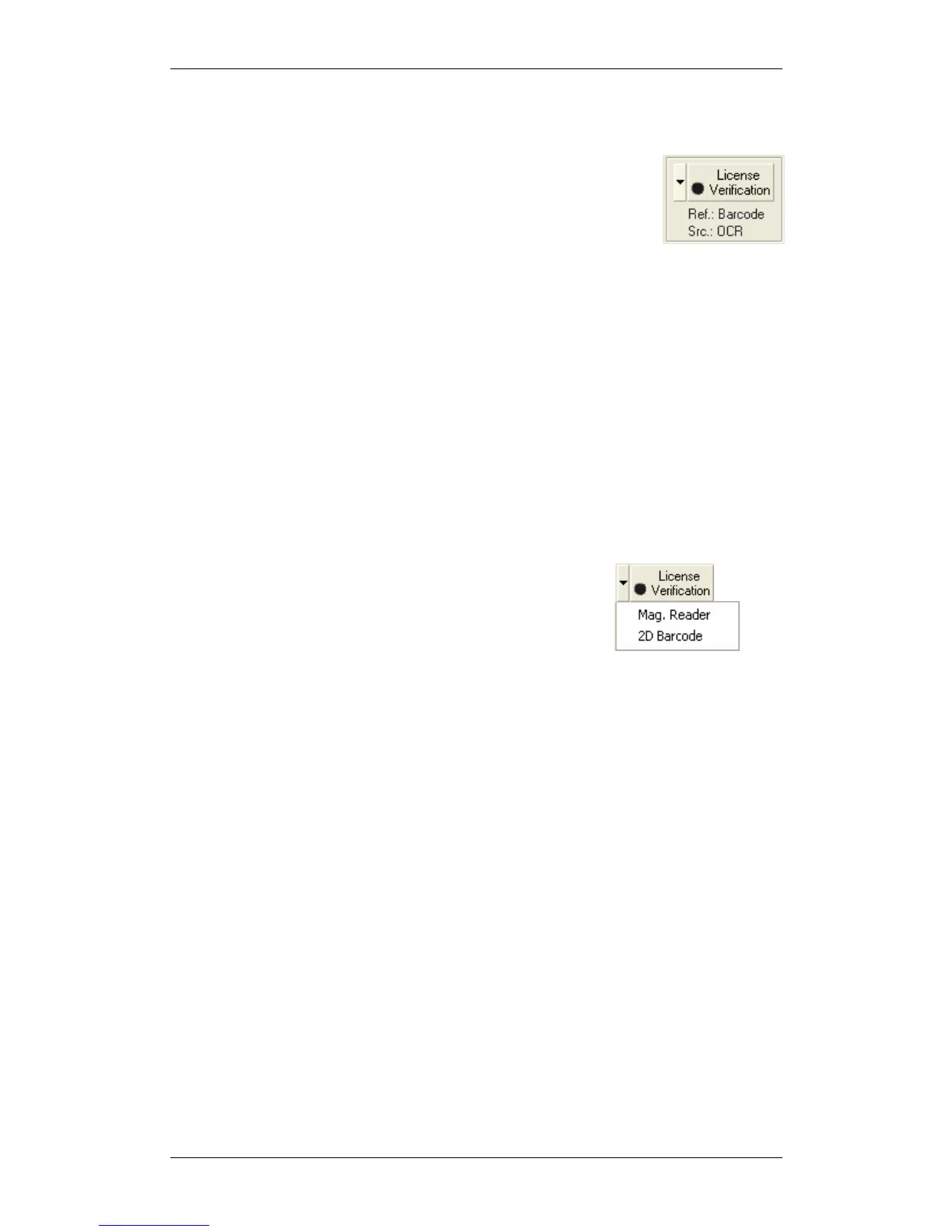
6. Use the popup menu of the card verification button to
select a second card data source, which will be used for
comparison with the OCR results. (Barcode by default.
The magnetic Reader will only be available if a
Magnetic reader is connected to the computer).
7. Click on the Card verification button to start the verification (When the
verification process is active, the icon on the button will flash, if it’s not active
it will be black)
8. Place the ID card in scanner.
9. If you are not using the Auto detect card insertion option: Click on the Scan
button to scan the data source (This scan will be saved to the database if you
will save the record).
10. If you are using the AutoDetect card insertion mode, click on the scanner
button.
11. IdScan will scan the card, and than prompt you to scan the card a second time.
Insert the card again in the scanner/reader and repeat the steps above.
12. If the data from the two sources on the card matched, the icon on the
verification button will be green. If it did not match, the icon will be red,
which means the card is not in order, (either faked, or one of the data sources
on the card is corrupted.
13. Press OK to save the record to database.


 To Next Page