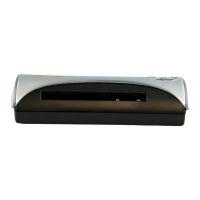
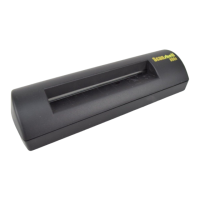
Scanshell 800 N Program Operation
IdScan User Manual version 9.0
©
Card Scanning Solutions, all rights reserved 39
PROGRAM OPERATION
Before scanning, you need to set up the scanning configuration. This can be done in
two ways:
1. In the configuration panel, in which you can control all the program settings,
see chapter 7, Configuring the Program, page 55.
2. Most settings can also be set up from within the application main window.
CARD INSERTION AUTO-DETECT
Click on this button to for automatic detection of card insertion. If this button is
pressed, scanning will start as soon as you insert a card into the scanner. If auto-detect
is not turned on, scanning starts when you click the Scan Image button.
CATEGORY
Select the scanned document type.
ScanShell 800N support the following documents:
• Business cards
• Checks
• Barcodes
SCAN IMAGE
3. Click on the arrow and select the image source: Scanner
or an image file on the hard disk. (The third option Mag.
Strip
is only available if a Magshell magnetic reader is
connected to the computer)
4. if
Auto-detect is not selected, start the scan by pressing the Scan Image
button.
Note: Image file can be selected if a scanner is physically connected to the PC, or if the
license key used is a temporary key.
5. Scanner Connection: A green light indicates that the scanner is
connected to the PC. A red light indicates that no scanner was found. If no
scanner is detected, input of new data is not possible.
OUTPUT OPTIONS
Select the data output option: Save to file or copy to the clipboard,
which allows immediate pasting into another application. Active only if manual save
is selected in the configuration panel, see Saving options, page 58. Selecting Save to
file
opens the Save As dialog after the scan is complete.


 To Next Page