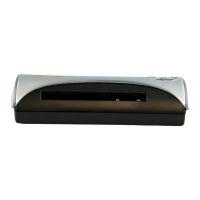
Scanshell 1000 Scanner button assignment
IdScan User Manual version 9.0
©
Card Scanning Solutions, all rights reserved 24
• Open Configuration Dialog: Opens the configuration dialog screen in
which all the application behavior can be set.
• Exit / End of Scan: Used to close the application or to save the current
image (used in automatic save mode only).
• Background Save Progress (Status bar): Shows the
background saving progress (used in automatic save mode only).
• FTP Progress (Status bar): Shows the progress of FTP
Export
• Detected State (Status bar): Displays the detected state
when State Auto Detect is selected.
SCANNER BUTTON ASSIGNMENT
Scanning using Scanshell 1000 can be initiated either by pressing
the Scan Image button, or pressing the scanner buttons, after they
have been configured.
To configure the scanner buttons:
1. Click on the
Configuration button, and select the Automation tab.
2. Select the Paper auto detection box
Figure 9: Scanshell 1000 button assignment
3. Click on the Scanner button assignment button.
Device connection indicator
Red – device is not connected
Green – device is connected


 To Next Page