MagshellID Card VERIFICATION
IdScan User Manual version 9.0
©
Card Scanning Solutions, all rights reserved 54
MagShell 900 Reader Operation
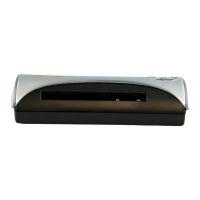
When the reader is in standby and ready to be used, it should have a steady green light
indicator. The reading of a driver license can be done from right to left or left to right
(the reader is bi directional). The magnetic strip should be down and facing the green
light.
When the reading is successful the light will turn off for a second and one beep will
sound. If the reading is unsuccessful the light will dim and several beeps will sound.
The Magnetic Reading tab offers options for controlling the way the text file is saved
as follows:
MANUAL SAVE
In this mode the user saves the text file manually. The data is formatted into a single
record and saved either to a text file or to the clipboard. In this mode the destination
(file or clipboard) can also be selected from the main screen.
AUTO SAVE
In this mode the text is saved automatically to a file after each scan. Once the card is
scanned, the data fields are formed into a single record and saved to a text file under
one of three names:
Save to ascending file name: A numerator is added to a basic file name (pre-defined
by the user), forming the file name.
Save to a fixed file name: The same file name is used for all the cards. If Append
Record is selected, the records are accumulated in the file. If it is not checked, each
scan overwrites the previous record.
Save to file name using extracted data from ID: The client name\id are used to define
the file name.
SAVE IMMEDIATELY AFTER SWIPE
When this is checked, the application will save the data immediately after the swipe
operation. If ‘Manual Saving’ and ‘Save to File’ are selected, the Save As dialog will
appear immediately after a swipe.
If the check box is unchecked, the saving procedure will take place at the next swipe
job, giving the user the ability to modify the text before it is saved to the file. If
‘Manual Saving’ is selected, the Save as dialog will be invoked in the next swipe.


 To Next Page