EZ-USB Development Kit User Guide, Doc. # 001-66390 Rev. *D 49
Cypress USB Drivers for EZ-USB Kits
5.Observe the Bulkloop.hex file getting downloaded successfully to the EZ-USB RAM memory. After
firmware download, click the Stop recording button and save the .spt file generated in the local
directory of choice.
6.Select the Load script button and choose the xxx.spt file generated in step 5.
7.Click on Play script. The entire firmware gets downloaded and the EZ-USB FX1/FX2LP re-enu-
merates with VID/PID -0x04B4/0x1004 defined in the firmware.
8.Open the device manager by clicking on Windows Start > Run. Type devmgmt.msc in the Run
box. If cyusbfx1_fx2lp.inf was binded to EZ-USB FX1/FX2LP earlier, as mentioned in Binding
Cypress USB Driver to EZ-USB Development Board on page 45, then the EZ-USB device enumer-
ates as Cypress EZ-USB Example Device(3.4.5.000).
6.3.1.3 Script Generation and Play using CyControlCenter
Open this tool located at C:\Cypress\Cypress Suite USB 3.4.7\CyUSB.NET\exam-
ples\Control Center\bin\Release after installing the EZ-USB kit contents. Click on
C:\Cypress\Cypress Suite USB 3.4.7\CyConsole. Alternately, the tool can be accessed at
Windows Start > All Programs > Cypress >Cypress Suite USB 3.4.7 > CyConsole. Follow these
steps to generate and play the script.
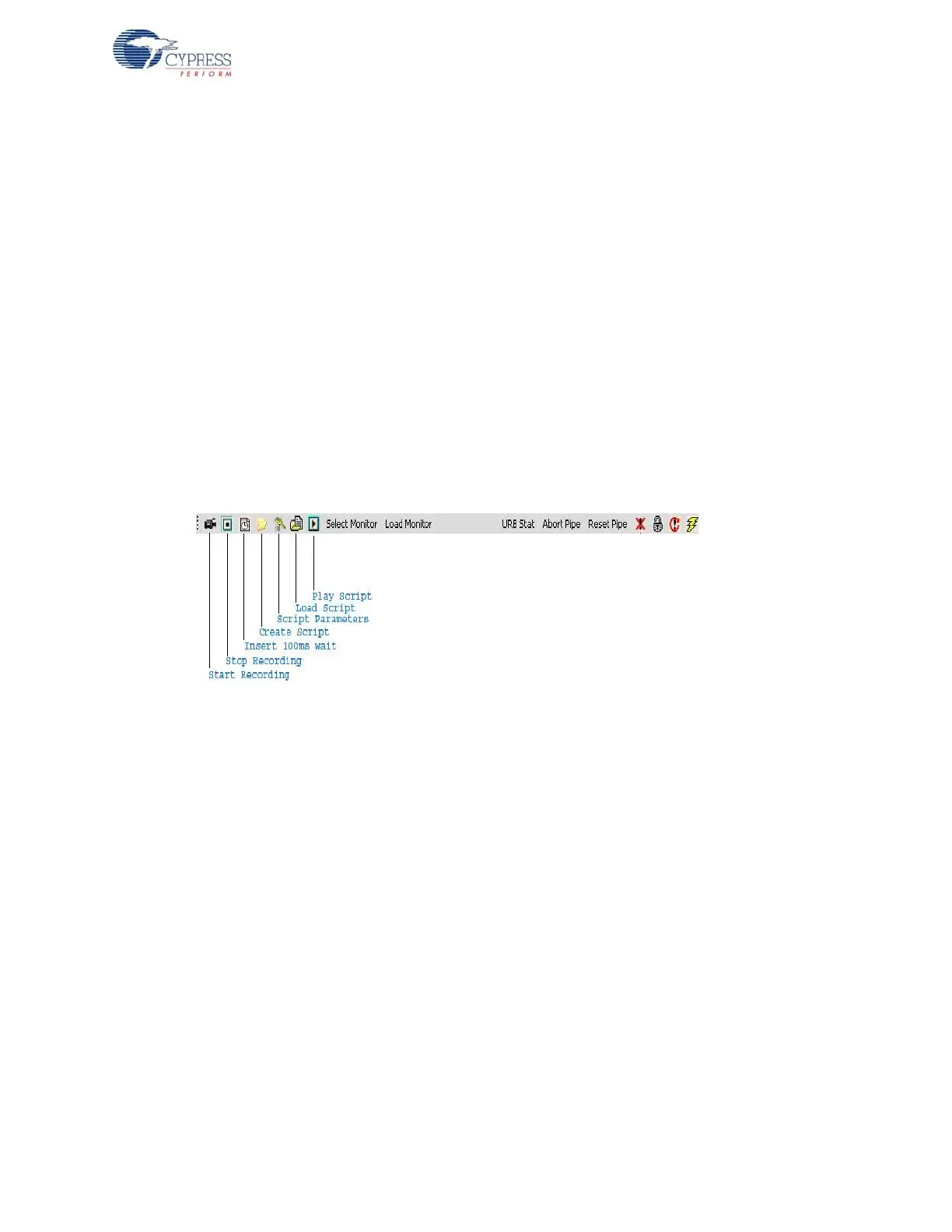
Figure 6-6. CyControlCenter Script Button Options
1. Connect a USB A-to-B cable between the Windows PC USB Host port and the EZ-USB FX1/
FX2LP board J1 connector. The board should have SW2 switched to the side, marked as NO
EEPROM.
2. The EZ-USB FX1/FX2LP enumerates with the default Fuse ROM VID/PID.
3. Click the Create Script button and select Bulkloop.hex at <Installed_directory>\<Ver-
sion>\Firmware\Bulkloop. Save the file as Bulkloop.spt to any local directory of choice.
4. Select the Load script button and choose the Bulkloop.spt file generated in step 3.
5. Click on Play script. The entire firmware gets downloaded and the EZ-USB FX1/FX2LP re-enu-
merates with VID/PID -0x04B4/0x1004 defined in the firmware.
6. Open the device manager by clicking on Windows Start > Run. Type devmgmt.msc in the Run
box. In the Windows Vista and 7 OS platforms, type devmgmt.msc directly in the vacant box
near Start button. If cyusbfx1_fx2lp.inf was binded to EZ-USB FX1/FX2LP previously as men-
tioned in section Binding Cypress USB Driver to EZ-USB Development Board chapter on
page 45 then EZ-USB device enumerates as Cypress EZ-USB Example Device(3.4.5.000).
6.3.2 Firmware Download using CyLoad Driver Package
In the previous section, the procedure to generate the script files and play the scripts were
described.The entire process of script-based firmware download can be automated using .INF files.
The CyLoad driver package contains several files to assist the user in auto-download of the firmware
using the script file. Following are the files for CyLoad driver package.


 To Next Page