EZ-USB Development Kit User Guide, Doc. # 001-66390 Rev. *D 45
Cypress USB Drivers for EZ-USB Kits
6.2.1 Binding Cypress USB Driver to EZ-USB Development Board
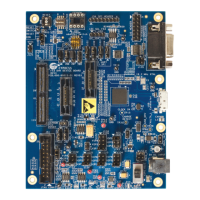
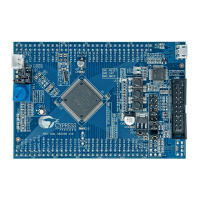
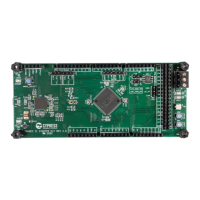
The EZ-USB (FX1/FX2LP) development board supplied with the kit is used to bind the signed
Cypress USB driver. Following are the steps to bind the driver:
1. Disconnect the USB A-to-B cable between the J1 connector and the PC USB Host port, if con-
nected previously.
2. Verify the following default jumper settings for the EZ-USB FX1 and FX2LP boards.
FX1: Short on JP1, JP2, JP3, JP5, JP6, JP7, JP8, and JP10.
FX2LP: Short on JP1, JP2, JP3, JP5, JP8, and JP10. Open JP6 and JP7.
The functionality of each of these jumpers is explained in Chapter 3.
3. Verify if SW2 is switched to the side, marked as NO EEPROM.
4. Re-connect the USB A-to-B cable between the J1 connector and the PC USB Host port.
5. The EZ-USB FX1 (0x04B4/0x6473) and FX2LP (0x04B4/8613) boards enumerate with the
default Fuse ROM VID/PID.
6. The Windows hardware wizard window pops up allowing you to update the corresponding driver
path, as shown in Figure 6-4.
Table 6-1. List of VID/PID used in EZ-USB Kits
S.No VID/PID Functional Description
1 0x04B4/0x8613
EZ-USB FX2LP Fuse ROM VID/PID.This is the initial VID/PID when
the board is powered, with the SW2-NO EEPROM setting as the
default combination
MOBL-USB FX2LP18 Connect Mode. Uses LP18_dvk.iic as the
default image in EEPROM to enable the DPTR register and enumer-
ate with this VID/PID
2 0x04B4/0x6473 EZ-USB FX1 Fuse ROM VID/PID
3 0x04B4/0x1004
Firmware examples in the EZ-USB kits use this combination except
for the hid_kb example, which uses 0x04B4/1005.This example
requires the Windows HID-Class driver and does not require a
Cypress USB driver
4 0x04B4/0x1003
This is used by the Cystream firmware example available in Suit-
eUSB 3.4.7 supplied along with this kit. Download CYStream.hex
from C:\Cypress\Cypress Suite USB 3.4.7\Firm-
ware\CyStreamer using Cyconsole or CyControlCenter utility
and test it using Streamer applications available in SuiteUSB.The
procedure to download a firmware .hex file is explained in Chapter-7
of this document.


 To Next Page